Mawu Oyamba
This manual provides detailed instructions for the installation, operation, and maintenance of your Imagebon 11.3-inch QLED Android Car Navigation System. Please read this manual thoroughly before using the product to ensure proper function and safety. Keep this manual for future reference.
Zofunika Kwambiri
- High-Performance 8-Core Android System: Equipped with an 8-core Android processor, 4GB RAM, and 64GB storage for smooth operation and ample space for apps and media.
- Kugwirizana kwa Google Play: Download and use your favorite apps directly from Google Play. Pre-installed with popular apps like YouTube and Netflix.
- Multitasking with Split-Screen: Simultaneously display navigation and entertainment apps for enhanced convenience while driving.
- Dual-Band Wi-Fi & Bluetooth: Supports 2.4GHz/5GHz Wi-Fi for stable streaming and Bluetooth for seamless smartphone connectivity and hands-free calling.
- Kamera Yosungira ya 1080P: Includes a high-definition backup camera with adjustable guidelines for safe and easy parking.
- 11.3-inch IN-CELL QLED Display: Features a large, vibrant QLED screen for clear visuals and responsive touch control.
- Flexible Navigation Options: Supports CarPlay, Android Auto, and direct installation of navigation apps like Google Maps or Waze, with online and offline map capabilities.
- Kuwongolera Mawu: Operate navigation, music, and phone calls hands-free for increased safety and convenience.
- Over-The-Air (OTA) Updates: Easily update software and apps wirelessly to ensure you always have the latest features and improvements.
Khazikitsa
Zamkatimu Phukusi
Musanayambe kukhazikitsa, onetsetsani kuti zipangizo zonse zilipo:
- Imagebon 11.3-inch QLED Android Car Navigation System
- 10m Kumbuyo Kamera
- Chithunzi cha AUX
- GPS Antenna
- Zomatira Phiri
- Car Charger (Cigarette Lighter Adapter)
- Buku Logwiritsa Ntchito

Image: All components included with the Imagebon car navigation system, including the main unit, rear camera, cables, and mounts.
Kuyika Masitepe
- Kukhazikitsa Unit: Securely attach the main unit to your dashboard using the provided adhesive mount. Ensure the unit is positioned to not obstruct your view kapena kusokoneza kayendetsedwe ka magalimoto.
- Kulumikiza Mphamvu: Connect the car charger to your vehicle's cigarette lighter socket and the Type-C port on the navigation unit.
- GPS Antenna Connection: Connect the GPS antenna to the designated port on the unit and place it in a location with a clear view za mlengalenga kuti mulandire chizindikiro bwino.
- Rear Camera Installation (Optional): If using the backup camera, install it at the rear of your vehicle and route the cable to the main unit. Connect the camera cable to the AV-IN port.
- Kutulutsa kwamawu: For audio output, you can use the built-in speaker, FM transmission, AUX cable connection, or Bluetooth connection to your car's audio system.
Malangizo Ogwiritsira Ntchito
Initial Power On and System Overview
Upon first power-on, the system will boot into the Android interface. You can customize the home screen, access apps, and adjust settings.
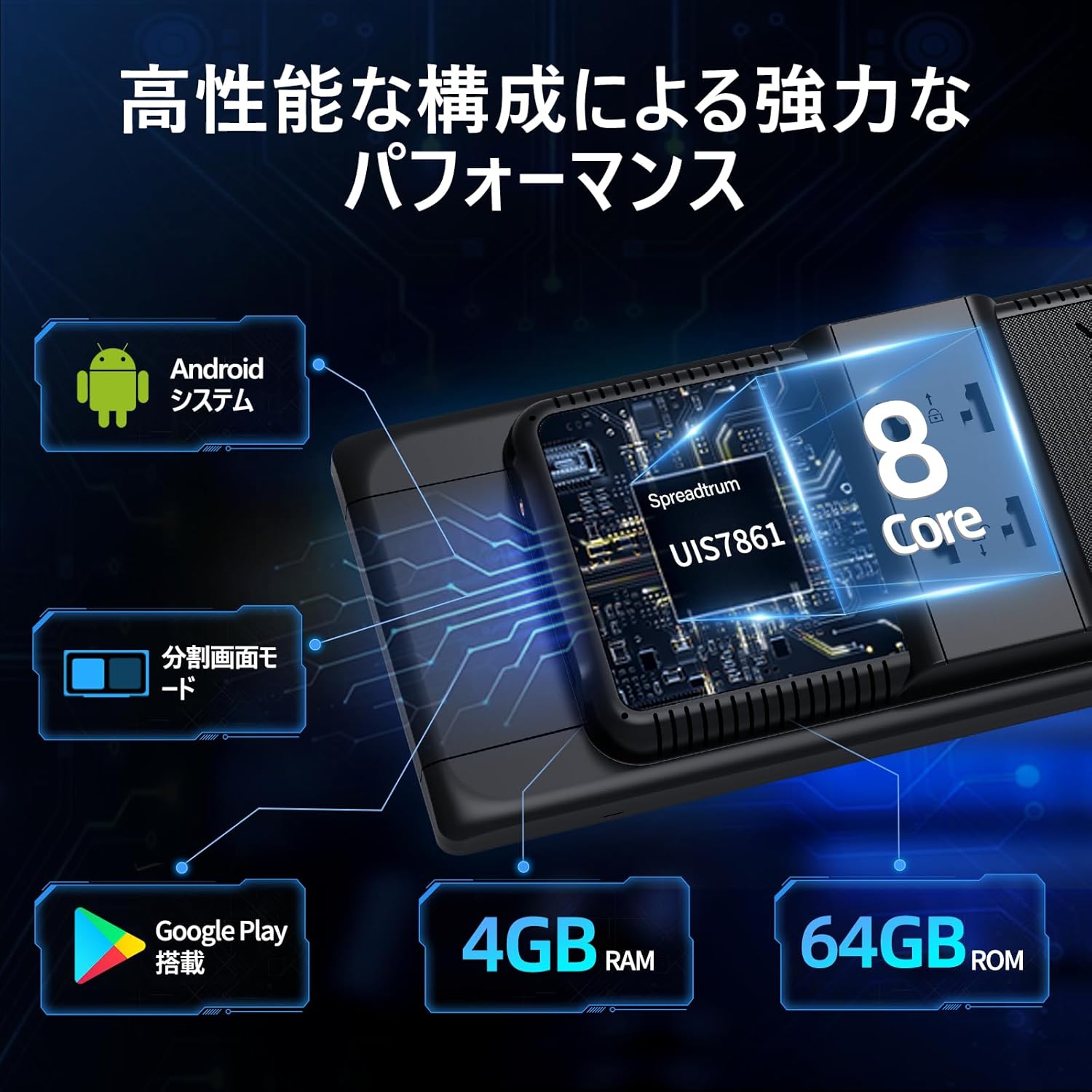
Image: The main interface of the Imagebon car navigation system, showing various app icons and the time display.
Kulumikizana (Wi-Fi & Bluetooth)
The unit supports dual-band Wi-Fi (2.4GHz/5GHz) and Bluetooth for seamless connectivity.
- Kulumikiza kwa Wi-Fi: Go to Settings > Network & Internet > Wi-Fi. Select your desired network and enter the password.
- Kuphatikiza kwa Bluetooth: Go to Settings > Connected devices > Bluetooth. Turn on Bluetooth and search for available devices. Select your smartphone to pair.

Image: The Imagebon car navigation system demonstrating dual-band Wi-Fi and Bluetooth connectivity, showing a phone call and navigation simultaneously.
Google Play and App Installation
Access the Google Play Store to download and install additional applications.
- Ensure the unit is connected to Wi-Fi.
- Tap the "Google Play Store" icon on the home screen.
- Lowani ndi akaunti yanu ya Google.
- Browse or search for apps and tap "Install" to download.
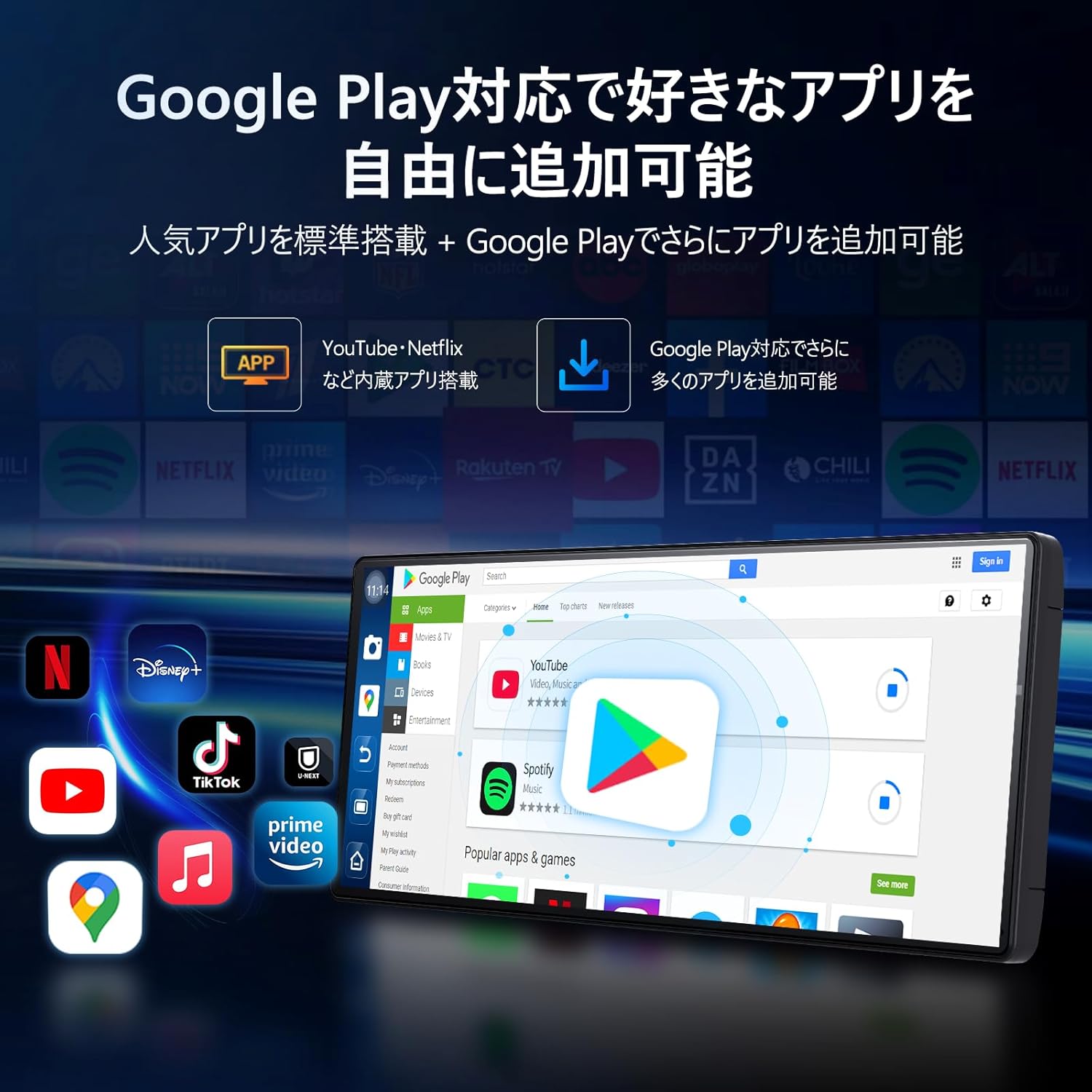
Image: The Imagebon car navigation system displaying the Google Play Store interface, showing various apps available for download.
Navigation (CarPlay / Android Auto / Built-in GPS)
The system offers multiple navigation options.
- CarPlay: Connect your iPhone via Bluetooth. A prompt will appear on your phone to allow CarPlay. Follow the on-screen instructions.
- Android Auto: Connect your Android phone via Bluetooth. A pairing request will appear. Confirm pairing and wait for the screen to cast.
- GPS yomangidwa: Use pre-installed navigation apps or download your preferred ones from Google Play. The system supports both online and offline maps.

Image: The Imagebon car navigation system showing both Google Maps interface and a smartphone connected via CarPlay/Android Auto for navigation.
Split-Screen Functionality
To use split-screen mode:
- Open the first application you wish to use.
- Tap the split-screen button (usually represented by two rectangles) or swipe up to view mapulogalamu aposachedwa.
- Drag the second application to the other half of the screen.
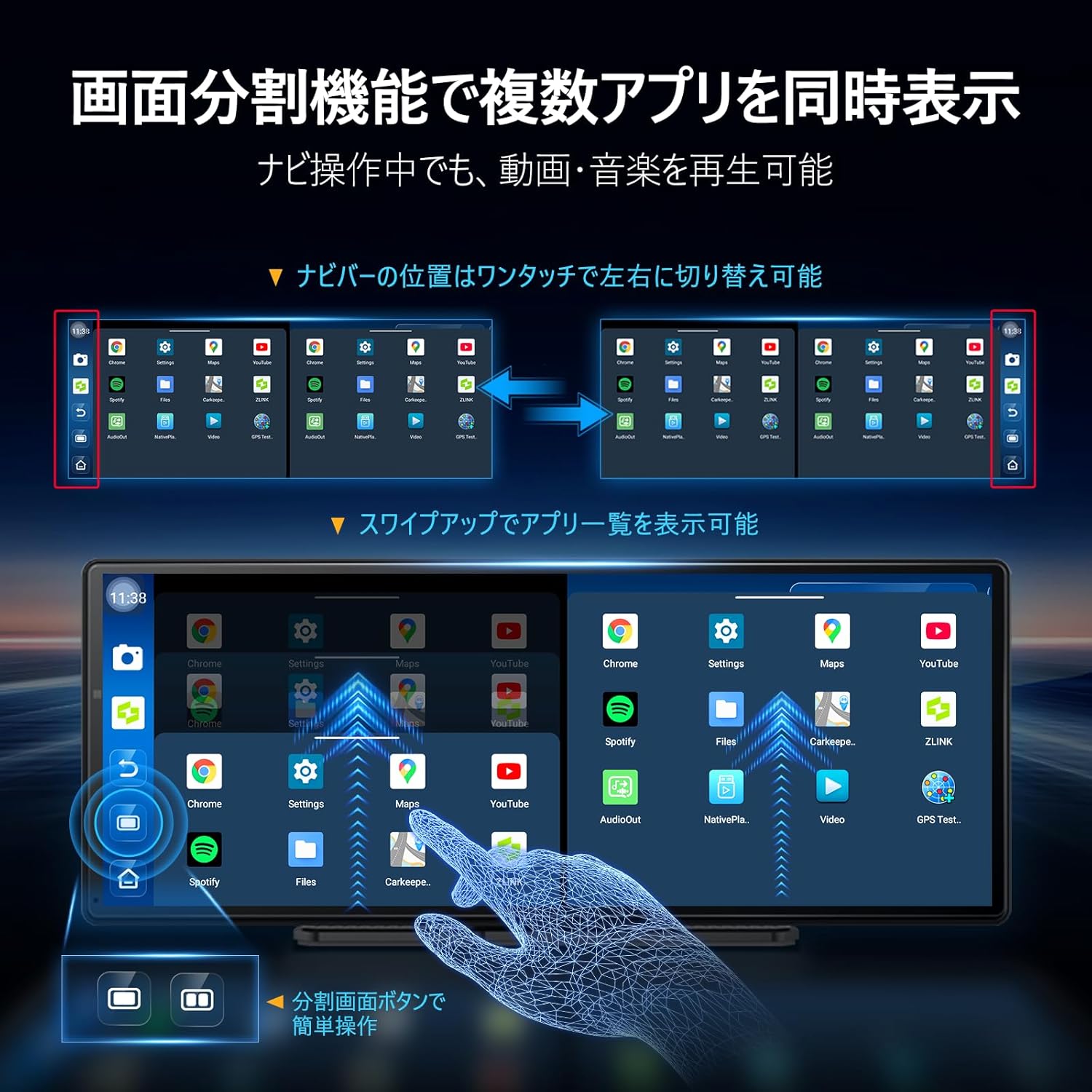
Image: The Imagebon car navigation system demonstrating split-screen functionality, showing two applications running side-by-side.
Kuwongolera Mawu
Activate voice control by saying "Hey Siri" (for CarPlay) or "OK Google" (for Android Auto/Android system) or by tapping the microphone icon. You can issue commands such as:
- "Navigate to [destination]"
- "Play [song/artist]"
- "Call [contact name]"
- "Increase/Decrease volume"
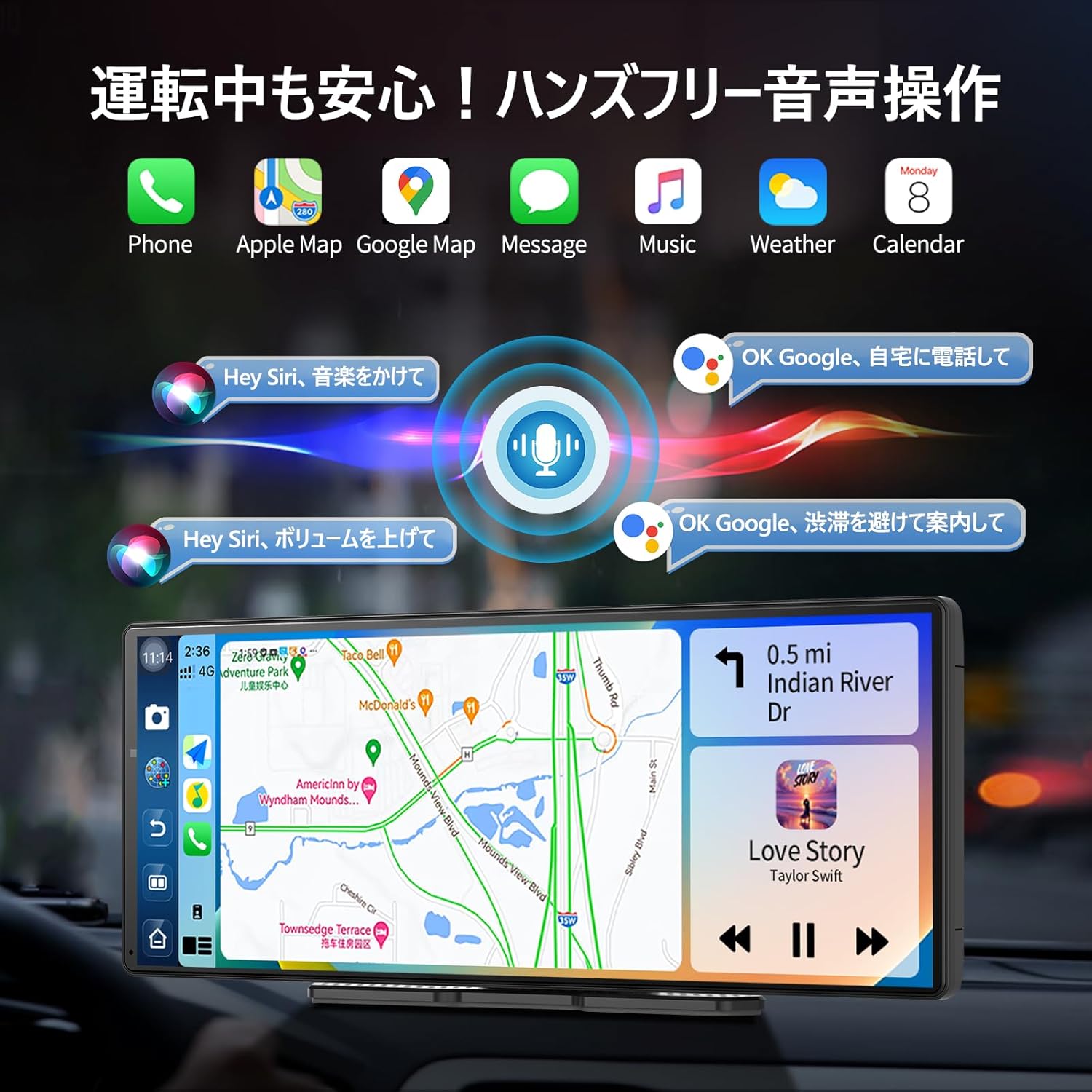
Image: The Imagebon car navigation system illustrating voice control commands for navigation, music, and calls, with a visual representation of sound waves.
Kumbuyo kwa Kamera Yogwira Ntchito
When the vehicle is shifted into reverse, the display will automatically switch to the rear camera view. Adjustable guidelines assist with parking.

Image: The Imagebon car navigation system displaying the 1080P rear camera view with adjustable parking guidelines, showing a car reversing into a parking spot.
Zosintha za OTA
The system supports Over-The-Air (OTA) updates to keep your software and maps current.
- Ensure the unit is connected to Wi-Fi.
- Go to "App List" > "Settings".
- Select "Updater" from the "Device Information" menu.
- Follow the on-screen prompts to download and install updates. The unit will restart automatically after the update is complete.
Kusamalira
- Kuyeretsa: Gwiritsani ntchito nsalu yofewa, youma kuyeretsa chophimba ndi kunja. Pewani zotsukira abrasive kapena solvents.
- Zosintha pa Mapulogalamu: Regularly check for and install OTA updates to ensure optimal performance and access to new features.
- Kutentha: Pewani kuyatsa chipangizocho kumalo otentha kwambiri.
- Kuwongolera Ma Chingwe: Ensure all cables are securely connected and not interfering with vehicle operation.
Kusaka zolakwika
| Vuto | Chifukwa Chotheka | Yankho |
|---|---|---|
| Chigawo sichimayatsa | Power cable not connected or faulty; vehicle's power outlet issue. | Check power cable connection. Ensure vehicle's cigarette lighter socket is functional. |
| Palibe chizindikiro cha GPS | Antena ya GPS sinalumikizidwe bwino kapena yotsekedwa view wa kumwamba. | Ensure GPS antenna is securely connected and placed in an unobstructed location. |
| Mavuto okhudzana ndi Wi-Fi/Bluetooth | Incorrect password; device out of range; interference. | Verify password. Ensure devices are within range. Restart unit and connecting device. |
| Kamera yosungira sikuwonetsedwa | Camera cable loose or faulty; vehicle not in reverse. | Check camera cable connection. Ensure vehicle is in reverse gear. |
| Chojambula chokhudza sichikuyankha | Kuwonongeka kwakanthawi kwamapulogalamu. | Restart the unit. If problem persists, perform a factory reset (data will be lost). |
Zofotokozera
| Mbali | Tsatanetsatane |
|---|---|
| Kukula kwa Screen | 11.3 mu |
| Mtundu Wowonetsera | Mtengo wa QLED |
| Purosesa | 8-Core Android |
| Ram | 4 GB |
| Kusungirako | 64 GB |
| Kulumikizana | Bluetooth, USB, Wi-Fi (2.4GHz/5GHz) |
| Njira Yowongolera | Touch, Voice |
| Zapadera | Android Auto, Apple CarPlay, Built-in Bluetooth, Hands-free calling, 1080P Backup Camera |
| Njira Zotulutsa Audio | Sitiriyo |
| Kulemera kwa chinthu | 0.95kg pa |
| Makulidwe (Phukusi) | 31.1 x 14.7 x 11.2 masentimita |
| Nambala ya Model | W60N-JP |
Chitsimikizo ndi Thandizo
This product comes with a standard manufacturer's warranty. For specific warranty details, please refer to the warranty card included in your package or contact Imagebon customer support.
For technical support, troubleshooting assistance, or any questions regarding your Imagebon car navigation system, please contact our customer service team. Contact information can be found on our official webtsamba kapena pakupanga kwazinthu.
Mavidiyo Amalonda
Zathaview
Kanema: General overview of the Imagebon 11.3-inch QLED Android Car Navigation System, highlighting its main features and design. (Duration: 1:15)
Split-Screen Demonstration
Video: A demonstration of the split-screen functionality, showing how to run two applications simultaneously on the display. (Duration: 0:44)
CarPlay and Android Auto Connectivity
Video: This video illustrates the process of connecting and using Apple CarPlay and Android Auto with the navigation system. (Duration: 2:07)
Zowongolera Mawu
Video: A short demonstration of the voice control capabilities, showing how to issue commands for navigation and media playback. (Duration: 0:23)
Kugwira Ntchito kwa Kamera Yosunga Zosunga Zobwezeretsera
Video: This video showcases the 1080P backup camera in action, including the adjustable guidelines for safe parking. (Duration: 2:00)


