Mawu Oyamba
This manual provides comprehensive instructions for the setup, operation, and maintenance of your ENHANCE Infiltrate 3 Laptop Cooling Pad. This device is engineered to optimize laptop performance by effectively reducing heat and offering an ergonomic viewing and typing angle. Please read this manual thoroughly before use to ensure proper functionality and longevity of your cooling pad.
Zamkatimu Phukusi
- ENHANCE Infiltrate 3 Laptop Cooling Pad
- USB-A to USB-A Braided Cable
Zogulitsa Zamankhwala

Pamwamba view of the cooling pad, highlighting its overall design and fan placement.
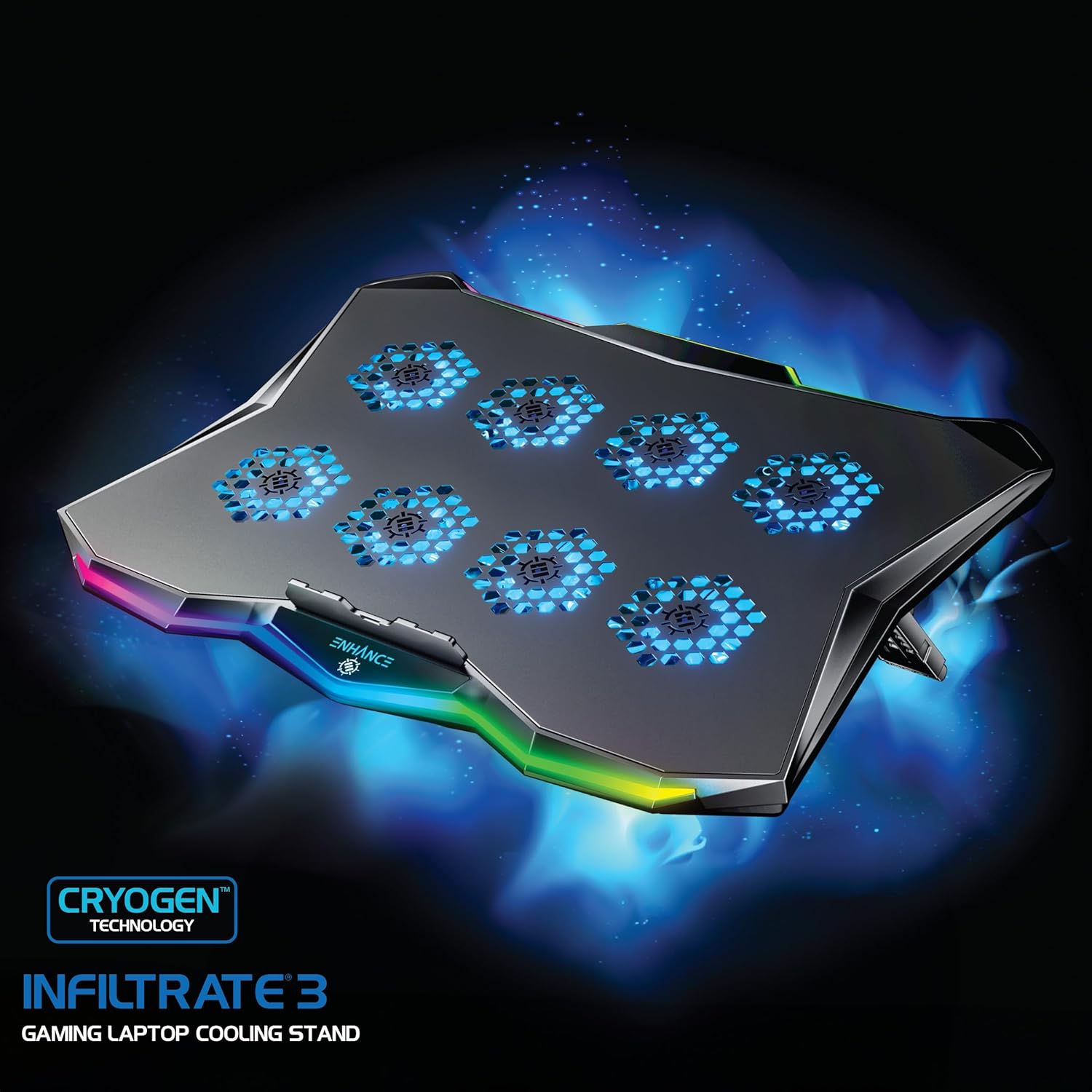
Tsatanetsatane view of the cooling pad's fans and RGB lighting effects.
- Dongosolo Lozizira Loyenera: Equipped with 8 quiet fans (under 26dB), the Infiltrate 3 delivers 79 CFM of targeted airflow to effectively dissipate heat from your laptop. This prevents thermal throttling and helps maintain optimal performance during intensive tasks.
- Kuwunikira kwa RGB Mwamakonda: Features 10 distinct RGB LED lighting effects. Adjust the lighting to match your personal preference or gaming setup using the integrated controls.
- Mapangidwe a Ergonomic: Offers 7 adjustable height settings, ranging from 9° to 23°, to improve posture and reduce neck and wrist strain during extended use. The slim 1.02" profile allows for convenient portability.

Illustration of ergonomic benefits when using the adjustable stand.
- Integrated Dual USB Hub: The cooling pad is powered via a single USB connection and provides an additional USB port for connecting peripherals such as a gaming mouse or for data transfer.
- Zomangamanga Zolimba: Features a premium hexagon metal cooling plate for efficient heat dispersion. A secure slide-lock bracket system and rubber grips accommodate laptops from 13 to 17.3 inches, ensuring stability.
Malangizo Okhazikitsira
- Chotsani: Carefully remove the ENHANCE Infiltrate 3 Cooling Pad from its packaging.
- Udindo: Ikani choziziritsira pamalo okhazikika komanso athyathyathya.
- Sinthani Kutalika: Locate the adjustable stand on the underside of the cooling pad. Extend the stand to your desired ergonomic height. There are 7 positions available, ranging from 9° to 23°.

Adjustable stand on the underside of the cooling pad.
- Lumikizani Mphamvu: Connect the included braided USB-A cable from the cooling pad's USB input port to an available USB port on your laptop or a compatible USB power adapter. The fans and RGB lighting will activate upon connection.
- Laputopu ya Malo: Carefully place your laptop onto the cooling pad. Ensure it is securely positioned within the slide-lock bracket and rubber grips to prevent slipping.
Malangizo Ogwiritsira Ntchito
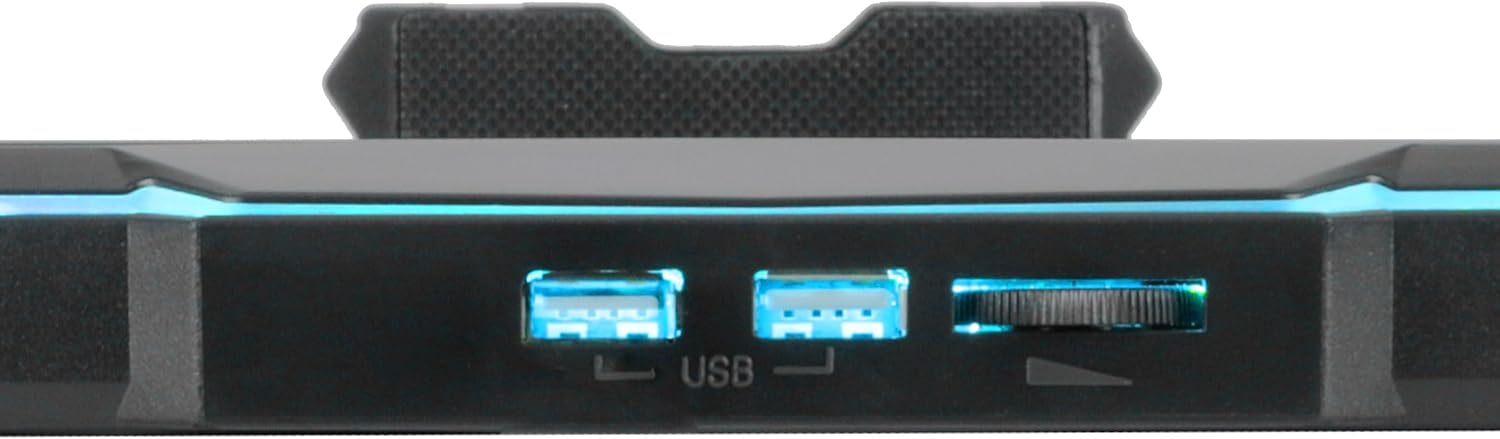
USB ports and fan speed control dial.
- Kuthamanga kwa Mafani: Use the fan speed dial, located on the side of the cooling pad, to adjust the fan intensity. Turn the dial clockwise to increase fan speed and counter-clockwise to decrease speed. Turning the dial fully counter-clockwise will turn the fans off.
- Kuwongolera Kuwala kwa RGB: Press the RGB lighting button (often integrated with the ENHANCE logo or a dedicated button) to cycle through the 10 available lighting effects. Press and hold the button to turn the RGB lighting off or on.
Kusamalira
- Kuyeretsa: Regularly clean the cooling pad's surface and fan grilles with a soft, dry cloth to prevent dust buildup. Accumulation of dust can impede airflow and reduce cooling efficiency. Do not use liquid cleaners directly on the device.
- Posungira: When not in use, store the cooling pad in a cool, dry place. Ensure the adjustable stand is folded flat for compact storage and to prevent damage.
Kusaka zolakwika
If you encounter any issues with your ENHANCE Infiltrate 3 Laptop Cooling Pad, please refer to the following common solutions:
- Fans Not Spinning or Lights Not On:
- Ensure the USB cable is securely connected to both the cooling pad and a powered USB port on your laptop or a compatible USB power adapter.
- Try connecting the cooling pad to a different USB port or power source to rule out a faulty port.
- Verify that the fan speed dial is not set to the minimum (off) position.
- Kuzizira kosakwanira:
- Confirm that the fan speed is set to an appropriate level using the control dial.
- Ensure there are no obstructions blocking the fan grilles on the cooling pad or the ventilation vents on your laptop.
- Clean any dust buildup on the cooling pad and laptop vents as described in the Maintenance section.
- RGB Lights Not Changing Effects:
- Press the RGB control button repeatedly to cycle through all available lighting effects.
- Ensure the cooling pad is receiving adequate power.
Zofotokozera
| Chitsanzo | ENINC83100BKEW |
| Makulidwe (L x W x H) | 15.8" x 11.8" x 1" (40.13 cm x 29.97 cm x 2.54 cm) |
| Kulemera | 2.2 lbs (1kg) |
| Kuchuluka kwa Fan | 8 |
| Mayendedwe ampweya | 79 CFM |
| Mlingo wa Phokoso | Pansi pa 26dB |
| Ma angles osinthika | 7 malo (9 ° mpaka 23 °) |
| Madoko a USB | 2 (zolowera m'modzi, zolowera m'modzi) |
| Zakuthupi | Acrylonitrile Butadiene Styrene (ABS), Metal Cooling Plate |
| Kugwirizana | Malaputopu 13-17.3 mainchesi |
Official Product Video
Official product video for the ENHANCE Infiltrate 3 Laptop Cooling Stand, demonstrating its features and usage.
Chitsimikizo ndi Thandizo
For detailed warranty information, technical assistance, or customer support, please visit the official ENHANCE website or contact their customer service department directly. It is recommended to retain your proof of purchase for any warranty claims.


