1. Mawu Oyamba
This manual provides detailed instructions for the operation and maintenance of your HIFI WALKER H2 Touch 64GB Hi Res MP3 Player. Please read this manual thoroughly before using the device to ensure proper functionality and to maximize your audio experience.
2. Zinthu Zogulitsa
- Hi-Res Lossless Audio Performance: Equipped with an ESS9219Q DAC chip, supporting FLAC, APE, WAV, ALAC, AIFF, and native DSD64/128 up to 32-bit/384 kHz.
- Bluetooth 5.2: Bi-directional (TX/RX) with aptX-HD and LDAC support for high-fidelity wireless audio.
- Dual Control Interface: 2.4-inch full-touch 480x360 display combined with six physical buttons for intuitive navigation.
- Premium Build & Outputs: CNC-machined aluminum alloy body with 3.5 mm headphone out and line-out ports.
- Kulumikizana Kosiyanasiyana: Functions as a USB DAC, offers SPDIF output via Type-C port.
- Zosungirako Zowonjezera: Includes a pre-inserted 64 GB micro SD card, expandable up to 512 GB via micro SD or USB OTG.
- Kujambula Kwambiri: Digital stereo MIC for 48 kHz high-fidelity recording.
- Moyo Wa Battery Wautali: 1500 mAh lithium battery provides up to 10 hours of playback.
- Ntchito Zowonjezera: E-book reading, background music playback, multiple EQ presets.
3. Zomwe zili mu Bokosi
- HIFI WALKER H2 Touch MP3 Player
- Chingwe chojambulira
- 64GB Micro SD Card (pre-inserted)
- Buku Logwiritsa Ntchito
4. Zamalonda Zathaview
4.1 Kamangidwe Chipangizo
The HIFI WALKER H2 Touch features a compact design with a 2.4-inch display and strategically placed physical controls.
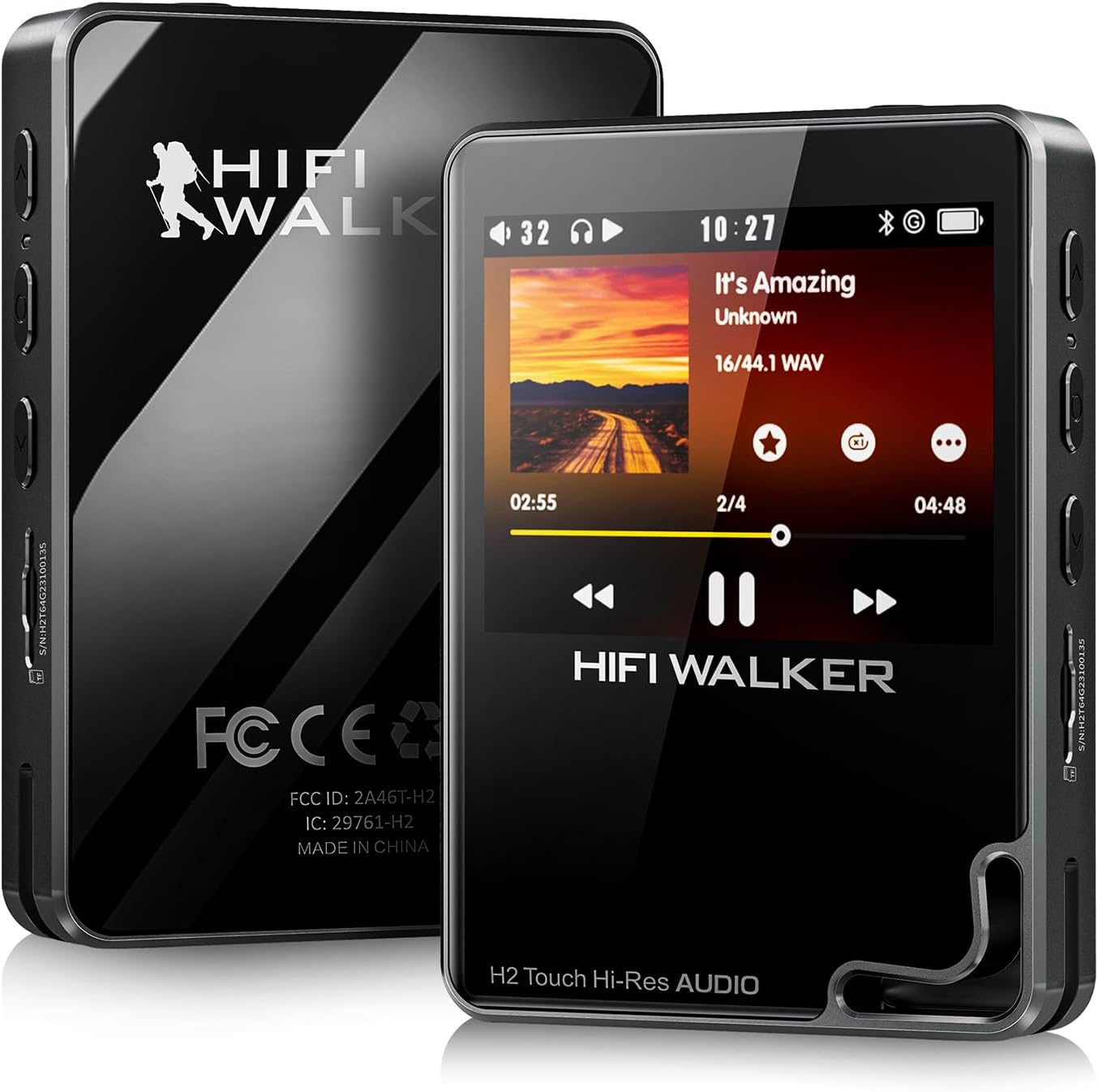
Chithunzi 1: Kutsogolo ndi kumbuyo view of the HIFI WALKER H2 Touch MP3 Player.
4.2 Physical Buttons and Ports
The device combines a touch screen with tactile buttons for ease of use.

Figure 2: Close-up of the H2 Touch screen and physical control buttons.
- Batani Lamphamvu: Located on the top edge. Press and hold to power on/off.
- Mabatani a Voliyumu: Located on the side, marked '+' and '-'.
- Slot ya Micro SD Card: Located on the side, for memory expansion.
- 3.5mm Headphone Out: Standard audio output port.
- Line-Out Port: Kulumikiza ku zakunja amplifiers or car audio systems.
- Khomo la USB Type-C: For charging, data transfer, and USB DAC/SPDIF output.
- Mabatani Oyenda: Play/Pause, Previous/Rewind, Next/Fast-forward, Back, and Menu buttons are located on the front panel.

Chithunzi 3: Tsatanetsatane view of the device's ports.
5. Kukhazikitsa
5.1 Malipiro Oyamba
Before first use, fully charge the device using the provided USB Type-C cable connected to a computer or a compatible USB power adapter. A full charge typically takes about 3 hours.
5.2 Inserting/Expanding Storage
Your device comes with a 64GB micro SD card pre-inserted. To expand storage, power off the device, gently insert a micro SD card (up to 512GB) into the designated slot until it clicks. The device also supports USB OTG for additional storage.
5.3 Kusamutsa Nyimbo
Connect the H2 Touch to your computer using the USB Type-C cable. The device will appear as a removable drive. Simply drag and drop your music files into the device's storage or the inserted micro SD card. The player supports various formats including FLAC, APE, WAV, ALAC, AIFF, DSD64/128, and MP3.
Video 1: Demonstrates connecting the H2 Touch to a computer and transferring music files.
6. Malangizo Ogwiritsira Ntchito
6.1 Kuyatsa/Kuzimitsa
Press and hold the Power button on the top edge for a few seconds to turn the device on or off.
6.2 Basic Navigation
Navigate the menu using the 2.4-inch touch screen or the physical buttons on the front panel. The scroll wheel allows for quick browsing through lists, while the Play/Pause, Next/Fast-forward, Previous/Rewind, Back, and Menu buttons provide direct control.
6.3 Kujambula Nyimbo
From the main menu, select 'Music' to browse your library by song, artist, album, or genre. Select a track to begin playback. Use the physical buttons or on-screen controls to play, pause, skip tracks, or adjust volume.
6.4 Kulumikizana kwa Bluetooth
Kuti mulumikizane ndi mahedifoni kapena ma speaker a Bluetooth:
- Go to 'System Settings' from the main menu.
- Sankhani 'Zokonda za Bluetooth'.
- Ensure Bluetooth is 'On'.
- Select 'Bluetooth Scan' to find available devices.
- Choose your desired device from the list to pair.
The H2 Touch supports bi-directional Bluetooth 5.2, allowing it to transmit audio to headphones/speakers or receive audio from another device (e.g., a smartphone) to act as a Bluetooth DAC.
Video 2: Demonstrates Bluetooth pairing and UI navigation on the H2 Touch.
6.5 USB DAC Mode
Connect the H2 Touch to a computer or compatible smartphone via the USB Type-C cable. In the device's settings, select 'USB Mode' and choose 'DAC'. This allows the player to function as an external sound card, enhancing the audio quality of your connected device.
6.6 Zokonda pa Equalizer
Customize your sound experience by accessing the 'Equalizer' settings. Choose from various presets (Rock, Jazz, Classical, Pop, etc.) or create a custom EQ profile kuti zigwirizane ndi zomwe mumakonda.

Figure 4: Custom Equalizer modes for personalized audio.
6.7 Ntchito Yojambulira
The H2 Touch features a digital stereo MIC for high-fidelity recording. Access the 'Record' function from the main menu to start, pause, and save recordings.
7. Zofotokozera
| Dzina lachitsanzo | H2 Kukhudza |
| Mtundu | HIFI WALKER |
| Memory Storage Kukhoza | 64 GB (yowonjezera mpaka 512 GB) |
| Kukula kwa Screen | 2.4 inchi |
| Kulumikizana Technology | Bluetooth 5.2 (bi-directional) |
| Mbali Yapadera | Hi-Res Audio, USB DAC, SPDIF Output, Recording |
| DAC Chip | ESS9219Q |
| Anathandiza Audio akamagwiritsa | FLAC, APE, WAV, ALAC, AIFF, native DSD64/128, MP3 |
| Batiri | 1500 mAh Lithium Polymer (up to 10 hours playback) |
| Kulemera kwa chinthu | 10.5 pawo |
| Makulidwe | 5.91 x 3.78 x 2.24 mainchesi |
8. Mavuto
- Chipangizo sichikuyatsa: Ensure the device is fully charged. If the battery is completely drained, it may take a few minutes of charging before it can power on.
- Palibe phokoso: Check headphone connection, volume level, and ensure the correct output mode (headphone out/line-out) is selected. Verify Bluetooth connection if using wireless audio.
- Nyimbo files not recognized: Onetsetsani files are in a supported format and correctly transferred to the device's internal storage or micro SD card. Try updating the music library from the settings.
- Mavuto okhudzana ndi Bluetooth: Ensure the H2 Touch and the target Bluetooth device are in pairing mode and within range. Try restarting both devices.
- Chipangizo sichimayankhidwa: Press and hold the power button for 10-15 seconds to force a restart. If issues persist, consider performing a factory reset (note: this will erase all user data).
9. Kusamalira
- Sungani chipangizocho chili chouma komanso kutali ndi kutentha kwambiri.
- Clean the screen and body with a soft, dry cloth. Avoid using harsh chemicals.
- Pewani kuponya chipangizocho kapena kuchigwiritsa ntchito mwamphamvu.
- Nthawi zonse sungani nyimbo zanu files kuteteza kutaya deta.
10. Chitsimikizo ndi Thandizo
For warranty information and technical support, please refer to the official HIFI WALKER webtsamba kapena funsani makasitomala awo mwachindunji. Sungani umboni wanu wogula kuti mutenge chitsimikizo.