Mawu Oyamba
This manual provides comprehensive instructions for the Zintronic P3 PTZ IP WiFi Outdoor Camera, model IKPW330V1. This advanced surveillance camera features a 3MP sensor for crystal-clear Full HD video, Pan-Tilt-Zoom (PTZ) functionality for wide area coverage, automatic motion tracking, and efficient LED night vision for clear images in low-light conditions. It supports local recording to a microSD card (up to 128GB) and offers remote management via the intuitive CamHipro application. Key features include two-way audio communication, instant motion detection notifications, and live remote viewing from any location. This camera is an ideal solution for monitoring homes, offices, or businesses, combining advanced functions with ease of use.
Zambiri Zachitetezo
- Ensure the power supply meets the camera's specifications (5W).
- Install the camera in a location where it is protected from extreme weather conditions, despite being rated for outdoor use.
- Avoid direct exposure to water or moisture during installation and operation.
- Musayese kusokoneza kapena kusintha kamera. Izi zitha kuwononga chitsimikizo ndikuwononga.
- Keep the camera away from strong magnetic fields or sources of interference.
- Gwiritsani ntchito zowonjezera zovomerezedwa ndi opanga.
Zamkatimu Phukusi
Onetsetsani kuti zinthu zonse zilipo mu phukusi:
- Zintronic P3 PTZ IP WiFi Camera (IKPW330V1)
- WiFi Antenna
- Buku la ogwiritsa (chikalatachi)
Zathaview
The Zintronic P3 PTZ IP WiFi Camera is designed for outdoor surveillance, offering robust features in a compact, rotatable dome-shaped housing. Familiarize yourself with the camera's components:
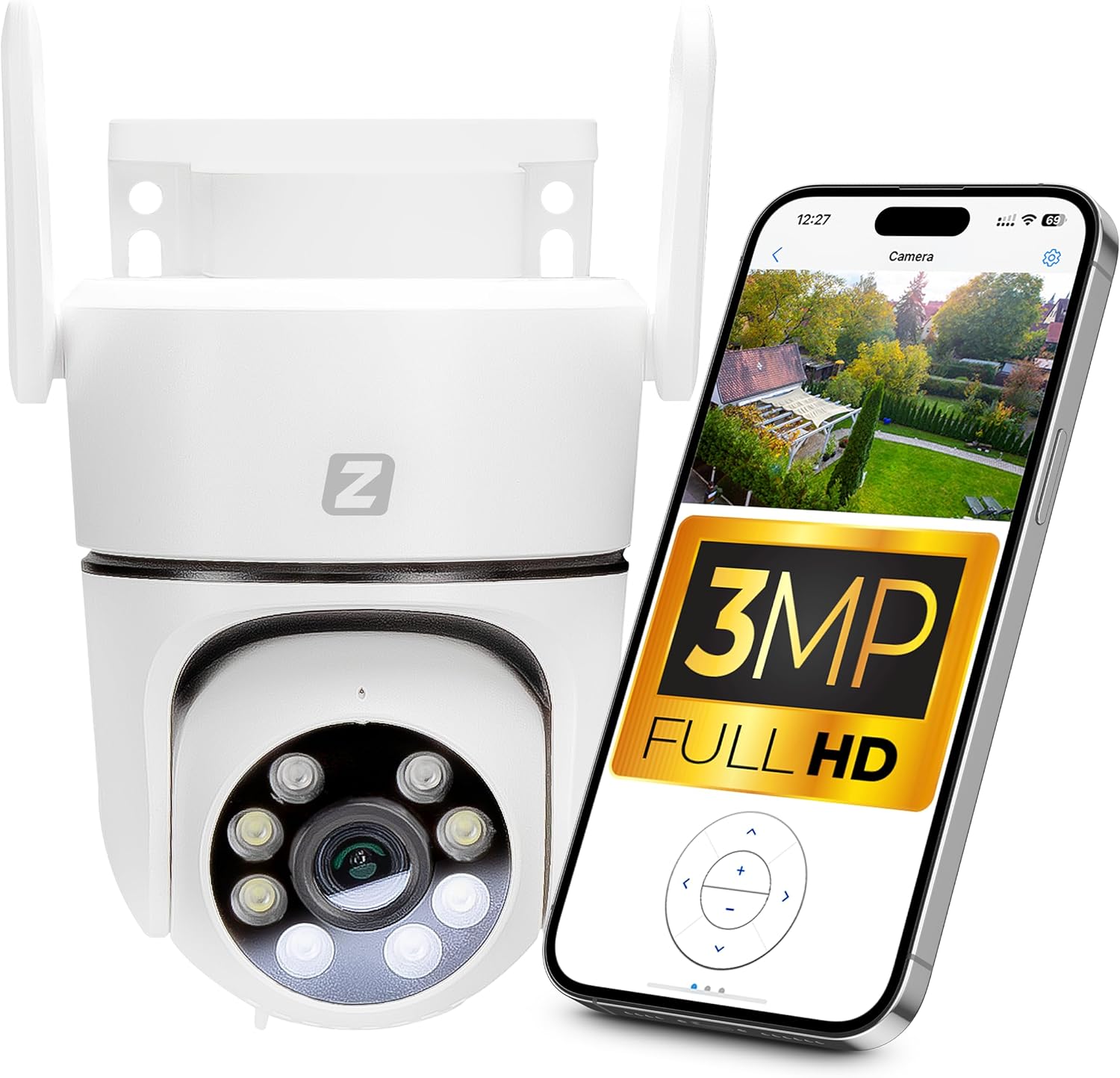
Figure 1: Zintronic P3 PTZ IP WiFi Camera with mobile app interface showing live feed.

Chithunzi 2: Patsogolo view of the Zintronic P3 PTZ camera, highlighting the lens and LED illuminators.

Chithunzi 3: Mbali view of the Zintronic P3 PTZ camera, showing the antenna and mounting bracket.

Chithunzi 4: Kumbuyo view of the Zintronic P3 PTZ camera, showing the antenna connections.
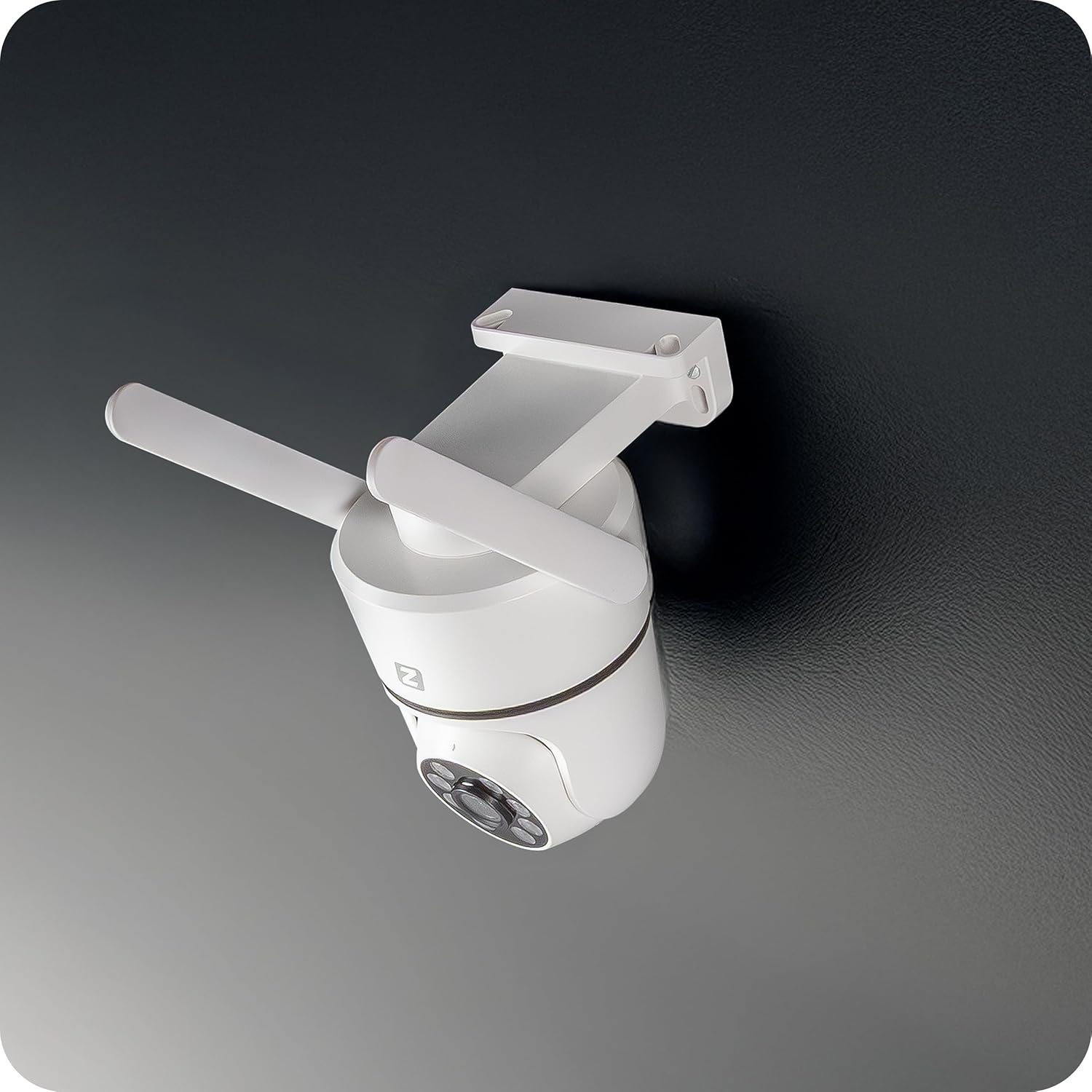
Chithunzi 5: Chopindika view of the Zintronic P3 PTZ camera, showcasing its rotational capability.

Chithunzi 6: Pafupi kutsogolo view of the Zintronic P3 PTZ camera, detailing the lens and LED array.
Zigawo Zofunikira:
- Kamera Kamera: Amajambula vidiyo footage.
- LED Illuminators: Provide illumination for night vision, including color night vision.
- Maikolofoni: For audio input and two-way communication.
- Wolankhula: For audio output and two-way communication.
- Manambala a WiFi: Kwa kulumikizidwa kwa netiweki opanda zingwe.
- Bulaketi Yokwera: For wall or ceiling installation.
- MicroSD Card Slot: For local video storage (up to 128GB).
- Mphamvu Port: Kulumikiza adaputala yamagetsi.
Khazikitsa
1. Kuyika Kwathupi
- Sankhani Malo: Select a suitable outdoor location for optimal surveillance coverage, considering the camera's 89-degree viewing angle and 40-meter night vision range. Ensure the location has a stable Wi-Fi signal and access to a power source.
- Kukwera: The camera supports wall or ceiling mounting. Use the provided mounting bracket and hardware to securely attach the camera.
- Connect WiFi Antenna: Screw the WiFi antenna(s) onto the designated ports on the camera.
- Yatsani: Connect the power adapter to the camera's power port and plug it into an electrical outlet. The camera will initiate its self-test and rotation.

Figure 7: Ceiling mount example.

Figure 8: Wall mount example.
2. Kukhazikitsa Mapulogalamu ndi Kupanga Akaunti
- Download CamHipro App: Saka "CamHipro" in your smartphone's app store (Google Play Store for Android or Apple App Store for iOS) and install it.
- Lembani Akaunti: Open the CamHipro app and follow the on-screen instructions to register a new account using your email address or phone number.
3. Kulumikizana kwa Network
- Onjezani Chipangizo: In the CamHipro app, tap the "+" icon to add a new device.
- Sankhani Mtundu wa Chipangizo: Choose "IP Camera" or scan the QR code usually found on the camera or its packaging.
- Lumikizani ku WiFi: Follow the app's prompts to connect the camera to your 2.4GHz Wi-Fi network. This typically involves entering your Wi-Fi password and allowing the app to generate a QR code for the camera to scan, or using an audio pairing method.
- Device Initialization: Once connected, the camera will be added to your account. You can then name the camera and begin live viewndi.
Malangizo Ogwiritsira Ntchito
1. Khalani ndi Moyo View
Open the CamHipro app and select your camera from the device list to access the live video feed. You can view footage in real-time from your smartphone, tablet, or computer.
2. PTZ Control (Pan-Tilt-Zoom)
Pa moyo view screen, use the on-screen controls to pan (rotate horizontally 360°), tilt (rotate vertically), and digitally zoom the camera. The camera also features automatic motion tracking, where it can follow detected movement within its field of view.
3. Kujambula ndi Kusewera
- Kujambula Khadi la MicroSD: Insert a microSD card (up to 128GB, not included) into the camera's slot for local storage of recordings. The camera will automatically record based on your settings (e.g., continuous, motion-triggered).
- Cloud Storage (Optional): Check the CamHipro app for available cloud storage options, which may require a subscription.
- Sewero: Pezani ojambulidwa footage through the "Playback" section in the CamHipro app. You can filter by date and time.
4. Zokonda Zozindikira Kuyenda
Configure motion detection sensitivity and areas within the app's settings. When motion is detected, the camera can send instant notifications to your smartphone and begin recording.
5. Njira ziwiri Zomvera
Utilize the built-in microphone and speaker for two-way audio communication. Tap the microphone icon in the live view to speak through the camera, and listen to audio from the camera's surroundings.
6. Mawonekedwe a Usiku
The camera features advanced LED illuminators for night vision up to 40 meters. It can automatically switch to night mode in low light, providing clear, and in some configurations, color images at night.
Kusamalira
- Kuyeretsa: Gently wipe the camera lens and housing with a soft, dry cloth. Do not use harsh chemicals or abrasive cleaners.
- Zosintha za Firmware: Regularly check the CamHipro app for firmware updates. Keeping the firmware updated ensures optimal performance and security.
- Kukhazikika kwa Netiweki: Ensure your Wi-Fi network is stable and strong for uninterrupted camera operation.
Kusaka zolakwika
- Kamera Yopanda intaneti: Check power connection and Wi-Fi signal strength. Restart the camera and your router. Ensure the camera is within Wi-Fi range.
- Simungathe Kulumikiza ku Pulogalamu: Verify correct Wi-Fi password. Ensure your phone is connected to a 2.4GHz Wi-Fi network during setup. Try resetting the camera (refer to app instructions for reset procedure).
- Kanema Wosakwanira: Check network bandwidth. Ensure the lens is clean. Adjust camera placement for optimal lighting.
- Kuzindikira koyenda sikukugwira ntchito: Verify motion detection settings in the app. Ensure the detection area is correctly configured.
- Palibe Audio: Check volume settings on your phone and in the app. Ensure the camera's microphone and speaker are not obstructed.
Zofotokozera
| Mbali | Kufotokozera |
|---|---|
| Mtundu | Zintroni |
| Dzina lachitsanzo | P3 (IKPW330V1) |
| Kusintha Kwakanema Kwabwino | 3MP (2304 x 1296 mapikiselo) |
| Mtundu | White (as pictured, note: product specification listed "Black") |
| Kuphatikiza Zida | Camera, WiFi Antenna |
| Wopanda zingwe Technology | Wifi |
| Mtundu wa Nyumba | PTZ Rotary Camera (Dome Shape) |
| Viewngodya | 89 digiri |
| Mtundu Woyika | Pakhoma kapena Denga Mount |
| Mtundu wa Masomphenya a Usiku | 40 mita |
| Mtengo wa chimango | 25 fps |
| Zakuthupi | Pulasitiki |
| Kugwiritsa Ntchito Mphamvu | 5W |
| Makulidwe achinthu (L x W x H) | 22.4 x 11 x 12.8 masentimita |
| Mtundu Wowala | LED |
| Zapadera | Motion sensor, Two-way audio, Night vision, PTZ rotation, Remote control |
| Mabatire Amafunika? | Ayi |
| Analimbikitsa Ntchito | Office monitoring, Home monitoring, Business monitoring, Outdoor surveillance, Property protection |
| Kugwiritsa Ntchito M'nyumba / Panja | Panja |
| Zida Zogwirizana | Kompyuta, Smartphone, Tabuleti |
| Gwero la Mphamvu | Magetsi |
| Kulumikizana Protocol | Zithunzi za ONVIF |
| Mtundu Wokwera | Kupanga khoma |
Chitsimikizo ndi Thandizo
For warranty information and technical support, please refer to the documentation provided with your purchase or visit the official Zintronic website. You may also contact Zintronic customer service directly for assistance with your IKPW330V1 camera.


