1. Mawu Oyamba
This manual provides essential information for the proper use and maintenance of your Picun F5 Active Noise Cancelling Headphones. Please read it thoroughly before operating the device.
2. Zamkatimu Phukusi
Onetsetsani kuti zinthu zonse zilipo mu phukusi lanu:
- 1 x Picun F5 Headphone
- 1 x 3.5mm Chingwe Chomvera
- 1 x USB Charging Chingwe
- 1 x Buku Logwiritsa Ntchito

3. Zinthu Zogulitsa
- Active Noise Cancelling (ANC): Advanced technology to reduce ambient noise for an immersive audio experience.
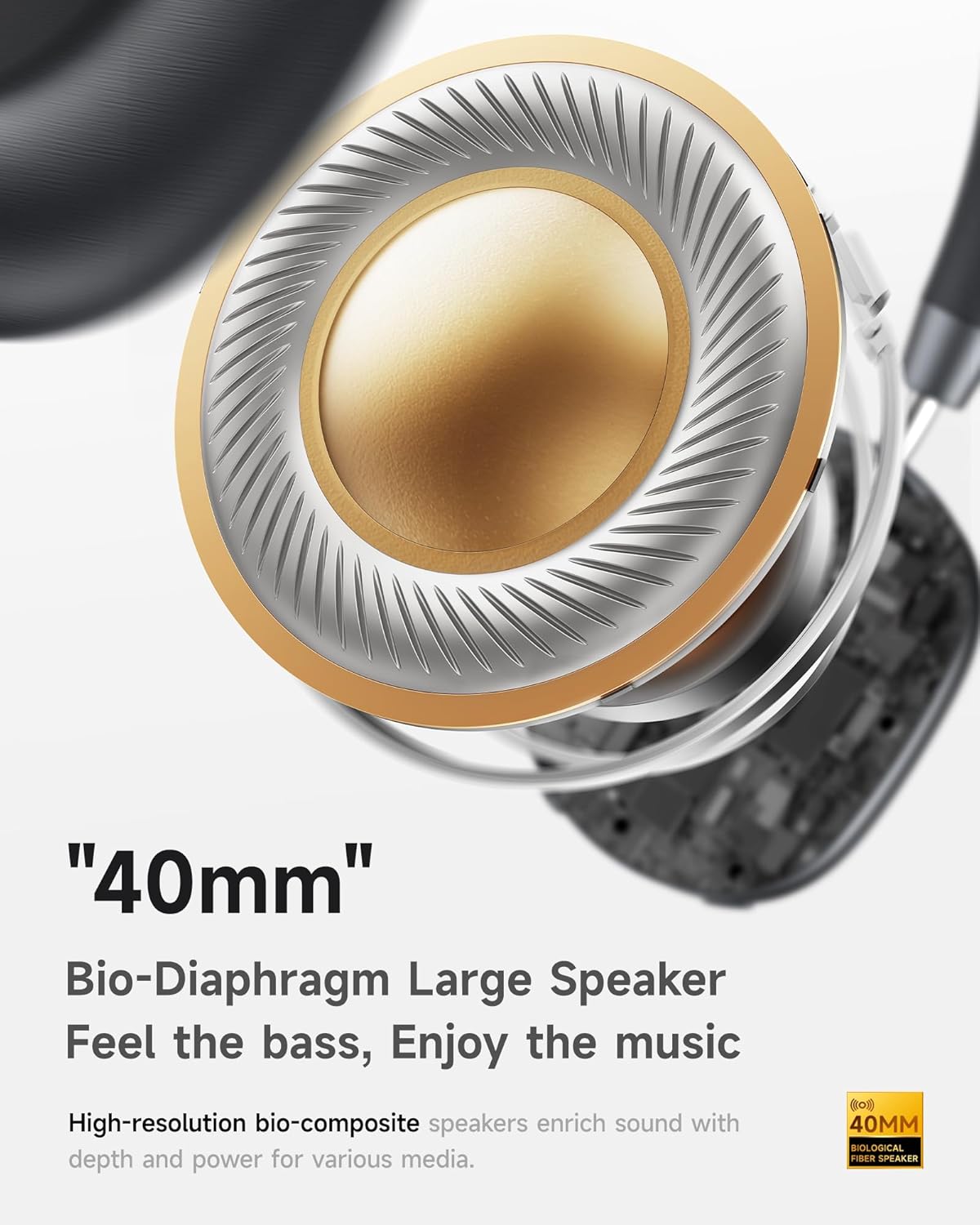
- Hi-Fi Audio with Deep Bass: Delivers clear sound with enhanced bass.
- App-Controlled EQ: Customize audio settings via a dedicated companion application.
- Maikolofoni Omangidwa: Ensures clear voice calls.
- Multi-Point Connection: Allows seamless switching between two connected Bluetooth devices.
- Mapangidwe a Ergonomic: Lightweight build with soft memory-foam earcups for extended comfort.
- Long Playtime & Fast Charging: Up to 30 hours of playback on a single charge, with quick recharge capabilities.



4. Kukhazikitsa
4.1 Kulipira Mahedifoni
Before first use, fully charge your Picun F5 headphones. Connect the provided USB charging cable to the headphone's charging port and a compatible USB power source. The charging indicator light will show the charging status.
4.2 Kulumikizana kwa Bluetooth
- Onetsetsani kuti mahedifoni azimitsa.
- Dinani ndikusunga batani la Power mpaka kuwala kwa chizindikiro kukuwalira, kusonyeza momwe mungagwirizanitsire.
- Pachipangizo chanu (foni yam'manja, piritsi, kompyuta), yambitsani Bluetooth ndikusaka zida zomwe zilipo.
- Select "Picun F5" from the list of devices to connect.
- Once connected, the indicator light will change to a steady blue or turn off, depending on the model.
4.3 Multi-Point Connection
The Picun F5 supports connecting to two Bluetooth devices simultaneously. After pairing with the first device, disable Bluetooth on that device. Pair the headphones with the second device. Then, re-enable Bluetooth on the first device. The headphones should now be connected to both devices, allowing seamless audio switching.

5. Ntchito
5.1 Zowongolera Zoyambira
The headphones feature intuitive controls for managing audio and calls:
- Yatsani/Zimitsa: Press ndi kugwira Mphamvu batani.
- Kusintha kwa Voliyumu: Use the dedicated volume knob/buttons on the earcup.
- Sewerani/Imitsani: Single press the Multi-function button.
- Nyimbo Yotsatira: Dinani kawiri batani la Multi-function.
- Njira Yakale: Dinani batani la Multi-function katatu.
- Yankhani/Imitsani Kuyimba: Single press the Multi-function button during an incoming call.
- Kanani Kuyimba: Dinani ndikusunga batani la Multi-function panthawi yoyimba foni.
5.2 Active Noise Cancelling (ANC) Modes
The ANC feature can be toggled or adjusted using a dedicated button on the headphones. Refer to the specific button layout on your device for exact functionality. Some models may offer different ANC levels or transparency modes.
5.3 App Control and Custom EQ
Download the companion app for your Picun F5 headphones to unlock personalized features. The app allows you to:
- Customize Equalizer (EQ) settings to match your audio preferences.
- Adjust ANC levels or switch between different noise control modes.
- Access additional smart features and settings.


6. Kusamalira
To ensure the longevity and optimal performance of your Picun F5 headphones, follow these maintenance guidelines:
- Kuyeretsa: Gwiritsani ntchito nsalu yofewa komanso youma kuti muyeretse makutu ndi lamba wa mutu. Pewani kugwiritsa ntchito mankhwala amphamvu kapena zinthu zokwawa.
- Posungira: Store the headphones in a cool, dry place, away from direct sunlight and extreme temperatures. When not in use, consider storing them in a protective case.
- Pewani Chinyezi: Musamaike mahedifoni pamalo amadzi kapena chinyezi chochuluka.
- Gwirani Mosamala: Pewani kugwetsa kapena kuyika zomvera pamutu pazovuta kwambiri.

7. Mavuto
If you encounter issues with your Picun F5 headphones, refer to the following common solutions:
- Palibe Mphamvu: Onetsetsani kuti mahedifoni ali ndi chaji yokwanira. Awalumikize ku gwero lamagetsi ndikuwona chizindikiro choyatsira.
- Sitingagwirizane: Make sure the headphones are in pairing mode (indicator flashing). Disable and re-enable Bluetooth on your device, then try pairing again. Ensure the headphones are not already connected to another device.
- Palibe Phokoso: Check the volume levels on both the headphones and your connected device. Ensure the headphones are properly paired. If using a wired connection, ensure the 3.5mm audio cable is securely plugged in.
- Kusamveka Kwabwino: Move closer to your connected device to avoid interference. Check for any obstructions between the headphones and the device. Ensure the audio source is of good quality.
- ANC sikugwira ntchito: Ensure the ANC feature is activated. Check for any physical obstructions around the microphones.
If the issue persists, try resetting the headphones (refer to the full user manual for specific reset instructions) or contact customer support.
8. Zofotokozera
| Mtundu | Picun |
| Dzina lachitsanzo | F5 |
| Kulumikizana Technology | Wopanda zingwe (Bluetooth 4.0) |
| Kuwongolera Phokoso | Sound Isolation (Active Noise Cancelling) |
| Kuyankha pafupipafupi | 20 khz |
| Kumverera | 42db pa |
| Mahedifoni Jack | 3.5 mm Jack |
| Moyo wa Battery | maola 30 |
| Mtundu Woyendetsa Audio | Dynamic Driver |
| Chojambula chapamutu | Kuzungulira |
| Kusokoneza | 32 ohm |
| Kulemera kwa chinthu | 14 ounces (0.4 Kilogram) |
| Zakuthupi | Acrylonitrile Butadiene Styrene (ABS) |
9. Chitsimikizo ndi Thandizo
Picun products are designed for reliability and performance. For warranty information, product support, or technical assistance, please refer to the warranty card included in your package or visit the official Picun webmalo. Sungani chiphaso chanu chogulira cha ma waranti.


