1. Mawu Oyamba
Zikomo pogulaasing the Imagebon Portable 11.3-inch Android Car Display. This advanced multimedia system is designed to enhance your driving experience by providing seamless access to navigation, entertainment, and communication features directly from your dashboard. With its powerful Android system, large display, and versatile connectivity options, it transforms your vehicle into a smart hub.

Figure 1.1: The Imagebon Portable 11.3-inch Android Car Display, showcasing its sleek design and large screen.
2. Zinthu Zogulitsa
- Powerful Android System: Equipped with an 8-core CPU, 4GB RAM, and 64GB ROM, allowing for smooth operation and installation of various apps via Wi-Fi connection.
- Large 11.3-inch HD Touchscreen: Provides a clear and immersive visual experience for navigation, videos, and apps, designed to not obstruct the driver's view.
- CarPlay yopanda zingwe ndi Android Auto: Seamlessly integrates with your smartphone for navigation, calls, and music with hands-free operation.
- Multimedia Entertainment: Supports popular streaming apps like YouTube, Netflix, and Prime Video for in-car entertainment.
- 1080P Rear Camera Included: Assists with safe parking by automatically displaying the rear view when in reverse gear, showing obstacles and blind spots.
- Multiple Audio Output Modes: Offers BT (Bluetooth), Native, FM, and AUX output options to suit various audio setups.
- OTA Update Support: Enables one-click over-the-air software updates for continuous improvement and bug fixes.
- Kuyika Kosavuta: Simple plug-and-play setup via the cigarette lighter socket, compatible with most car models.

Figure 2.1: Illustration of the powerful internal components, including the 8-core CPU, 4GB RAM, and 64GB ROM, ensuring smooth performance.
3. Zamkatimu Phukusi
Chonde tsimikizirani kuti zinthu zonse zilipo mu phukusi lanu:
- Imagebon Portable 11.3-inch Android Car Display
- Car Charger
- 10m Kumbuyo Kamera
- Zomatira Phiri
- GPS Antenna
- Chithunzi cha AUX
- Buku Logwiritsa Ntchito

Chithunzi 3.1: Zigawo zonse zomwe zili mu phukusi la mankhwala.
4. Kukhazikitsa
The Imagebon Portable Car Display is designed for easy installation in most vehicles.
- Kukwera: Attach the adhesive mount to a suitable, clean, and flat surface on your dashboard, ensuring it does not obstruct your view or interfere with airbags. Securely attach the display to the mount.
- Kulumikiza Mphamvu: Insert the car charger into your vehicle's cigarette lighter socket. Connect the other end of the car charger cable to the Type-C port on the display.
- GPS Antenna Connection: Connect the GPS antenna to the designated GPS port on the display. Position the antenna in a location with a clear view za mlengalenga kuti mulandire chizindikiro bwino.
- Rear Camera Connection (Optional): If using the rear camera, connect its cable to the AV IN port on the display. Route the cable carefully to the rear of your vehicle and install the camera according to its specific instructions.
- AUX Connection (Optional): If you wish to output audio to your car's stereo system via AUX, connect the provided AUX cable from the display's AUX output to your car's AUX input.

Figure 4.1: The portable display installed on a car dashboard, showing its placement and integration.
5. Malangizo Ogwiritsira Ntchito
Once powered on, the display will boot into the Android home screen. You can navigate the interface using the touchscreen.
- Screen Yanyumba: The home screen provides quick access to essential functions like time, date, audio output settings, and frequently used applications.
- App Access: Tap on app icons to launch applications such as YouTube, Netflix, Spotify, TikTok, and Maps. You can download more apps from the Google Play Store when connected to Wi-Fi.
- Kusewera Media: Use dedicated media apps to play music or videos. Adjust volume using the on-screen controls or your car's audio system if connected via AUX/FM.
- Kuyenda: Utilize pre-installed navigation apps or those accessed via CarPlay/Android Auto for turn-by-turn directions.
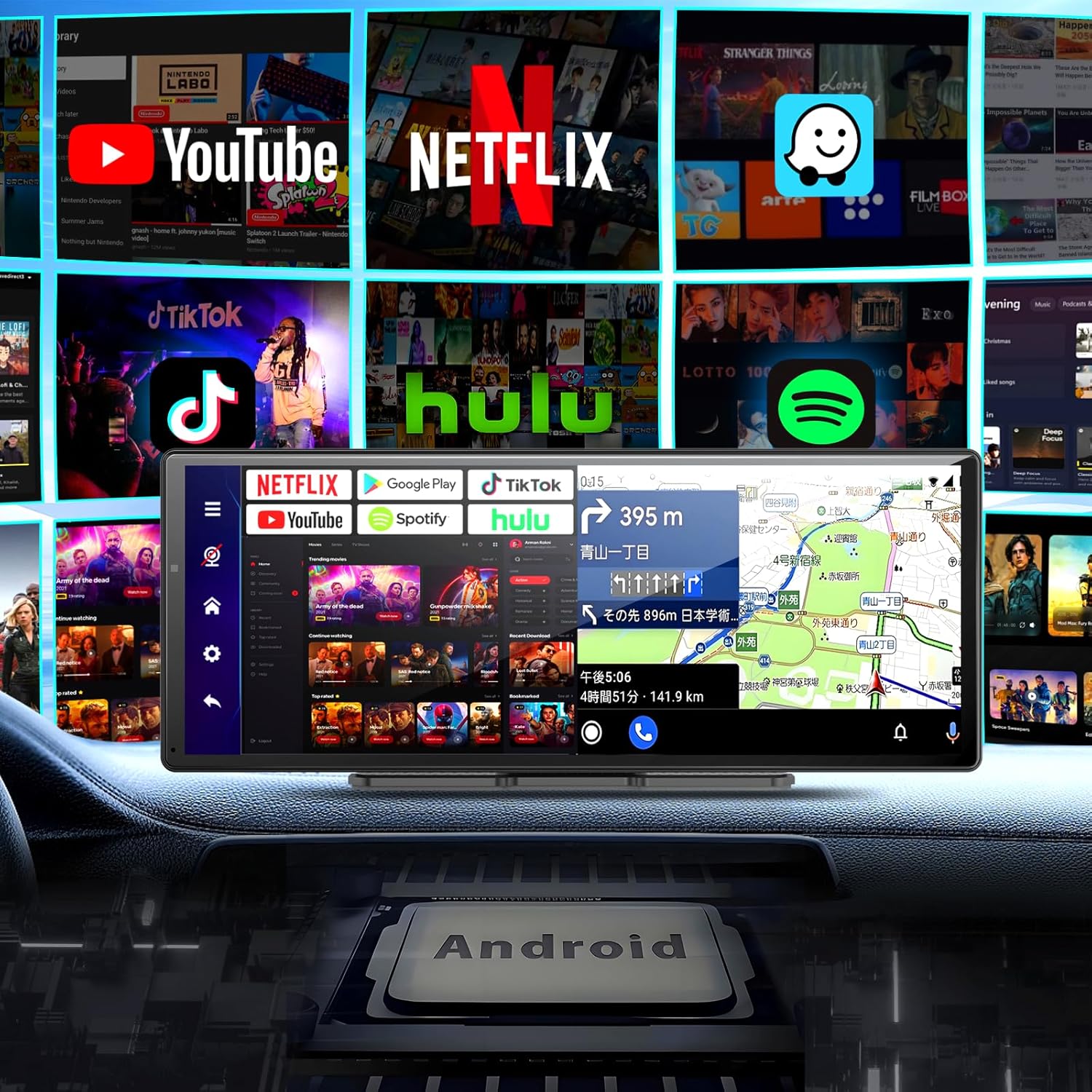
Figure 5.1: The display interface showcasing various pre-installed and downloadable applications for entertainment and navigation.
6. Kulumikizana
The display offers multiple ways to connect and interact with your devices.
6.1. Apple CarPlay yopanda zingwe ndi Android Auto
Connect your smartphone wirelessly for a streamlined in-car experience.
- Onetsetsani kuti Bluetooth ndi Wi-Fi ndizoyatsidwa pa smartphone yanu.
- On the display, select the CarPlay or Android Auto icon.
- Follow the on-screen prompts to pair your phone. Once connected, you can access navigation, make calls, send messages, and play music hands-free.
6.2. Bluetooth 5.0
For general audio streaming and hands-free calling.
- Go to the Bluetooth settings on the display.
- Enable Bluetooth and make the device discoverable.
- On your smartphone, search for the display's Bluetooth name (e.g., "Imagebon W60N-JP") and pair.
- Once paired, you can stream audio and manage calls directly from the display.
6.3. MirrorLink
Mirror your smartphone screen directly onto the display.
- Select the MirrorLink option on the display.
- Follow the specific instructions for your smartphone model to enable screen mirroring.

Figure 6.1: Wireless connectivity for Apple CarPlay and Android Auto, enabling voice control and seamless smartphone integration.
7. Parking Assist (Rear Camera)
The included 1080P rear camera provides a clear view of the area behind your vehicle, making parking safer and easier.
- Makinawa kutsegula: When the rear camera is properly connected and you shift your vehicle into reverse gear, the display will automatically switch to the rear camera view.
- Malangizo Oyimitsira: The screen will show dynamic parking guidelines to help you accurately judge distances to obstacles and navigate tight spaces.
- Kuwonekera Kwambiri: The 1080P resolution ensures a clear and detailed image, reducing blind spots and preventing accidental scrapes or collisions.

Figure 7.1: The parking assist feature in action, displaying the rear camera feed with guiding lines for precise parking.
8. OTA Updates
The device supports Over-The-Air (OTA) updates, allowing you to easily keep your system software up-to-date without complex procedures.
- Onetsetsani kuti chipangizocho chalumikizidwa ku netiweki yokhazikika ya Wi-Fi.
- Navigate to the system settings on the display.
- Look for the "About device" or "System Update" option.
- Click to check for updates. If an update is available, follow the on-screen prompts to download and install it.
- The device will automatically restart after the update is complete.

Figure 8.1: Visual guide for performing an OTA software update on the device.
9. Kusamalira
To ensure the longevity and optimal performance of your Imagebon display, follow these maintenance guidelines:
- Kuyeretsa: Gwiritsani ntchito nsalu yofewa, yopanda lint kuyeretsa chophimba ndi kunja. Kwa smudges amakani, pang'ono dampsungani nsaluyo ndi madzi kapena chotsukira chotchinga. Pewani zinthu zowononga kapena mankhwala owopsa.
- Kutentha: Do not expose the device to extreme temperatures (hot or cold) for extended periods.
- Posungira: When not in use for a long time, disconnect the device from power and store it in a cool, dry place. The easy plug-and-play design allows for convenient removal and storage.
- Kuwongolera Ma Chingwe: Ensure all cables are neatly routed and not pinched or tangled to prevent damage.
10. Mavuto
If you encounter issues with your Imagebon display, refer to the following common problems and solutions:
| Vuto | Chifukwa Chotheka | Yankho |
|---|---|---|
| Chipangizo sichimayatsidwa. | No power, loose connection, faulty cigarette lighter socket. | Check if the car charger is securely plugged into both the display and the cigarette lighter. Test the cigarette lighter with another device. Ensure the car's ignition is on. |
| Power drops after a short period (e.g., 15 minutes). | Insufficient power supply, overheating, internal fault. | Ensure the car charger is providing stable power. Check for overheating (ensure vents are not blocked). If the issue persists, contact customer support. |
| CarPlay/Android Auto siilumikizana. | Bluetooth/Wi-Fi off, incorrect pairing, phone compatibility. | Ensure Bluetooth and Wi-Fi are enabled on your phone. Forget the device on your phone and re-pair. Restart both the display and your phone. Verify your phone's compatibility with CarPlay/Android Auto. |
| Palibe zotulutsa. | Incorrect audio output mode, volume too low, loose AUX/FM connection. | Check the display's audio output settings (BT, Native, FM, AUX). Increase volume on both the display and your car stereo. Ensure AUX cable is fully inserted. If using FM, tune your car radio to the correct frequency. |
| Kamera yakumbuyo sikuwonetsedwa. | Camera not connected, faulty camera, car not in reverse. | Ensure the rear camera cable is securely connected to the AV IN port. Verify the car is in reverse gear. Check the camera for any visible damage. |
| Mapulogalamu amachedwa kapena akuwonongeka. | Insufficient storage, too many apps running, outdated software. | Periodically clear unnecessary apps and data to free up storage. Close background apps. Perform an OTA update to ensure the latest software is installed. |
11. Zofotokozera
| Mbali | Kufotokozera |
|---|---|
| Kukula kwa Screen | 11.3 mu |
| Opareting'i sisitimu | Android |
| CPU | 8-Core |
| Ram | 4 GB |
| Rom | 64 GB |
| Kulumikizana | Bluetooth, USB, Wi-Fi |
| Mtundu wa Bluetooth | 5.0 |
| Zida Zogwirizana | Mafoni Anzeru (Android, iOS) |
| Zapadera | Android Auto, Apple CarPlay, Built-in Bluetooth, Hands-free calling, MirrorLink, OTA Updates |
| Kusintha kwa Kamera Yam'mbuyo | 1080P (Included) |
| Zotulutsa Zomvera | BT, Native, FM, AUX |
| Kulemera kwa katundu | 0.95 kg |
| Makulidwe a Phukusi | 31 x 14.9 x 11.2 masentimita |
| Nambala ya Model | W60N-JP |
| ASIN | B0DWXGSY31 |
12. Chitsimikizo ndi Thandizo
Imagebon is committed to providing high-quality products and customer satisfaction. While specific warranty details are not provided in this manual, please retain your proof of purchase for any warranty claims.
If you encounter any issues or have questions regarding your Imagebon Portable 11.3-inch Android Car Display, please contact our customer support team immediately. Our team is ready to assist you with troubleshooting, technical support, and any other inquiries you may have.
For support, please refer to the contact information provided on the product packaging or the official Imagebon webmalo.


