1. Mawu Oyamba
The Canon PIXMA TS3750i is a compact, affordable, and user-friendly multifunction inkjet printer designed for home and small office use. It offers versatile functionalities including printing, copying, and scanning. This printer supports wireless connectivity, enabling convenient operation from various devices, and features borderless photo printing. It is also compatible with the PIXMA Print Plan for automated ink delivery.
2. Zambiri Zachitetezo
Chonde werengani malangizo onse achitetezo musanagwiritse ntchito chosindikizira kuti muwonetsetse kuti chikugwira ntchito bwino komanso motetezeka. Sungani bukuli kuti mudzagwiritse ntchito mtsogolo.
- Do not place the printer in unstable locations.
- Keep the printer away from water or moisture.
- Gwiritsani ntchito chingwe chamagetsi chokha chomwe chili ndi chosindikizira.
- Do not attempt to disassemble or modify the printer.
- Unplug the printer from the power outlet before cleaning or if it will not be used for an extended period.
3. Zamkatimu Phukusi
Onetsetsani kuti zinthu zonse zotsatirazi zikuphatikizidwa mu phukusi lanu:
- Canon PIXMA TS3750i Printer
- Inkjet Cartridges (initial set)
- Chingwe Chamagetsi
- Setup CD-ROM (for Windows only)
- Zolemba ndi zolemba zina
4. Kukhazikitsa
4.1 Kutsegula ndi Kuyika
- Remove the printer from its packaging and remove all protective tapes and packing materials.
- Place the printer on a stable, flat surface with adequate space around it for ventilation and operation.
4.2 Kulumikizana kwa Mphamvu
- Connect the supplied power cable to the printer's power input.
- Lumikizani mbali ina ya chingwe chamagetsi pakhoma.
- Dinani batani la Mphamvu kuti muyatse chosindikizira.
4.3 Kukhazikitsa Katiriji ya Inki
- Open the printer's top cover to access the cartridge holder.
- Remove the protective tape from the ink cartridges.
- Insert the color and black ink cartridges into their respective slots until they click into place.
- Tsekani chivundikiro chapamwamba.
4.4 Kuyika Mapepala
- Open the paper support and pull out the paper output tray.
- Load paper (e.g., A4, photo paper) into the rear paper tray, ensuring it is aligned with the paper guides.
- Adjust the paper guides to fit the width of the paper.
4.5 Software and Wireless Setup
For initial setup and to enable wireless printing, follow these steps:
- Za PC: Insert the Setup CD-ROM (Windows only) and follow the on-screen instructions to install drivers and software.
- For PC/Mac/Mobile: Pitani ku Canon website for your region and download the latest drivers and the Canon PRINT Inkjet/SELPHY app.
- Follow the instructions within the software or app to connect the printer to your Wi-Fi network. The printer supports one-touch wireless connectivity for easier setup.
- For mobile devices, ensure your device is connected to the same Wi-Fi network as the printer.
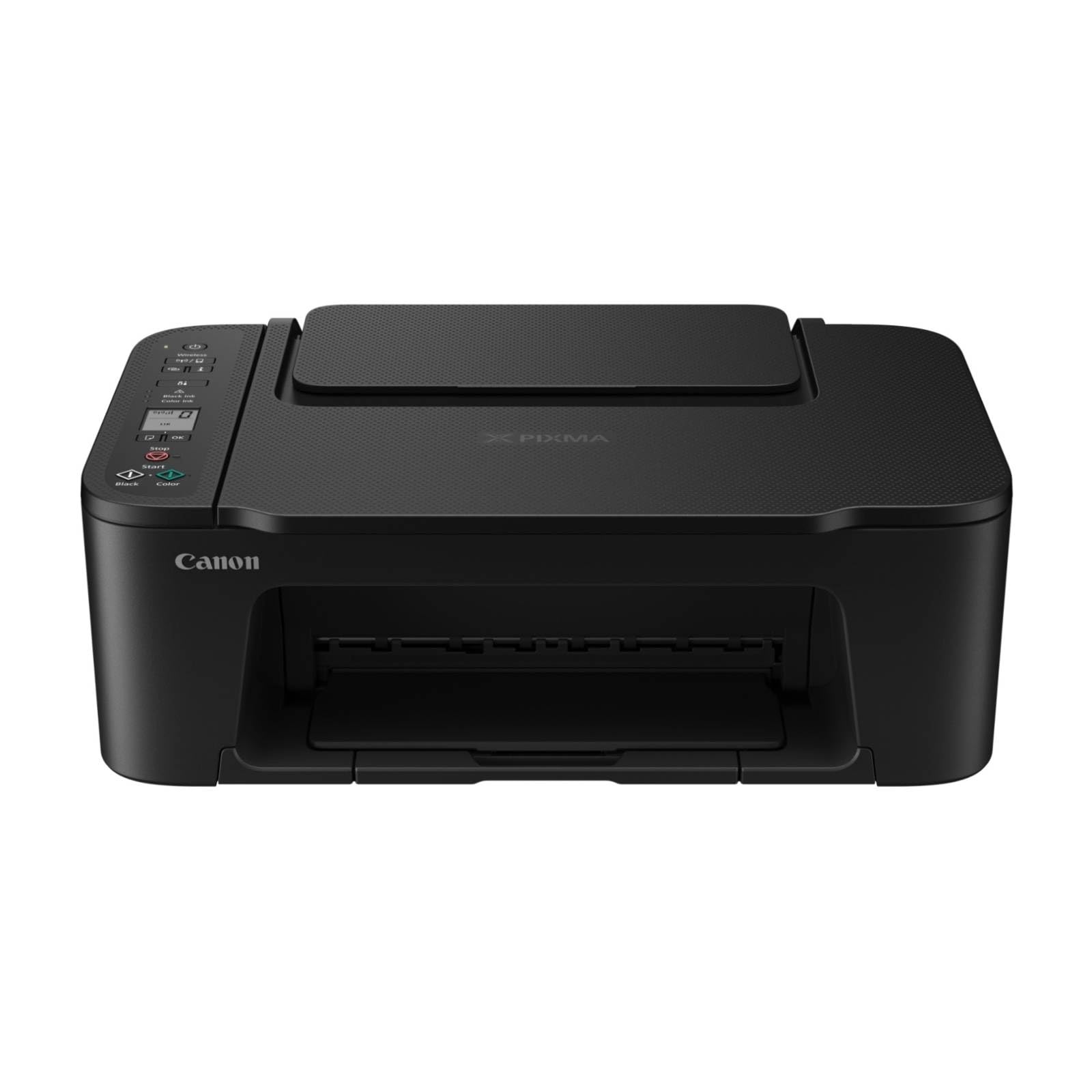
Chithunzi 1: Patsogolo view of the Canon PIXMA TS3750i printer, showing its compact design and control panel.
5. Malangizo Ogwiritsira Ntchito
5.1 Kusindikiza Zikalata ndi Zithunzi
- Ensure the printer is powered on and connected to your device (via Wi-Fi or USB).
- Load the appropriate paper type and size into the rear paper tray.
- Open the document or photo you wish to print on your computer or mobile device.
- Sankhani njira yosindikizira kuchokera ku pulogalamu yanu.
- In the print dialog, select the Canon PIXMA TS3750i as your printer. Adjust settings such as paper size, media type, print quality, and borderless printing (for photos up to 12.7 x 18 cm).
- Dinani "Sindikizani".
5.2 Kukopera Zikalata
- Kwezani chivindikiro cha sikani.
- Place the document face-down on the scanner glass, aligning it with the alignment mark.
- Tsekani chivindikiro cha sikirini pang'onopang'ono.
- On the printer's control panel, press the Black button for a monochrome copy or the Color button for a color copy.
- To make multiple copies (up to 20), press the desired copy button repeatedly for the number of copies needed.
5.3 Kusanthula Zikalata ndi Zithunzi
- Ensure the printer is connected to your computer or mobile device.
- Place the document or photo face-down on the scanner glass.
- On your computer, open the scanning software (e.g., Canon IJ Scan Utility) or on your mobile device, open the Canon PRINT Inkjet/SELPHY app.
- Select the scan option and adjust settings such as document type, resolution, and destination folder.
- Initiate the scan. The scanned image will be saved to your specified location.
5.4 Mobile Printing and Scanning
The Canon PIXMA TS3750i supports printing and scanning directly from smartphones and tablets using the Canon PRINT Inkjet/SELPHY app or Apple AirPrint. Ensure your mobile device and printer are connected to the same Wi-Fi network.
- Canon PRINT Inkjet/SELPHY App: Download and install the app from your device's app store. Use the app to select photos or documents for printing, or to initiate scans directly to your mobile device.
- Apple AirPrint: For iOS devices, you can print directly from AirPrint-enabled applications without installing additional drivers. Select the print option from the app and choose your PIXMA TS3750i printer.
- Wi-Fi PictBridge: Connect directly to compatible cameras for photo printing.
6. Kusamalira
6.1 Kuyeretsa Printer
- Kunja: Pukutani kunja kwa chosindikizira ndi chofewa, damp, nsalu yopanda utoto. Musagwiritse ntchito zotsukira kapena zosungunulira.
- Galasi la Scanner: Gently clean the scanner glass with a soft, lint-free cloth moistened with a small amount of glass cleaner. Ensure no residue is left behind.
- Sindikizani Mutu: If print quality declines (e.g., streaks, faded colors), perform a print head cleaning from the printer's utility software on your computer or through the Canon PRINT Inkjet/SELPHY app.
6.2 Kusintha Makatiriji a Inki
- When an ink cartridge is low or empty, a message will appear on the printer's display or in the software.
- Open the printer's top cover. The cartridge holder will move to the replacement position.
- Press down on the empty cartridge to release it, then pull it out.
- Unpack the new Canon genuine ink cartridge and remove the protective tape.
- Ikani katiriji yatsopanoyo mu malo oyenera mpaka itakanikira bwino pamalo pake.
- Close the top cover. The printer will perform an initialization process.
6.3 Kuyeretsa Mapepala Okhala ndi Mapepala
- If a paper jam occurs, an error message will appear.
- Zimitsani chosindikizira ndikuchotsa chingwe chamagetsi.
- Carefully open the printer covers (top cover, rear cover if applicable) to locate the jammed paper.
- Gently pull the jammed paper out in the direction of the paper path. Avoid tearing the paper.
- Ensure all torn pieces of paper are removed.
- Close all covers, plug in the power cord, and turn on the printer.
7. Mavuto
Refer to the following common issues and their solutions. For more detailed troubleshooting, consult the Canon support webmalo.
- Printer is not turning on: Ensure the power cable is securely connected to both the printer and a working electrical outlet.
- Cannot print:
- Check if the printer is powered on and connected to your device (Wi-Fi or USB).
- Verify that ink cartridges are installed correctly and have sufficient ink.
- Ensure paper is loaded correctly in the paper tray.
- Restart your computer/mobile device and the printer.
- Check printer drivers and software for updates.
- Kusindikiza koipa:
- Perform a print head cleaning and nozzle check from the printer utility.
- Ensure you are using genuine Canon ink cartridges.
- Check print settings for appropriate paper type and print quality.
- Mavuto olumikizirana opanda zingwe:
- Ensure the printer and your device are on the same Wi-Fi network.
- Restart your wireless router, printer, and device.
- Re-run the wireless setup process.
- Check for any firewall settings blocking communication.
- Kupanikizana kwa pepala: Follow the instructions in Section 6.3 to clear any jammed paper.
8. Zofotokozera
| Dzina lachitsanzo | PIXMA TS3750i |
| Printing Technology | Inkjet |
| Ntchito | Sindikizani, Koperani, Jambulani |
| Kulumikizana Technology | USB, Wi-Fi |
| Kuthamanga Kwambiri Kwambiri (Monochrome) | 7.7 ppm |
| Kuthamanga Kwambiri Kwambiri (Mtundu) | 4 ppm |
| Kutulutsa kwa Printer | Mtundu |
| Kusindikiza kwa Duplex | Inde |
| Max Media Kukula | A4 |
| Sheet Size Support | A4, A5, B5, Custom (Width 89 mm - 215.9 mm, Length 127 mm - 676 mm) |
| Kuthekera Kwambiri Kulowetsa | 60 mapepala |
| Mtundu wa Scanner | Pabedi |
| Max Copies per Run | 20 |
| Zida Zogwirizana | Laptops, PC, Smartphones, Tablets |
| Zapadera | Borderless printing, Lightweight, Auto Power On, Display screen |
| Makulidwe azinthu (D x W x H) | 32.7 x 43.5 x 14.5 masentimita |
| Kulemera kwa katundu | 4.19kg pa |
| Kugwiritsa Ntchito Mphamvu | 9 Watt |
9. Chitsimikizo ndi Thandizo
This Canon PIXMA TS3750i printer comes with a standard manufacturer's warranty. Please refer to the warranty card included in your package for specific terms and conditions, including warranty period and coverage details.
For technical support, product registration, driver downloads, and additional troubleshooting resources, please visit the official Canon support website for your region. You can also find contact information for customer service there.
- Thandizo Lapaintaneti: www.canon.com/support (Please replace with your regional Canon support link)
- Kulembetsa Kwazinthu: Registering your product helps Canon provide you with better service and support.