Mawu Oyamba
This manual provides detailed instructions for the installation, operation, and maintenance of your aigo AF12 3-in-1 ARGB Fan Kit. Please read this manual thoroughly before use to ensure proper functionality and longevity of the product.
Zogulitsa Zamankhwala
The aigo AF12 3-in-1 ARGB Fan Kit offers efficient cooling and customizable lighting for your computer system. Key features include:
- Chitsanzo: AF123IN1-BK
- Kuchuluka kwa Mafani: 3 x 120mm fans
- Liwiro la Mafani: 800-2000 RPM (±10%)
- Fan Noise Level: ≤30dBA
- Mayendedwe ampweya: 86.6 CFM
- Static Pressure: 1.27mm-H²O
- Working Current (Motor): ≤0.2A (12V)
- Working Current (Light): ≤0.48A (5V)
- Makulidwe: 120 x 120 x 25 mm
- Kuwala kwa ARGB: Addressable RGB lighting for customizable effects.
Zamkatimu Phukusi
Onetsetsani kuti zonse zomwe zalembedwa pansipa zilipo mu phukusi lanu:
- 3 x aigo AF12 ARGB Fans
- Zokwera Zopangira
- ARGB Controller (if included in kit)
- Cables (Power, ARGB Sync)
Kuyika Guide
Follow these steps to properly install your aigo AF12 ARGB fans into your computer case.
- Konzani Dongosolo Lanu: Power off your computer and disconnect it from the power source. Open your computer case.
- Dziwani Malo Oyikira: Determine the desired locations for your fans (e.g., front, top, rear, bottom of the case). Ensure proper airflow direction.
- Ikani Mafani: Position each fan in its chosen location. Use the provided mounting screws to secure the fans to the case. Ensure the fan blades are not obstructed.
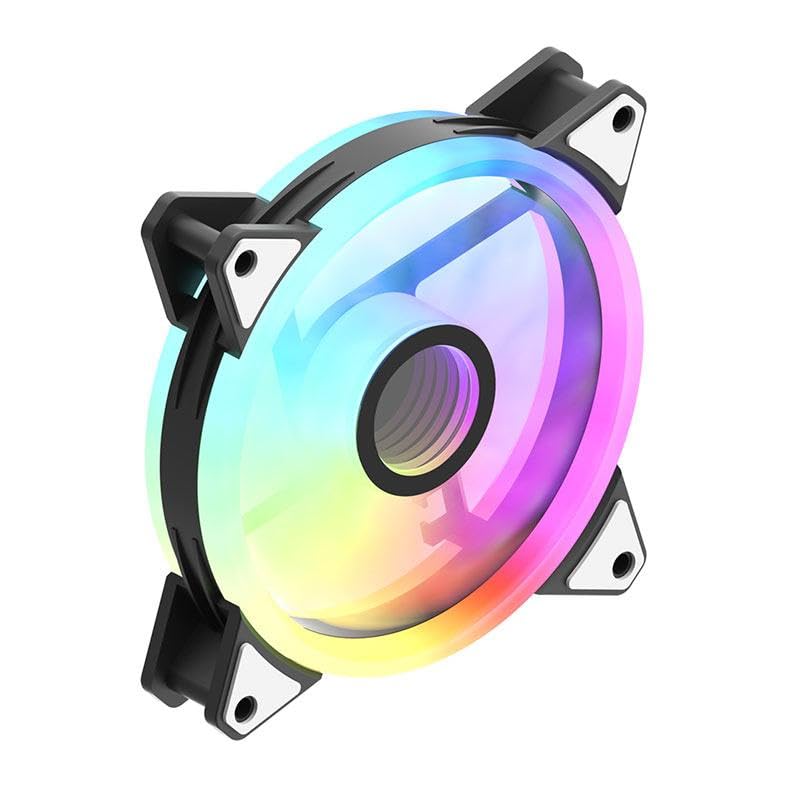
Image: An aigo AF12 fan viewed from an angle, highlighting the mounting points on its corners. This illustrates how the fan is secured.
- Lumikizani Zingwe Zamagetsi: Connect the 3-pin power connector from each fan to an available fan header on your motherboard or fan controller.
- Connect ARGB Cables: Connect the ARGB cable from each fan to the ARGB controller (if applicable) or directly to a compatible 5V 3-pin ARGB header on your motherboard. Ensure correct pin orientation to avoid damage.
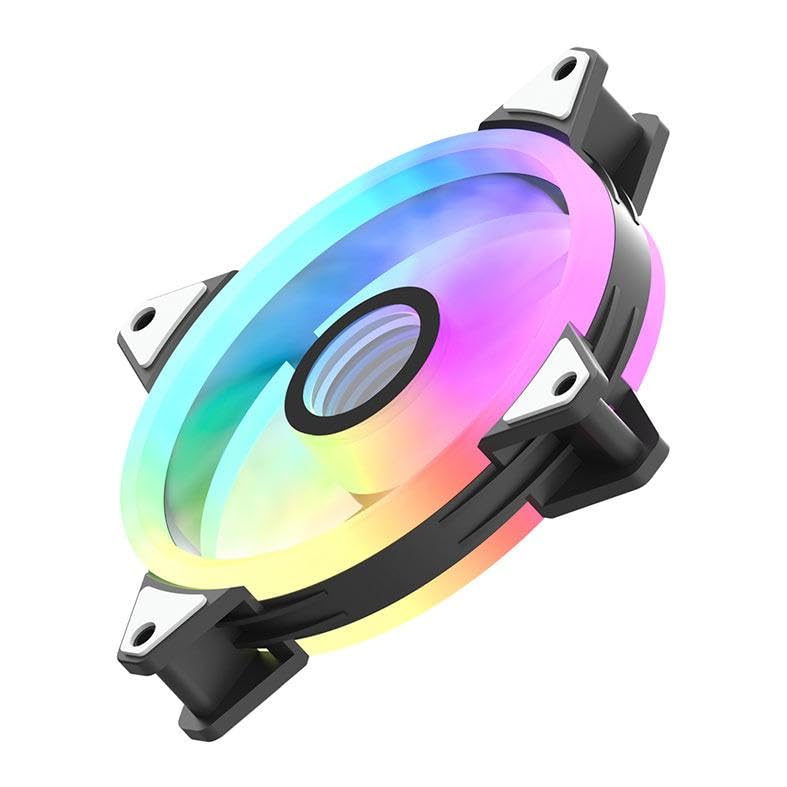
Chithunzi: A side profile of the aigo AF12 fan, illustrating the thickness and potential locations for cable connections on the frame.
- Kuwongolera Ma Chingwe: Route cables neatly to prevent interference with other components and to improve airflow.
- Tsekani Chikwama ndi Kuyatsa: Close your computer case, reconnect the power, and power on your system.
Malangizo Ogwiritsira Ntchito
Once installed, your aigo AF12 ARGB fans will operate automatically based on your system's fan control settings. The ARGB lighting can be controlled via your motherboard's software or a dedicated ARGB controller.
Kuthamanga kwa Fan
Fan speed can typically be adjusted through your motherboard's BIOS/UEFI settings or through fan control software provided by your motherboard manufacturer. Refer to your motherboard manual for specific instructions.
ARGB Lighting Control
If connected to a 5V 3-pin ARGB header on your motherboard, use your motherboard's ARGB synchronization software (e.g., ASUS Aura Sync, MSI Mystic Light Sync, GIGABYTE RGB Fusion, ASRock Polychrome Sync) to customize lighting effects, colors, and patterns.
If using a dedicated ARGB controller (often included with fan kits), refer to the controller's specific instructions for lighting adjustments.
Kusamalira
Regular maintenance ensures optimal performance and extends the lifespan of your fans.
- Kuyeretsa Fumbi: Nthawi ndi nthawi yeretsani fumbi kuchokera ku mafani ndi m'nyumba pogwiritsa ntchito mpweya wopanikizika kapena burashi yofewa. Onetsetsani kuti makinawo azima musanayeretse.
- Onani Chingwe: Verify that all cables are securely connected and free from damage.
- Kuwunika Phokoso: Listen for unusual noises, which may indicate a fan bearing issue or obstruction.
Kusaka zolakwika
If you encounter issues with your aigo AF12 ARGB fans, refer to the following common solutions:
Mafani Sakuzungulira
- Onani Kulumikizidwa kwa Mphamvu: Ensure the fan's 3-pin power connector is securely plugged into the motherboard or controller.
- Check BIOS Settings: Verify that fan headers are enabled in your motherboard's BIOS/UEFI settings.
- Test Another Header: Try connecting the fan to a different fan header to rule out a faulty header.
Kuwala kwa ARGB Sikugwira Ntchito
- Check ARGB Connection: Ensure the 5V 3-pin ARGB connector is correctly and securely plugged into the motherboard or controller. Verify the pin orientation.
- Check Software: Confirm that your motherboard's ARGB software is installed and configured correctly.
- Kugwirizana: Ensure your motherboard has a compatible 5V 3-pin ARGB header. This product is not compatible with 12V 4-pin RGB headers.
Phokoso Lambiri
- Yang'anani Zolepheretsa: Ensure no cables or other components are touching the fan blades.
- Ogwiritsa zomangira: Verify that all mounting screws are tightened to prevent vibrations.
- Kupanga fumbi: Clean any dust from the fan blades.
Mfundo Zaukadaulo
| Mbali | Kufotokozera |
|---|---|
| Mtundu | ayigo |
| Chitsanzo | AF123IN1-BK |
| Kuchuluka kwa Fan | 3 x 120 mm |
| Liwiro la Mafani | 800 ± 2000 ± 10% RPM |
| Phokoso la Fani | ≤30dBA |
| Mayendedwe ampweya | 86.6 CFM |
| Static Pressure | 1.27mm-H²O |
| Working Current (Motor) | ≤ 0.2A (12V) |
| Working Current (Light) | ≤ 0.48A (5V) |
| Makulidwe | 120 x 120 x 25 mm |
| Mtundu Wogwirizira Mphamvu | 3-Pin |
| Voltage | 12 volts |
| Njira Yozizirira | Mpweya |
| Zida Zogwirizana | Pakompyuta |
| Kulemera kwa chinthu | 10.6 pawo |
Chitsimikizo ndi Thandizo
This aigo product comes with a 12 miyezi chitsimikizo kuyambira tsiku logula, kuphimba zolakwika zopanga.
For technical support, warranty claims, or further assistance, please visit the official aigo store or contact their customer service through the details provided on their webmalo.
Official aigo Store: aigo Store on Amazon


