1. Mawu Oyamba
This manual provides detailed instructions for the HIFI WALKER G7 Android MP3 Player. It covers setup, operation, maintenance, and troubleshooting to ensure optimal use of your device. The G7 is an advanced portable media player featuring Android 13, a 4-inch touchscreen, Bluetooth, Wi-Fi, a built-in speaker, and a camera.
2. Zamkatimu Phukusi
Upon opening your HIFI WALKER G7 package, you should find the following items:
- HIFI WALKER G7 Android MP3 Player
- Chingwe cha USB Type-C Chotsegula
- Zomvera m'makutu
- Filimu Yoteteza (Yoteteza Chinsalu)
- Mlandu Woteteza
- Lanyard
- Buku la ogwiritsa (chikalatachi)

Image: All items included in the HIFI WALKER G7 retail package.
3. Chipangizo Overview
The HIFI WALKER G7 features a compact design with essential controls and ports for ease of use.
3.1 Zowoneka Zathupi
- Chinsalu chokhudza cha mainchesi 4: For interactive navigation and content display.
- Mabatani Akutali / Kumunsi: Located on the side for audio adjustment.
- Batani Lamphamvu: For turning the device on/off and screen lock.
- Batani la Kamera: Dedicated button for quick photo capture.
- Bwezeretsani Hole: For device reset in case of unresponsiveness.
- Khomo la USB Type-C: Kwa kulipiritsa ndi kusamutsa deta.
- TF Khadi kagawo: For expandable storage via microSD card.
- Earphone Port (3.5mm): For wired headphone connection.
- Zolankhula Zomangidwa: For audio playback without external devices.
- Microphone Hole: Kwa kujambula mawu.

Chithunzi: Patsogolo ndi kumbuyo view of the HIFI WALKER G7.
Video: Kuthaview of the HIFI WALKER G7 Android MP3 Player, demonstrating its physical features, user interface, and key functionalities like camera, app usage, and storage management.
4. Kukhazikitsa
4.1 Kulipira Chipangizo
Before first use, fully charge your HIFI WALKER G7. Use the provided USB Type-C cable and connect it to a compatible power adapter (not included) or a computer USB port. The device supports USB 2.0 fast charging. Zindikirani: Some users have reported better charging performance with lower power wall chargers.
4.2 Kuyatsa/Kuzimitsa
- Kuyatsa: Dinani ndi kugwira batani la Mphamvu mpaka chinsalu chikuwunika.
- Kuzimitsa: Dinani ndikusunga batani la Power, kenako sankhani 'Zimitsani' kuchokera pazosankha.
- Kutseka/Kutsegula Chinsalu: Mwachidule dinani batani la Mphamvu.
4.3 Kulumikizana ndi Wi-Fi
The G7 supports Wi-Fi connectivity for internet access and app functionality.
- Pitani ku 'Zikhazikiko' > 'Network & internet' > 'Wi-Fi'.
- Toggle Wi-Fi 'On'.
- Sankhani maukonde anu ankafuna Wi-Fi pa mndandanda.
- Lowetsani mawu achinsinsi ngati mwafunsidwa ndipo dinani 'Lumikizani'.
4.4 Kulumikizana ndi zida za Bluetooth
Connect your G7 to Bluetooth headphones, speakers, or other compatible devices.
- Pitani ku 'Zikhazikiko' > 'Zipangizo zolumikizidwa' > 'Bluetooth'.
- Toggle Bluetooth 'On'.
- Onetsetsani kuti chipangizo chanu cha Bluetooth chili polumikizana.
- Select your device from the 'Available devices' list to pair.
4.5 Installing and Managing Applications
The G7 comes with Android 13 and pre-installed apps like Spotify, Pandora, Amazon Music, Tidal, Deezer, YouTube, and Audible. You can also install more apps via the Google Play Store.
- Google Play Store: Access the Play Store app to download and install additional applications.
- Ulamuliro wa Makolo: Utilize the parental control features to manage app downloads and usage, ensuring a secure environment for younger users.
- Kuchotsa Mapulogalamu: To free up memory and enhance performance, you can uninstall unnecessary apps through 'Settings' > 'Apps'.

Image: The HIFI WALKER G7 with Google Play Store pre-installed.
4.6 Kasamalidwe kakusungirako
The device has 3GB RAM and 16GB internal storage, expandable up to 128GB with a microSD card.
- Inserting a MicroSD Card: Locate the TF card slot on the side of the device and gently insert the microSD card until it clicks into place.
- Kuwongolera Files: Gwiritsani ntchito zomangidwa file manager to organize your music, videos, and other files.
- One-Click Music Scanning: Easily import song folders and create playlists with this feature.

Image: HIFI WALKER G7 with expandable storage option.
5. Malangizo Ogwiritsira Ntchito
5.1 Kuyenda pa Touchscreen Interface
The 4-inch IPS touchscreen (480*800 px) provides a responsive and intuitive user experience.
- Dinani: Sankhani chinthu kapena tsegulani pulogalamu.
- Yendetsani chala: Navigate through menus, home screens, or content.
- Tsinani-kuti-Makulitsidwe: Sinthani ma view in supported applications.
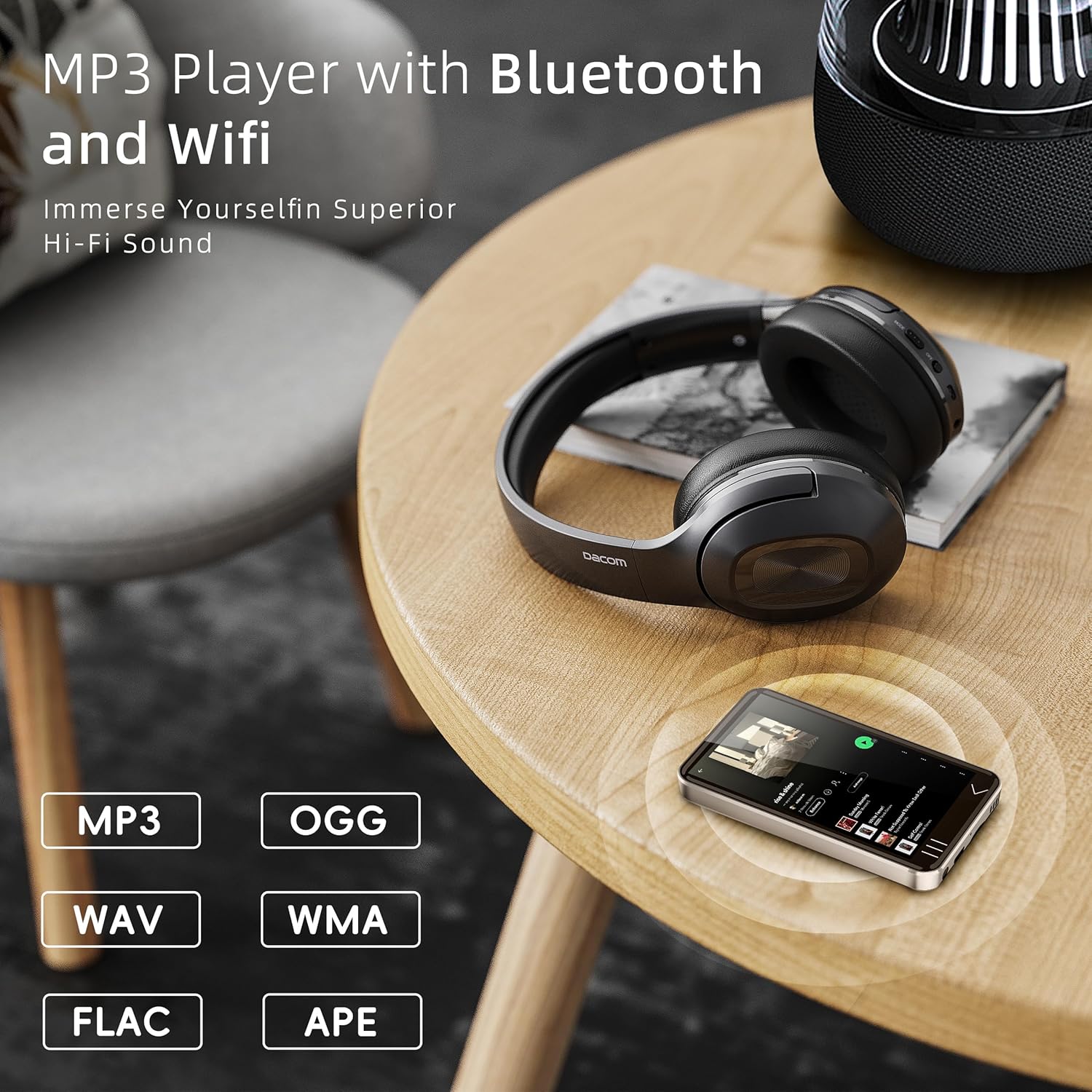
Image: The 4-inch full touchscreen of the HIFI WALKER G7.
5.2 Kusewera Nyimbo
Enjoy your favorite audio files through the built-in speaker or connected headphones.
- Mafomu Othandizira: MP3, WAV, FLAC, AAC, OGG, WMA, APE, and more.
- Music App: Use the pre-installed music player or streaming apps like Spotify, Amazon Music, etc.
- Mndandanda wamasewera: Create and manage playlists for easy access to your favorite tracks.

Image: HIFI WALKER G7 playing music with Bluetooth headphones.
5.3 Watching Videos
The G7 supports various video formats for direct playback without conversion.
- Kanema Player: Use the default video player or download alternatives from the Play Store.
- YouTube: Access the YouTube app for online video content.
Video: Demonstrates the HIFI WALKER G7's camera functionality, video playback, and various ports.
5.4 Kugwiritsa ntchito kamera
The G7 features a built-in 5-megapixel camera for capturing photos and videos.
- Tsegulani pulogalamu ya 'Kamera'.
- Frame your shot using the touchscreen.
- Tap the on-screen shutter button or press the dedicated Camera button on the side to capture.

Image: HIFI WALKER G7 camera in use.
5.5 Kujambula mawu
Use the built-in microphone and voice recorder app to capture audio.
- Open the 'Sound Recorder' application.
- Dinani batani lojambulira kuti muyambe kujambula.
- Tap the stop button to end and save the recording.
5.6 Reading E-books and Audiobooks
The G7 is an excellent companion for reading, supporting popular audiobook and e-book platforms.
- Mapulogalamu Oyikiratu: Utilize apps like Audible and Kindle for audiobooks and e-books.
- Libby: Download Libby from the Play Store to access library e-books and audiobooks.

Image: HIFI WALKER G7 as an e-reading companion.
6. Kusamalira
6.1 Battery Information and Care
The G7 is equipped with a built-in 2000mAh Li-Polymer battery.
- Nthawi Yosewera Nyimbo: Mpaka 50 hours.
- Video Playback Time: Mpaka 5 hours.
- Nthawi yolipira: Pafupifupi maola awiri.
- To prolong battery life, avoid extreme temperatures and fully discharge/recharge the device periodically.

Image: HIFI WALKER G7 battery specifications.
6.2 Zosintha za Mapulogalamu
Keep your device's software updated to ensure optimal performance and access to the latest features. Updates can typically be found in 'Settings' > 'System' > 'System update'.
6.3 Kuyeretsa
To clean your device, use a soft, lint-free cloth. Avoid using harsh chemicals or abrasive materials that could damage the screen or casing.
7. Mavuto
If you encounter issues with your HIFI WALKER G7, refer to the following common problems and solutions:
| Vuto | Njira Yotheka |
|---|---|
| Device Overheats and Shuts Down | Reduce usage of demanding applications. Ensure the device is not exposed to direct sunlight or high temperatures. If the issue persists, contact support. |
| Mavuto a Wi-Fi | Ensure Wi-Fi is enabled and you are within range of a strong signal. Restart the device and your Wi-Fi router. Verify the Wi-Fi password. |
| Kulephera kwa Kugwirizanitsa Bluetooth | Ensure both the G7 and the Bluetooth device are in pairing mode. Try restarting both devices. Some Bluetooth devices may have specific pairing instructions. |
| Moyo Wosauka Wa Battery | Close background applications. Reduce screen brightness. Disable Wi-Fi/Bluetooth when not in use. Ensure the device is fully charged using a compatible charger. |
| Chipangizocho chimauma kapena sichikugwira ntchito | Press and hold the Power button to force a restart. If unresponsive, use a thin object to press the Reset Hole. |
| Slow Performance / Long Boot Times | Uninstall unnecessary applications. Clear app caches. Ensure sufficient free storage space. |
| Camera Quality is Low | Ensure the camera lens is clean. Use adequate lighting. The built-in camera is 5MP, which may not match smartphone camera quality. |
| Cannot Reload Apps After Deletion | Attempt to reinstall from the Google Play Store. If persistent, a factory reset might be necessary (note: this will erase all data). |
8. Zofotokozera
| Mbali | Tsatanetsatane |
|---|---|
| Dzina lachitsanzo | G7 |
| Opareting'i sisitimu | Android 13 |
| Kukula kwa Screen | 4 inchi |
| Kusintha kwa Screen | 480*800 pixels (IPS Panel) |
| Purosesa | MTK 6762 Octa-core |
| Ram | 3 GB |
| Zosungira Zamkati | 16GB (supports up to 80GB variant) |
| Zosungirako Zowonjezera | Up to 128GB via SD Card |
| Kulumikizana | Bluetooth, USB (Type-C) |
| Zapadera | Built-In Camera (5MP), Built-In Speaker, Touch Screen, Video Playback, Voice Recorder |
| Batiri | 2000mAh Li-Polymer (1 C battery included) |
| Kulemera kwa chinthu | 10.2 pawo |
| Makulidwe a Phukusi | 5.87 x 3.78 x 2.24 mainchesi |
9. Chitsimikizo ndi Thandizo
HIFI WALKER products are designed for reliability and performance. For specific warranty details, please refer to the warranty card included in your package or contact HIFI WALKER customer service.
For further assistance, product registration, or to explore other HIFI WALKER products, please visit the official HIFI WALKER store:


