Mawu Oyamba
This manual provides essential instructions for the setup, operation, and maintenance of your MAXCOM FW56 Carbon Pro Smartwatch. Please read this guide thoroughly to ensure proper use and to maximize the functionality of your device.
Khazikitsa
1. Kulipiritsa Smartwatch
Before initial use, fully charge your smartwatch. Connect the magnetic charging cable to the charging contacts on the back of the watch and plug the USB end into a standard USB power adapter (not included) or a computer's USB port. The watch display will indicate charging status.
2. Kuyatsa/Kuzimitsa
- Kuyatsa: Press and hold the side button until the MAXCOM logo appears on the screen.
- Kuzimitsa: Press and hold the side button, then select the 'Power Off' option on the screen.
3. Kulumikizana ndi Smartphone Yanu
- Download the official MAXCOM companion application from your smartphone's app store (e.g., Google Play Store or Apple App Store).
- Onetsetsani kuti Bluetooth yayatsidwa pa smartphone yanu.
- Open the MAXCOM application and follow the on-screen instructions to create an account or log in.
- In the app, navigate to the 'Device' or 'Add Device' section and select your FW56 Carbon Pro Smartwatch from the list of available devices.
- Tsimikizani pempho logwirizanitsa pa foni yanu yam'manja ndi wotchi yowonera pa intaneti.
Malangizo Ogwiritsira Ntchito
Basic Navigation
- Zenera logwira: Yendetsani kumanzere, kumanja, mmwamba, kapena pansi kuti muyende m'mamenyu ndi zinthu zina. Dinani kuti musankhe njira.
- Batani Lambali: Press once to return to the previous screen or the watch face. Press and hold for power options.
Zofunika Kwambiri
- Nthawi ndi Tsiku: Nkhope yaikulu ya wotchi ikuwonetsa nthawi ndi tsiku lomwe lilipo.
- Kutsata zochitika: Monitor steps taken, distance covered, and calories burned. Access this data by swiping on the watch face or through the dedicated activity menu.
- Kuwunika Mtima: Swipe to the heart rate interface or select the heart rate icon to initiate a measurement. Ensure the watch is snug on your wrist for accurate readings.
- Zidziwitso: Receive alerts for calls, messages, and app notifications directly on your wrist after successful pairing with your smartphone.
- Kuyang'anira Tulo: The smartwatch automatically tracks your sleep patterns when worn during sleep. View detailed sleep data in the companion app.
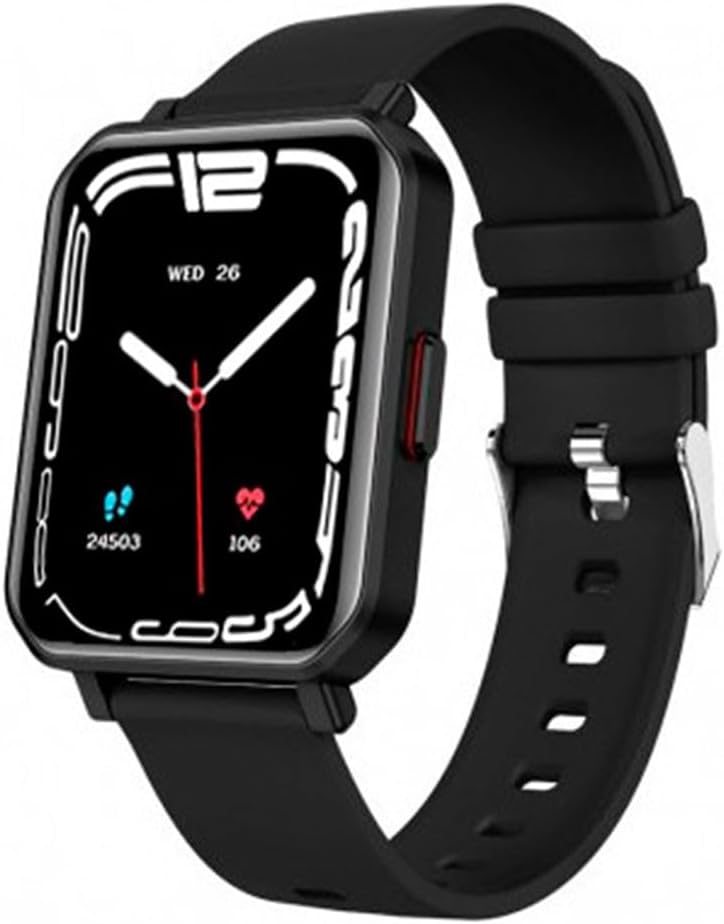
This image displays the MAXCOM FW56 Carbon Pro Smartwatch. It features a rectangular black casing, a black silicone strap, and a digital display showing the time (WED 26), step count (24503), and heart rate (106).
Kusamalira
Kuyeretsa Wotchi Yanu Yanzeru
Regularly clean your smartwatch and strap to prevent skin irritation and maintain device performance. Use a soft, damp, lint-free cloth. Avoid harsh chemicals, abrasive cleaners, or aerosols. Ensure the watch is dry before charging.
Kukaniza Madzi
The MAXCOM FW56 Carbon Pro Smartwatch is designed with a certain level of water resistance. Refer to the product specifications for details on its IP rating. Avoid prolonged exposure to water, hot water, or steam, and do not press buttons underwater.
Zosintha Zapulogalamu
While specific software update guarantees are not available, it is recommended to keep the companion application updated to the latest version for optimal performance and new features. The app will typically notify you if a firmware update for your smartwatch is available.
Kusaka zolakwika
- Wotchi yanzeru sikugwira ntchito: Ensure the device is fully charged. If it still doesn't turn on, try a hard reset by pressing and holding the side button for an extended period (e.g., 10-15 seconds).
- Simungagwirizane ndi foni yamakono: Check that Bluetooth is enabled on both devices. Ensure the smartwatch is within range of your phone. Restart both the smartwatch and the phone, then try pairing again through the app.
- Inaccurate heart rate readings: Ensure the watch is worn snugly on your wrist, not too tight or too loose. Avoid excessive movement during measurement.
- Zidziwitso sizikuwoneka: Verify that notifications are enabled in both the smartwatch settings and the companion app. Check your phone's system settings to ensure the app has permission to send notifications.
Zofotokozera
| Mbali | Tsatanetsatane |
|---|---|
| Mtundu | Maxcom |
| Dzina lachitsanzo | FW56 Carbon Pro |
| Kukula kwa Screen | 1.81 inchi |
| Kulumikizana Technology | bulutufi |
| Opanda zingwe Kulankhulana Standard | bulutufi |
| GPS | Palibe GPS |
| Maonekedwe | Rectangular (as per product image) |
| Omvera Otsatira | Unisex-Wamkulu |
| Wopanga | MAXCOM |
| Dziko lakochokera | China |
Chitsimikizo ndi Thandizo
For warranty information, please refer to the documentation provided with your purchase or contact MAXCOM customer support directly. Support contact details can typically be found on the official MAXCOM website or within the companion application.
For further assistance or technical support, please visit the official MAXCOM support page or contact their customer service.


