Mawu Oyamba
This manual provides detailed instructions for the setup, operation, and maintenance of your PDP Afterglow Wave Wireless Headset. Designed for an immersive audio experience, this headset is compatible with Xbox Series X|S, Windows 10/11 PC, PlayStation PS5/PS4, and various Bluetooth-enabled devices.

Image: The PDP Afterglow Wave Wireless Headset, showcasing its black design and customizable RGB lighting on the earcups.
Zogulitsa Zamankhwala
- Kuwunikira kwa RGB Mwamakonda: Personalize your headset with millions of color combinations and lighting effects via the free PDP Control Hub app.
- Mapangidwe Osavuta: Features soft, memory foam ear cushions and swivel earcups for extended gaming sessions and comfortable storage.
- Audio Wozama: Equipped with 50mm drivers for clear highs and deep lows.
- Zosintha Zovuta: On-ear volume controls and a game/chat balance dial for quick audio adjustments.
- Maikolofoni Yoletsa Phokoso: Provides clear communication, with a flip-to-mute function for privacy.
- Kulumikizana Kosiyanasiyana: Connects wirelessly via a low-latency USB dongle to consoles or via Bluetooth to mobile devices.
- Kugwirizana Kwambiri: Officially licensed for Xbox, and compatible with Windows 10/11 PC, PlayStation consoles (PS5/PS4), and most Bluetooth devices.
- Moyo Wa Battery Wautali: Mpaka maola 16 akusewera pa mtengo umodzi.
Malangizo Okhazikitsira
1. Kulipiritsa Headset
Before initial use, fully charge the headset. Connect the included USB charging cable to the headset's charging port and to a powered USB port (e.g., console, PC, USB wall adapter). The headset's RGB lights will pulse during charging and should turn solid when fully charged. A full charge typically takes approximately 8 hours and provides up to 16 hours of battery life.
Image: The headset highlighting its 16-hour battery life for extended gaming sessions.
2. Connecting to Xbox/PC (Wireless Dongle)
- Insert the USB wireless dongle into an available USB port on your Xbox console or PC.
- Power on the headset by pressing and holding the Power button until the lights illuminate.
- The headset and dongle should automatically pair. A solid light on the dongle and headset indicates a successful connection.
- Adjust volume using the on-ear controls.
Image: The headset emphasizing its cross-compatibility with various gaming platforms and Bluetooth devices.
3. Connecting via Bluetooth (Mobile Devices, PS5/PS4)
- Onetsetsani kuti chomverera m'makutu chimachotsedwa.
- Press and hold the Bluetooth button on the headset until the indicator light begins to flash, indicating pairing mode.
- On your device (e.g., smartphone, tablet, PlayStation console), navigate to Bluetooth settings and select "Afterglow Wave" from the list of available devices.
- Once connected, the headset's Bluetooth indicator light will become solid.
Malangizo Ogwiritsira Ntchito
Zowongolera Zomverera
- Batani Lamphamvu: Press and hold to power on/off. Short press to check battery status.
- Kuyimba Voliyumu: Rotate to adjust the overall audio volume.
- Kuyimba kwa Masewera/Macheza: Adjusts the balance between game audio and chat audio.
- Batani la Modi: Cycles through different RGB lighting effects. Press and hold to turn RGB lights on/off.
- Maikolofoni: Flip the microphone boom up to mute. Flip down to unmute.
Image: Close-up of the headset's noise-canceling microphone, illustrating the flip-to-mute feature.
Pulogalamu ya PDP Control Hub
Download the free PDP Control Hub app from the Microsoft Store (for Xbox/PC) or your device's app store (for mobile) to customize your headset:
- Modify RGB lighting zones and effects.
- Adjust audio settings and equalizer presets.
- Update headset firmware.
Image: Diagram showing the customizable RGB lighting zones on the headset, managed via the PDP Control Hub app.
Kusamalira
- Kuyeretsa: Use a soft, dry cloth to clean the headset. Avoid abrasive cleaners or solvents.
- Posungira: Store the headset in a cool, dry place away from direct sunlight and extreme temperatures. The swivel earcups allow for a flat storage position.
- Kusamalira Battery: To prolong battery life, avoid fully discharging the headset frequently. Charge regularly, even if not in use for extended periods.
- Kukanika kwa Madzi: This headset is not water resistant. Avoid exposure to liquids.
Kusaka zolakwika
| Nkhani | Njira Yotheka |
|---|---|
| Palibe mawu kapena voliyumu yotsika |
|
| Maikolofoni sikugwira ntchito |
|
| Headset disconnects randomly or poor signal |
|
| Magetsi a RGB sakugwira ntchito |
|
Zofotokozera
| Mbali | Tsatanetsatane |
|---|---|
| Dzina lachitsanzo | Afterglow Wave Wireless Headset |
| Nambala ya Model | 049-032-BK |
| Kulumikizana | Wireless (USB Dongle), Bluetooth |
| Mtundu wa Bluetooth | 4.0 |
| Mtundu wa Bluetooth | 20 mapazi |
| Kukula kwa Oyendetsa Audio | 50mm Dynamic Driver |
| Kusokoneza | 32 ohm |
| Moyo wa Battery | Mpaka 16 Maola |
| Nthawi yolipira | Pafupifupi maola 8 |
| Maikolofoni | Kuletsa Phokoso, Kusintha Kuti Muzilankhula |
| Amawongolera | On-ear Volume, Game/Chat Balance, Mode Button (RGB) |
| Kugwirizana | Xbox Series X|S, Windows 10/11 PC, PlayStation PS5/PS4, Bluetooth devices |
| Kulemera | 1.19 mapaundi (pafupifupi 0.54 kg) |
| Zakuthupi | Polycarbonate (PC) |
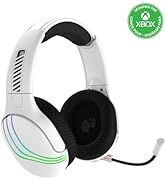
Image: The headset highlighting its 50mm drivers for immersive audio quality.
Chidziwitso cha Chitsimikizo
PDP products are covered by a manufacturer's warranty. For specific details regarding your PDP Afterglow Wave Wireless Headset warranty period and terms, please refer to the official PDP webkapena funsani chithandizo cha makasitomala awo. Sungani umboni wanu wa kugula kuti mugwiritse ntchito ngati chitsimikizo.
Thandizo
For further assistance, technical support, or to download the PDP Control Hub app, please visit the official PDP webtsamba:
You can also find FAQs and additional resources on their support pages.


