1. Chiyambi ndi Kupitiliraview
The Acer Aspire 3 A314-36P-35UU is a slim and lightweight laptop designed for everyday productivity and multitasking. Featuring a 14.0-inch Full HD IPS display, an Intel Core i3-N305 Processor, 8GB LPDDR5 memory, and a 128GB NVMe SSD, it offers reliable performance for various tasks. This manual provides essential information for setting up, operating, and maintaining your laptop.

The Acer Aspire 3 A314-36P-35UU laptop, open and ready for use.
Zofunika Kwambiri:
- Purposeful Design: Thin and light for easy portability.
- Ready-to-Go Performance: Powered by an Intel Core i3-N305 Processor for efficient multitasking.
- Visually Stunning Display: 14.0" Full HD IPS screen with narrow bezels for clear visuals.
- Internal Specifications: 8GB LPDDR5 Onboard Memory and 128GB NVMe SSD for storage.
- Kulumikizana Kwambiri: HD front-facing camera with Acer TNR and PurifiedVoice technology for clear video calls.
- Kulumikizana opanda zingwe: Wi-Fi 6 (802.11ax) for strong and consistent wireless signals.
- Improved Thermals: Enhanced thermal system for efficient cooling during extended use.
- Opareting'i sisitimu: Windows 11 Home in S mode.
2. Zomwe zili mu Bokosi
Upon unpacking your Acer Aspire 3 laptop, please ensure all the following items are present:
- Laputopu ya Acer Aspire
- Adapter ya AC
- Chingwe cha Mphamvu
3. Kukhazikitsa
Follow these steps to set up your new Acer Aspire 3 laptop:
- Tulutsani Laputopu: Chotsani laputopu mosamala ndi zinthu zina zonse zomwe zili mu phukusi.
- Lumikizani Mphamvu: Plug the AC adapter into the laptop's DC-in jack and then into a power outlet. It is recommended to fully charge the battery before first use.
- Boot Yoyamba: Open the laptop lid and press the power button. The laptop will guide you through the initial Windows 11 setup process. Follow the on-screen instructions to configure your region, language, network, and user account.
- Gwirizanitsani Zozungulira: Connect any external devices such as a mouse, external keyboard, or monitor to the available ports.

The laptop features multiple ports for connectivity, including USB Type-C, USB 3.2, and HDMI.
4. Kugwiritsa Ntchito Laputopu Yanu
Yatsani/Zimitsa:
- To power on, press the power button located on the keyboard.
- To power off, click the Start button in Windows, then select Power > Shut down.
Kugwiritsa ntchito Touchpad:
The touchpad functions as a mouse. Use single-finger taps for left-clicks and two-finger taps for right-clicks. You can also use multi-touch gestures for scrolling and zooming.
Kulumikiza ku Wi-Fi:
Your laptop supports Wi-Fi 6 for fast and stable wireless connections. To connect:
- Dinani chizindikiro cha Wi-Fi mu taskbar.
- Sankhani maukonde anu ankafuna pa mndandanda.
- Enter the network password if prompted and click Connect.
Enjoy fast and reliable internet with Wi-Fi 6 connectivity.
Windows 11 Home in S Mode:
Your laptop comes with Windows 11 Home in S mode, which is a version of Windows streamlined for security and performance. In S mode, you can only install apps from the Microsoft Store, and you must use Microsoft Edge for safe browsing. You can switch out of S mode at any time, but you cannot switch back.
This video demonstrates the powerful tools available with Microsoft 365, enhancing productivity on your Windows 11 device.
This video showcases Windows AI Photos, demonstrating how to easily enhance and manage your images.
This video illustrates the Windows 11 AI Snipping tool, allowing for easy text extraction and sensitive information protection.
This video demonstrates Windows AI Paint, highlighting its enhanced features for drawing and digital creation, including background removal.
This video introduces Microsoft Windows Copilot, your everyday AI companion for enhancing creativity and productivity.
5. Kusamalira
Proper maintenance ensures the longevity and optimal performance of your laptop:
- Kuyeretsa: Gwiritsani ntchito nsalu yofewa, yopanda ulusi kuti muyeretse chophimba ndi kunja. Pa zinthu zodetsedwa, dampsungani nsaluyo ndi madzi kapena chotsukira chotchinga. Pewani mankhwala owopsa.
- Kusamalira Battery: To maximize battery life, avoid fully discharging the battery frequently. Store the laptop in a cool, dry place when not in use for extended periods.
- Zosintha pa Mapulogalamu: Regularly update your Windows operating system and drivers to ensure security and performance.
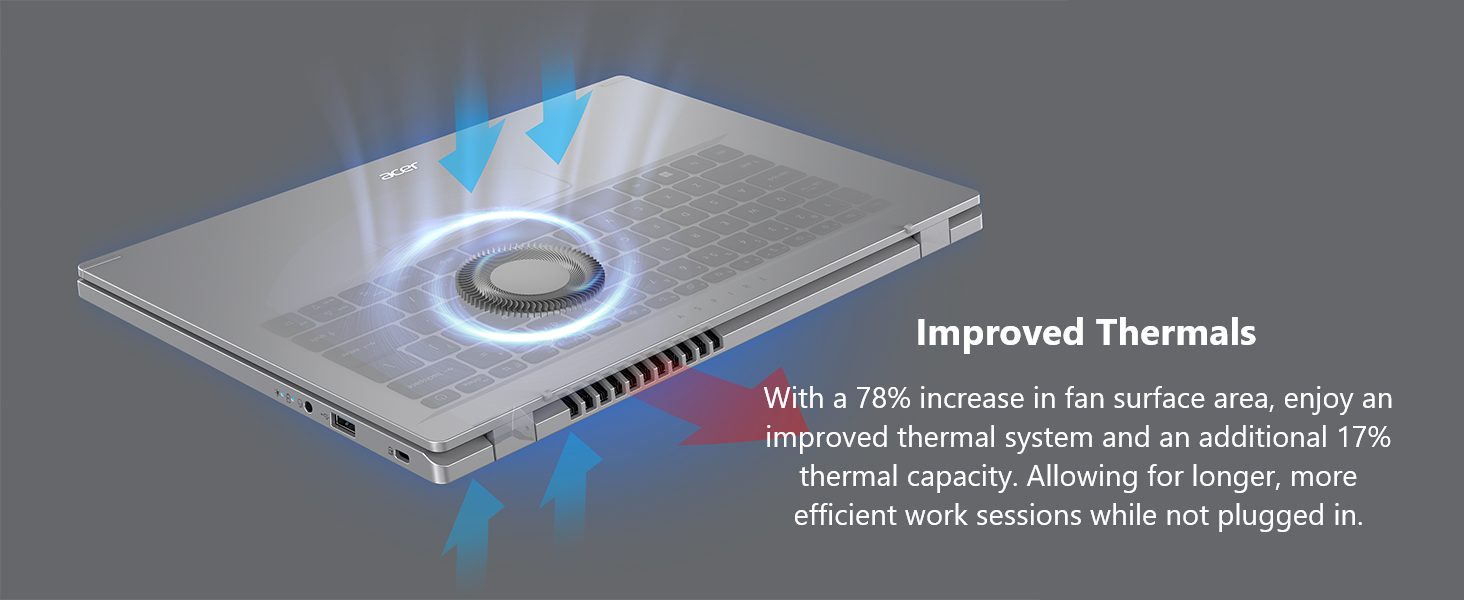
- Kasamalidwe ka Kutentha: The Aspire 3 features improved thermals. Ensure the vents are not obstructed to allow for proper airflow and prevent overheating. Avoid using the laptop on soft surfaces like beds or couches that can block ventilation.

The laptop's improved thermal design helps maintain optimal operating temperatures.
6. Mavuto
If you encounter issues with your laptop, try the following basic troubleshooting steps:
- Palibe Mphamvu: Onetsetsani kuti adaputala ya AC yalumikizidwa bwino ku laputopu komanso pa soketi yamagetsi yogwira ntchito. Yang'anani ngati soketi yamagetsi ikugwira ntchito.
- Makina Osayankha: If the laptop freezes, press and hold the power button for 10-15 seconds to force a shutdown. Wait a few moments, then restart the laptop.
- Mavuto a Wi-Fi: Restart your router and modem. On your laptop, turn Wi-Fi off and then on again. Ensure you are selecting the correct network and entering the correct password.
- Zowonetsa Mavuto: If the screen is blank or flickering, try connecting an external monitor to the HDMI port to determine if the issue is with the laptop's display or graphics output.
- Kuchita Pang'onopang'ono: Close unnecessary applications, check for malware, and ensure your operating system is up to date. Consider freeing up disk space if your storage is nearly full.
Kuti mupeze mavuto ovuta kwambiri, onani thandizo la Acer webtsamba kapena kulumikizana ndi kasitomala.
7. Zofotokozera
Below are the detailed specifications for the Acer Aspire 3 A314-36P-35UU Slim Laptop:
| Mbali | Kufotokozera |
|---|---|
| Dzina lachitsanzo | A314-36P-35UU |
| Kukula kwa Screen | 14 inchi |
| Kusintha kwa Screen | 1920 x 1080 pixels (Full HD IPS) |
| Purosesa | Intel Core i3-N305 (3.8 GHz) |
| Ram | 8 GB LPDDR5 |
| Kuthamanga kwa Memory | 2400 MHz |
| Hard Drive | 128 GB NVMe SSD |
| Zithunzi za Coprocessor | Zithunzi za Intel UHD (Zophatikizidwa) |
| Mtundu Wopanda Waya | 802.11ax (Wi-Fi 6), Bluetooth |
| Madoko a USB 3.0 | 3 (1x USB Type-C 3.2 Gen 2, 2x USB 3.2 Gen 1) |
| HDMI Port | 1 (HDMI 2.1 with HDCP support) |
| Opareting'i sisitimu | Windows 11 Kunyumba mu S Mode |
| Kulemera kwa chinthu | 3.09 mapaundi |
| Miyeso Yazinthu | 12.93 x 0.74 x 8.55 mainchesi |
| Mtundu | Siliva |
8. Chitsimikizo ndi Thandizo
Kuti mudziwe zambiri za chitsimikizo, chonde onani khadi la chitsimikizo lomwe lili ndi malonda anu kapena pitani ku chithandizo chovomerezeka cha Acer webmalo. Chitsimikizo nthawi zambiri chimakhala ndi zolakwika zopanga kwa nthawi yodziwika kuyambira tsiku lomwe mwagula.
If you require technical assistance or have questions not covered in this manual, please contact Acer customer support through their official channels. Have your laptop's model number (A314-36P-35UU) and serial number ready when contacting support.


