Mawu Oyamba
Thank you for choosing the Havit Gaming Mouse MS955. This optical gaming mouse features a USB interface, adjustable DPI settings, and RGB backlighting, designed to enhance your gaming experience. This manual provides essential information for setting up, operating, and maintaining your mouse.
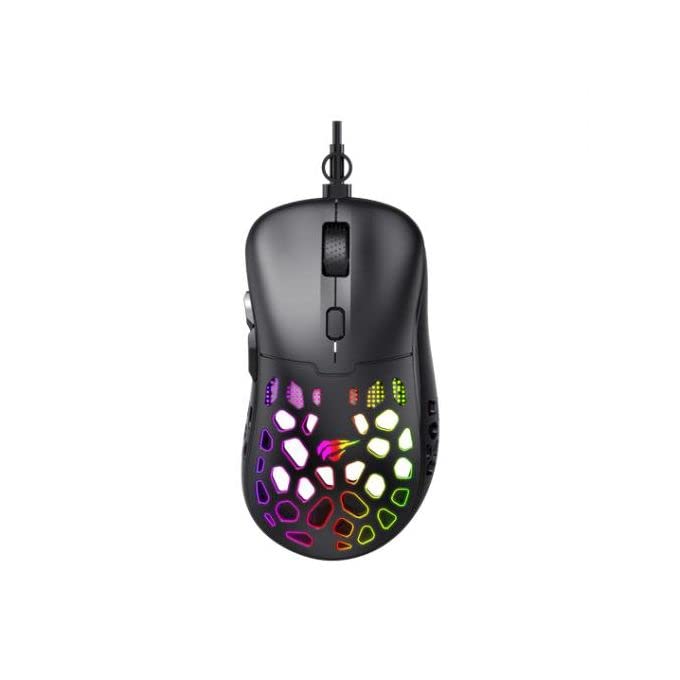
Chithunzi: Pamwamba-pansi view of the Havit Gaming Mouse MS955, showcasing its ergonomic design and vibrant RGB lighting through the honeycomb shell.
Khazikitsa
- Tsegulani Mbewa: Carefully remove the Havit Gaming Mouse MS955 from its packaging.
- Lumikizani ku Kompyuta: Locate an available USB port on your computer. Insert the USB connector of the mouse into the USB port.
- Kuyika Madalaivala: The mouse is plug-and-play. Your operating system (Windows XP, Windows 7, Linux, etc.) will automatically detect and install the necessary drivers. No additional software installation is typically required for basic functionality.
- Mayendedwe Oyesera: Once connected, move the mouse and click the buttons to ensure it is working correctly.
Malangizo Ogwiritsira Ntchito
The Havit Gaming Mouse MS955 features 6 programmable buttons and adjustable DPI settings for precise control.

Chithunzi: Mbali view of the Havit Gaming Mouse MS955, highlighting the left-side buttons and scroll wheel.
- Dinani Kumanzere: Primary button for selection and interaction.
- Dinani Kumanja Batani: Secondary button for context menus and alternative actions.
- Gudumu: Amagwiritsidwa ntchito pofufuza zikalata ndi web masamba. Imagwiranso ntchito ngati batani lapakati losavuta.
- Kusintha kwa DPI: Located behind the scroll wheel. Press this button to cycle through different DPI sensitivity levels (800-1200-2400-3200 DPI). Each press changes the sensitivity, allowing you to adapt to various gaming or work scenarios.
- Mabatani Ambali: Two buttons are located on the left side of the mouse. These are typically used for 'forward' and 'backward' navigation in web browsers or can be programmed for in-game actions.
Kuwala kwa RGB
The Havit Gaming Mouse MS955 features an integrated RGB backlight system. The lighting effects are typically automatic and may change with DPI settings or cycle through various colors. There are no dedicated buttons for controlling the RGB lighting directly on the mouse.
Kusamalira
- Kuyeretsa: To clean the mouse, disconnect it from your computer. Use a soft, dry cloth to wipe the surface. For stubborn dirt, a slightly damp cloth can be used, ensuring no liquid enters the mouse. Do not use harsh chemicals or abrasive cleaners.
- Posungira: Sungani mbewa pamalo abwino, owuma kutali ndi kutentha kwambiri komanso kuwala kwa dzuwa.
- Kusamalira Chingwe: Pewani kupindika kapena kupotoza chingwe cha USB kwambiri kuti chisawonongeke.
Kusaka zolakwika
- Mouse Osayankha:
- Onetsetsani kuti chingwe cha USB chalumikizidwa bwino padoko la USB lomwe likugwira ntchito pa kompyuta yanu.
- Yesani kulumikiza mbewa padoko lina la USB.
- Yambitsaninso kompyuta yanu.
- DPI Sikusintha:
- Press the DPI button firmly. Ensure you are pressing the correct button.
- The mouse cycles through fixed DPI settings; there is no visual indicator other than cursor speed change.
- Kuwala kwa RGB sikukugwira ntchito:
- Verify the mouse is properly connected to your computer.
- The RGB lighting is automatic; if the mouse is functioning otherwise, the lighting should also be active.
Zofotokozera
| Mbali | Tsatanetsatane |
|---|---|
| Mtundu | Havit |
| Chitsanzo | Chithunzi cha MS955 |
| Mtundu wa Chiyankhulo | USB |
| Makulidwe | 115.2 x 63 x 37.6 mm |
| Nambala Yamakiyi | 6 |
| Chipset | Chithunzi cha NST5311 |
| DPI Resolution | 800-1200-2400-3200 DPI |
| Opaleshoni Voltage | 5V |
| Moyo Wofunika Kwambiri | 3,000,000 kudina |
| Kutalika kwa Chingwe | 1.5 m |
| Kuzindikira Kuyenda | Kuwala |
| Kuwongolera Kwamanja | Kulondola |
| Analimbikitsa Ntchito | Masewera |
| Kachitidwe Kachitidwe | Linux, Windows 7, Windows XP |
| Mtundu | Wakuda |
Chitsimikizo ndi Thandizo
For warranty information or technical support, please refer to the documentation included with your purchase or visit the official Havit webmalo. Sungani umboni wanu wogula kuti mutenge chitsimikizo.