Mawu Oyamba
This manual provides essential information for the proper setup, operation, and maintenance of your Defunc Home 40W Multiroom Smart Speaker. Please read these instructions carefully before using the product to ensure optimal performance and longevity.
Zathaview
Zigawo Zophatikizidwa
- Defunc Home 40W Speaker
- Adapter yamagetsi
- Base Stand
- Buku la ogwiritsa (chikalatachi)
- Khadi la chitsimikizo
Zofunika Kwambiri
- Kulumikizana Kopanda Msoko: Connect and control up to 32 speakers using the Defunc HOME app. Stream the same audio everywhere or select different tracks for each room.
- Uninterrupted Playback: Enjoy continuous playback via Wi-Fi, ensuring phone calls do not interrupt your audio.
- Kugwirizana Kosiyanasiyana: Supports Wi-Fi, Bluetooth 5.0, and AUX IN for flexible connection options.
- Kupanga Mwamakonda: Adapt the speaker's appearance with interchangeable front covers (available separately) or personalize with your own image.
- Advanced App Functions: The Defunc HOME app allows volume adjustment, equalizer configuration, speaker grouping/ungrouping, and easy switching between stereo/mono modes.
- Smart Assistant Integration: Compatible with Alexa and Airplay2.
Khazikitsa
1. Kutsegula ndi Kuyika
Carefully remove all components from the packaging. Place the speaker on a stable, flat surface or mount it using a compatible wall or floor stand (sold separately). Ensure adequate ventilation around the speaker.
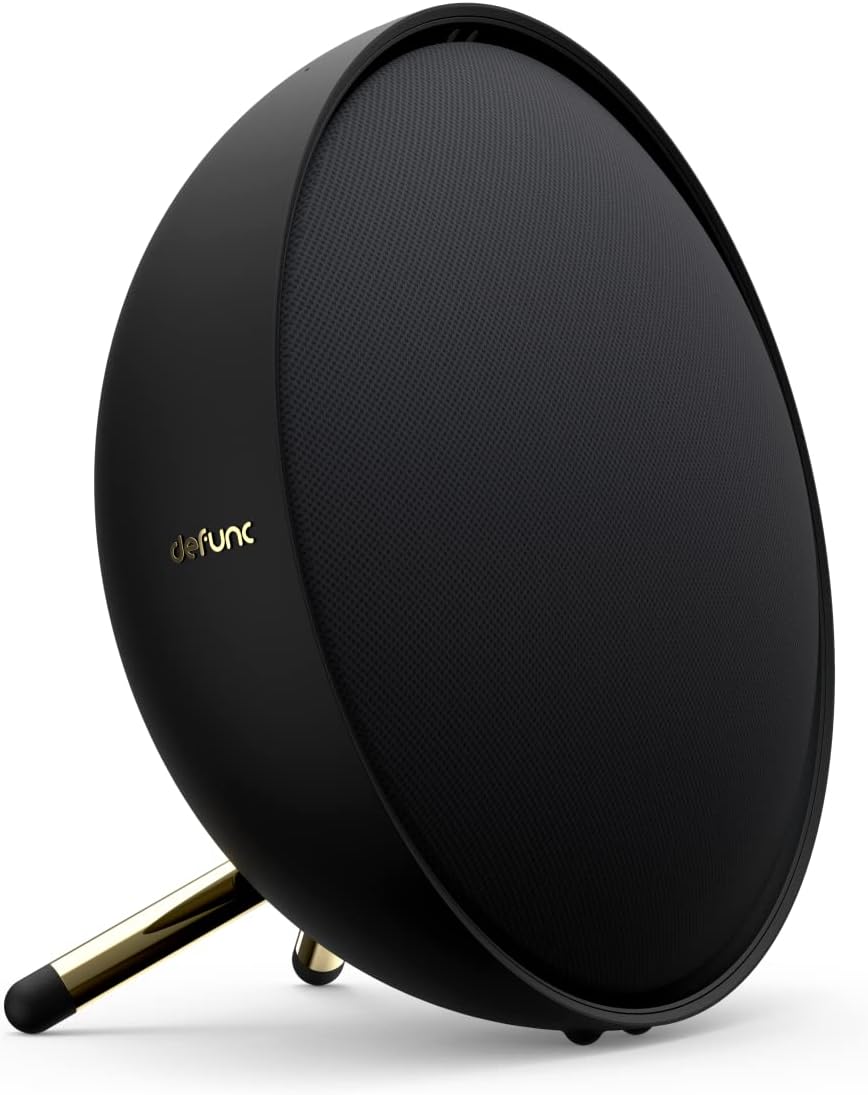
Image: Defunc Home speaker with its stand.
2. Kulumikizana kwa Mphamvu
- Connect the power adapter to the DC input port on the back of the speaker.
- Plug the power adapter into a wall outlet. The speaker will power on automatically or enter standby mode.

Chithunzi: Kumbuyo view of the Defunc Home speaker, highlighting connection ports.
3. Initial App Setup (Recommended)
- Koperani ndi Defunc HOME app kuchokera pa chipangizo chanu app store.
- Open the app and follow the on-screen instructions to connect your speaker to your Wi-Fi network. This step is crucial for multiroom functionality and smart assistant integration.
- During setup, you may be prompted to link your Alexa or Airplay2 accounts.
Malangizo Ogwiritsira Ntchito
Kuyatsa/Kuzimitsa
The speaker powers on when connected to an electrical outlet. To put it into standby mode or fully power off, use the Defunc HOME app or refer to the specific power button instructions if available on your model.
Kuwongolera Voliyumu
- Via Defunc HOME App: Adjust the volume precisely within the application.
- Via Source Device: Control volume from your connected smartphone, tablet, or computer.
- On Speaker: Use the physical volume buttons located on the top of the speaker (if present).
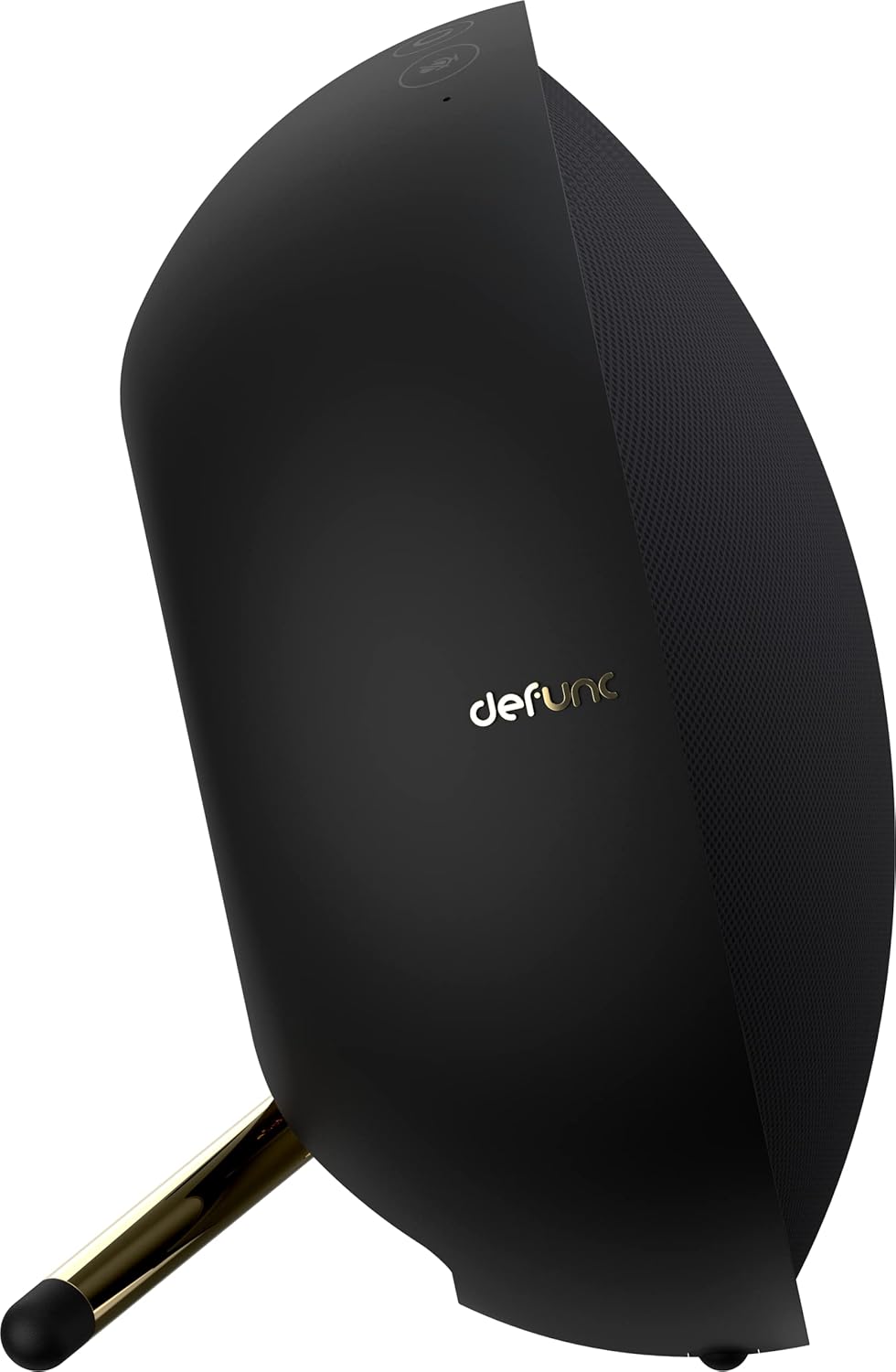
Chithunzi: Pamwamba view of the Defunc Home speaker, displaying control buttons.
Kuwongolera Kusewera
Playback (play, pause, skip tracks) can be controlled through the Defunc HOME app, your streaming application, or the physical controls on the speaker.
Kulumikizana
Wi-Fi Connection (Defunc HOME App)
For multiroom audio, Alexa, and Airplay2 functionality, connect your speaker to your home Wi-Fi network using the Defunc HOME app. This provides the most stable and feature-rich experience.
Kuyanjanitsa kwa Bluetooth
- Onetsetsani kuti choyankhulira chayatsidwa.
- Press and hold the Bluetooth pairing button on the speaker (refer to the diagram in the app or on the speaker for exact location) until the indicator light flashes, indicating pairing mode.
- On your device (smartphone, tablet), go to Bluetooth settings and select "Defunc Home" from the list of available devices.
- Mukaphatikizana, nyali yowunikira idzakhala yolimba.
AUX MU KULUMIKIZANA
Connect an external audio source (e.g., MP3 player, CD player) to the AUX IN port on the speaker using a 3.5mm audio cable. The speaker will automatically switch to AUX mode or you may need to select it via the app or speaker controls.
Defunc HOME App Functionality
The Defunc HOME app is central to managing your speaker system. It allows you to:
- Multiroom Control: Group up to 32 speakers for synchronized audio or assign different audio to individual speakers.
- Zokonda pa Equalizer: Customize audio profiles kuti zigwirizane ndi zomwe mumakonda.
- Stereo/Mono Mode: Switch between stereo and mono playback for individual speakers or grouped pairs.
- Kusankha Kochokera: Easily switch between Wi-Fi, Bluetooth, and AUX input.
- Zosintha za Firmware: Receive and install updates to enhance speaker performance and features.
- Smart Assistant Integration: Manage Alexa and Airplay2 settings.
Kusamalira
Kuyeretsa
Wipe the speaker's exterior with a soft, dry cloth. Do not use liquid cleaners or abrasive materials, as these can damage the finish. Ensure the speaker is unplugged before cleaning.
Kusungirako
Pamene simukuigwiritsa ntchito kwa nthawi yaitali, ikani wokamba nkhaniyo pamalo ozizira, ouma, kutali ndi kuwala kwa dzuwa ndi kutentha kwambiri.
Kusaka zolakwika
| Vuto | Chifukwa Chotheka | Yankho |
|---|---|---|
| Palibe Mphamvu | Chingwe chamagetsi sichinalumikizidwe; chotulutsira magetsi sichikugwira ntchito. | Ensure power cable is securely connected to speaker and a working electrical outlet. |
| Palibe Phokoso | Volume too low; incorrect input source; device not paired/connected. | Increase volume. Check selected input source (Wi-Fi, Bluetooth, AUX). Re-pair Bluetooth device or check Wi-Fi connection in app. |
| Kusagwirizana kwa Bluetooth | Device out of range; interference. | Move device closer to speaker. Avoid obstacles. Re-pair if necessary. |
| Mavuto a Wi-Fi | Incorrect Wi-Fi password; router issues; speaker too far from router. | Verify Wi-Fi password in the Defunc HOME app. Restart your router. Move speaker closer to router. |
| Alexa/Airplay2 Not Responding | Not properly linked; network issues. | Check account linking in the Defunc HOME app. Ensure stable Wi-Fi connection. |
Zofotokozera
| Mbali | Tsatanetsatane |
|---|---|
| Mtundu | Defunc |
| Nambala ya Model | D2072 |
| Miyeso Yazinthu | 8.5D x 20W x 20H masentimita |
| Kulemera kwa chinthu | 2 kg |
| Mtundu | Wakuda |
| Kulumikizana Technology | Bluetooth, WiFi |
| Wopanda zingwe Technology | Wifi |
| Mphamvu Yotulutsa Sipika | 40 Watts (for this model) |
| Kuyankha pafupipafupi | 20 GHz |
| Njira Zotulutsa Audio | Sitiriyo |
| Njira Yowongolera | Kugwiritsa ntchito |
| Zida Zogwirizana | Smartphone |
| Analimbikitsa Ntchito | Home Audio |
| Gwero la Mphamvu | Corded Electric |
| Zakuthupi | Pulasitiki |
| Zapadera | Bluetooth, Multi-room capability, Alexa, Airplay2 |
Chitsimikizo ndi Thandizo
Chidziwitso cha Chitsimikizo
Your Defunc Home speaker comes with a standard manufacturer's warranty. Please refer to the included Warranty Card for specific terms, conditions, and duration of coverage. Keep your proof of purchase for warranty claims.
Thandizo la Makasitomala
For technical assistance, troubleshooting beyond this manual, or warranty inquiries, please visit the official Defunc website or contact their customer support. Contact details can typically be found on the warranty card or the Defunc webmalo.


