1. Chiyambi ndi Kupitiliraview
This manual provides essential information for setting up, operating, maintaining, and troubleshooting your Apple iPhone 13 Pro Max. This device is a renewed product, thoroughly inspected and guaranteed to function like new, with minimal cosmetic damage not noticeable at arm's length. It comes unlocked and includes a certified charging cable and wall plug.

Chithunzi: Patsogolo ndi kumbuyo view of the Apple iPhone 13 Pro Max in Graphite.
2. Kukhazikitsa
2.1 Unboxing ndi Kuyang'ana Koyamba
Upon receiving your iPhone 13 Pro Max, carefully unbox the device. The package should contain the iPhone, a USB-C to Lightning charging cable, and a SIM tray ejector tool. A power adapter is not included and must be acquired separately.
Video: A user unboxes the iPhone 13 Pro Max, showcasing the device and included accessories like the USB-C to Lightning cable.
2.2 Kuyimitsa ndi Kusintha Koyambira
Press and hold the Side button until the Apple logo appears. Follow the on-screen instructions to select your language, region, and connect to a Wi-Fi network. You will be prompted to set up Face ID and create a passcode.
2.3 Kuyika kwa SIM Card
Locate the SIM tray on the side of the iPhone. Use the provided SIM tray ejector tool to open the tray. Insert your nano-SIM card into the tray with the gold contacts facing down, then reinsert the tray into the device.
2.4 Kusamutsa Data
If you are transferring data from an old iPhone, use Quick Start by placing your old iPhone near the new one. Alternatively, you can restore from an iCloud backup or a computer backup (Finder on Mac, iTunes on Windows).
2.5 Kulipira Chipangizo
Connect the USB-C end of the charging cable to a compatible power adapter (sold separately) and the Lightning end to your iPhone's charging port. The device supports fast charging, reaching 50% charge in approximately 30 minutes with a 20W or higher power adapter.
3. Malangizo Ogwiritsira Ntchito
3.1 Basic Navigation and Gestures
- Screen Yanyumba: Shandani kuchokera pansi pamunsi pazenera.
- Kusintha kwa App: Swipe up from the bottom edge and pause in the middle of the screen.
- Control Center: Swipe down from the top-right corner of the screen.
- Zidziwitso: Swipe down from the top-left corner or center of the screen.
3.2 Mawonekedwe a Kamera
The iPhone 13 Pro Max features an advanced triple-camera system, including Ultra Wide, Wide, and Telephoto lenses. It supports various modes like Cinematic mode for video with shallow depth of field, and improved low-light performance.

Chithunzi: Zambiri view of the iPhone 13 Pro Max's advanced triple-camera system.
Video: A comparison of low-light camera performance between the iPhone 13 Pro Max and iPhone 11.
3.3 Kusintha Voliyumu
Use the Volume Up and Volume Down buttons on the left side of the device to adjust media playback volume, ringtone volume, and alert volumes. You can also adjust these settings in the Control Center or through the Settings app under "Sounds & Haptics".
Video: Instructions on how to increase the volume on your iPhone 13 Pro Max.
3.4 Weather App Features
The Weather app on your iPhone provides detailed forecasts, including temperature maps and precipitation maps. To access these, open the Weather app, tap the map icon in the bottom-left corner, then select "Temperature" or "Precipitation" from the layer options.
Video: A demonstration of using weather app temperature maps on iPhone.
4. Kusamalira
4.1 Kuyeretsa Chipangizo Chanu
To clean your iPhone, use a soft, lint-free cloth. Avoid abrasive materials, aerosols, and cleaning sprays. For stubborn smudges, slightly dampen the cloth with water. Do not submerge the device in cleaning solutions.
4.2 Zosintha za Mapulogalamu
Regularly check for and install software updates to ensure optimal performance, security, and access to the latest features. Go to Zikhazikiko > Zambiri > Zosintha za Mapulogalamu.
4.3 Thanzi la Batri
To maximize battery lifespan, avoid extreme temperatures and keep your iPhone charged between 20% and 80%. You can monitor battery health in Settings > Battery > Battery Health & Charging.
4.4 Kasamalidwe kakusungirako
Manage your iPhone's storage by regularly deleting unused apps, photos, and videos. You can check your storage usage in Zikhazikiko> General> iPhone yosungirako.
5. Mavuto
5.1 Chipangizo Chosayankha
If your iPhone is unresponsive, perform a force restart: Press and quickly release the Volume Up button, then press and quickly release the Volume Down button, then press and hold the Side button until the Apple logo appears.
5.2 Nkhani Zolumikizana
For Wi-Fi or Bluetooth problems, try toggling the respective settings off and on in Control Center or Settings. If issues persist, reset network settings via Settings > General > Transfer or Reset iPhone > Reset > Reset Network Settings.
5.3 App Crashing or Freezing
Close the problematic app from the App Switcher and reopen it. If the issue continues, check for app updates in the App Store or reinstall the app.
5.4 Kubwezeretsanso ku Zikhazikiko za Fakitale
If severe software issues occur, you may need to restore your iPhone to factory settings. Back up your data first, then go to Settings > General > Transfer or Reset iPhone > Erase All Content and Settings.
6. Zofotokozera
| Mbali | Tsatanetsatane |
|---|---|
| Dzina lachitsanzo | iPhone 13 Pro Max |
| Nambala Yachitsanzo Yachinthu | MLL63HN/A |
| Mtundu | apulosi |
| Opareting'i sisitimu | iOS 15 (upgradable) |
| CPU Model | Apple A15 Bionic |
| Kuthamanga kwa CPU | 3.1 GHz |
| Kukula kwa Screen | 6.7 inchi |
| Kusamvana | 2778 x1284 pa |
| Mtengo Wotsitsimutsa | 120hz pa |
| Memory Storage Kukhoza | 128 GB |
| Mphamvu ya Battery | 4352 miliyoniamp Maola |
| Miyeso Yazinthu | 10 x 2 x 2.7 mainchesi |
| Kulemera kwa chinthu | 8.3 pawo |
| Connectivity Technologies | Bluetooth, WiFi |
| Zapadera | Built-In GPS, Touchscreen |
| Port Yanyumba | Mphezi Port |
| Mtundu | Graphite |
| Zomwe zili mu Bokosi | SIM Tray Ejector, USB Cable (USB-C to Lightning) |
7. Chitsimikizo ndi Thandizo
7.1 Chitsimikizo Cha Zogulitsa
This renewed Apple iPhone 13 Pro Max is backed by a 1-year satisfaction guarantee, similar to new Apple products. This ensures that the device meets high quality standards and provides peace of mind for your purchase.
7.2 Amazon Renewed Conditions
Amazon Renewed products are fully functional and come with generic or original accessories and packaging. Devices are inspected for minimal cosmetic damage, not noticeable when held at arm's length, and guaranteed to have a battery capacity of at least 90% of original.
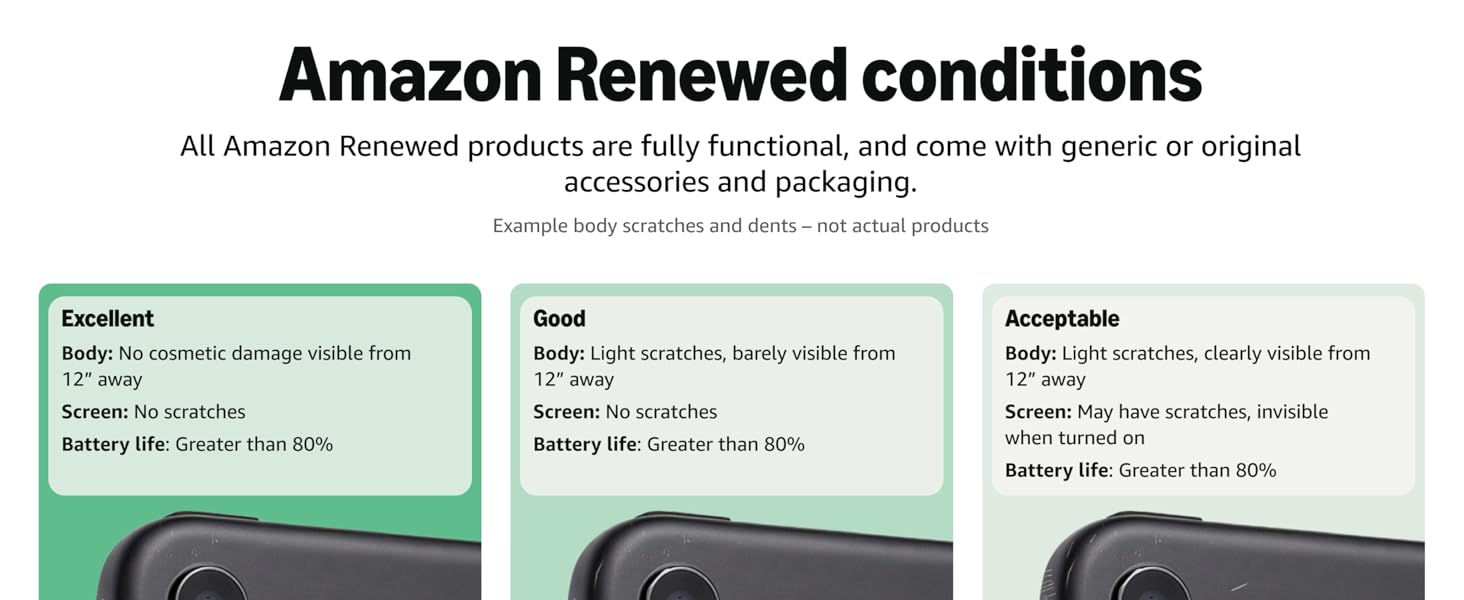
Image: Visual representation of Amazon Renewed cosmetic and battery conditions (Excellent, Good, Acceptable).
7.3 Kulumikizana ndi Thandizo
For further assistance, troubleshooting, or warranty claims, please refer to the seller's contact information provided with your purchase or visit the Amazon Renewed support page. For general iPhone support, visit the official Apple Support webmalo.