Zathaview
The Mytrix Pink RGB LED Gaming Mouse Pad is an extra-large gaming mousepad designed to enhance your gaming and office experience with its vibrant RGB lighting and durable construction. Featuring a unique Sakura pink cherry blossoms design, this mouse pad brings a distinctive aesthetic to your desktop.

Image: The Mytrix Pink RGB LED Gaming Mouse Pad, showcasing its Sakura cherry blossom design and illuminated RGB edges.
Zofunika kwambiri ndi izi:
- Sakura Pink Cherry Blossoms Design: A Japanese cherry theme with RGB light, providing a unique and aesthetically pleasinmawonekedwe a g.
- Njira Zowunikira za 14 RGB: Offers a variety of LED lighting profiles, including breathing and flashing effects, with 2-Zone RGB dynamic illumination.
- Pamwamba Wopanda Madzi: The micro-woven smooth surface is waterproof, optimizing mouse accuracy and resisting spills.
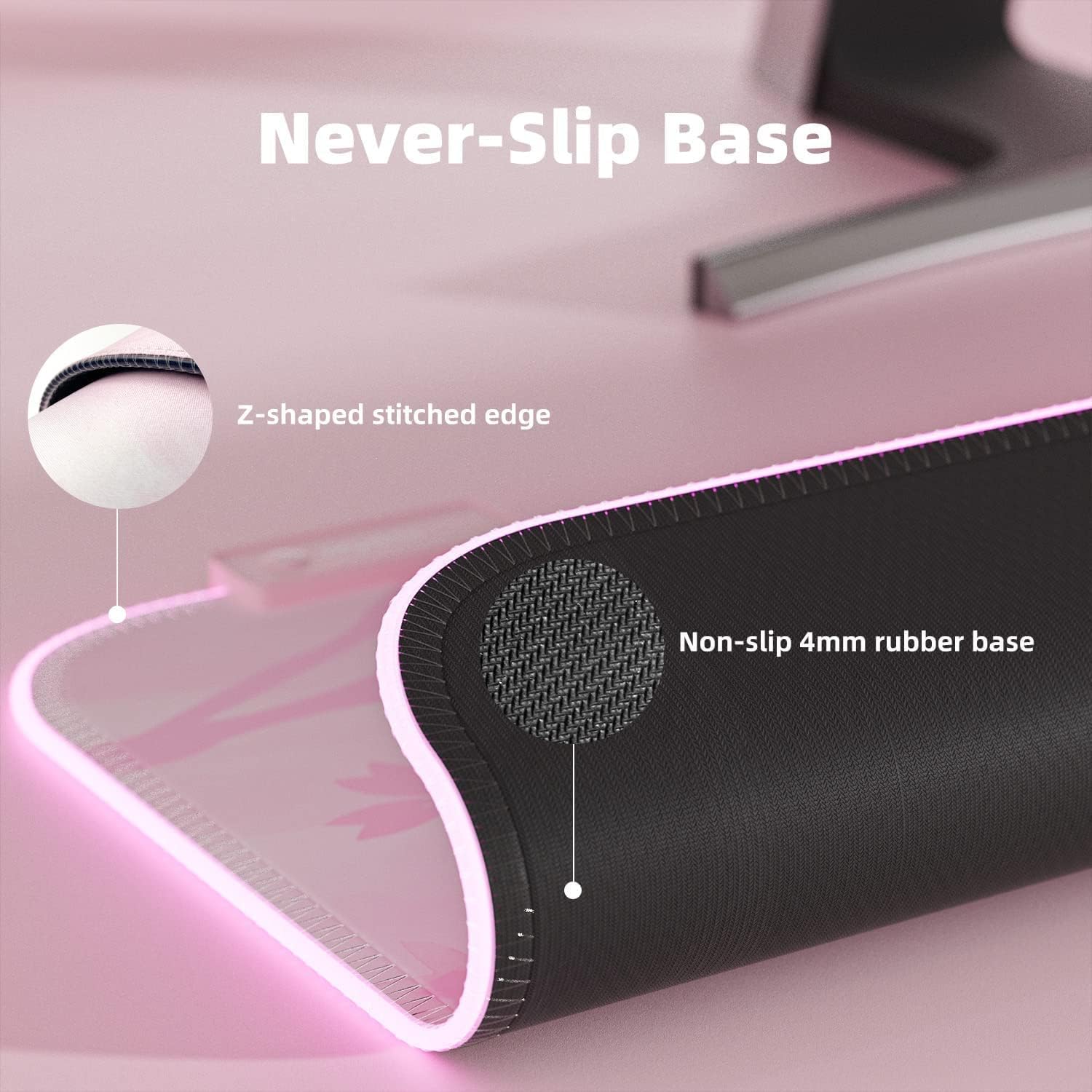
- Non-slip Rubber Base: A durable, non-slip rubber base ensures stability during intense use.
- Pulagi & Sewerani: No driver installation required; powered by USB.
- Large Gaming Mousepad: Measures 800 x 300 x 4 mm (31.5 x 11.8 x 0.16 inch), providing ample space kwa kiyibodi yanu ndi mbewa.
Malangizo Okhazikitsira
Setting up your Mytrix RGB LED Gaming Mouse Pad is a straightforward process due to its plug-and-play design.
- Tsegulani Mouse Pad: Carefully unroll the mouse pad and place it on a flat, clean surface. Allow some time for it to flatten completely if it retains any curl kuchokera phukusi.
- Lumikizani ku USB: Locate the USB-C port on the mouse pad's control module and connect the provided USB cable.
- Lumikizani ku Gwero la Mphamvu: Plug the other end of the USB cable into an available USB port on your computer or a USB wall adapter. The mouse pad will automatically power on and illuminate.

Chithunzi: Chapafupi view of the USB-C connection and control button on the Mytrix mouse pad, illustrating the plug-and-play setup.
Malangizo Ogwiritsira Ntchito
The Mytrix RGB LED Gaming Mouse Pad features an intuitive control button for managing its lighting effects.
- Changing RGB Lighting Modes: Press the control button once to cycle through the 14 available LED RGB lighting profiles. These modes include various static colors, breathing effects, flashing patterns, and more.
- Kusintha Kuwala: Press the control button twice in quick succession to change the brightness level of the RGB illumination.
- Yatsani/Zimitsa: To power the mouse pad on or off, press and hold the control button for 3 seconds.

Image: An illustrative diagram showcasing the 14 distinct RGB lighting modes that can be selected on the mouse pad.

Image: The large gaming mouse pad with its dimensions clearly marked, indicating its extended size for keyboard and mouse.
Kusamalira
Proper care will ensure the longevity and performance of your Mytrix RGB LED Gaming Mouse Pad.
- Kuyeretsa Pamwamba: The mouse pad features a waterproof surface. For minor spills or dust, gently wipe the surface with a damp cloth. For more stubborn stains, use a mild soap solution and a soft cloth, then wipe dry. Ensure the USB connection point is not exposed to liquids.
- Maintaining the Base: The non-slip rubber base requires minimal maintenance. Keep it free from excessive dust or debris to ensure optimal grip on your desk surface.
- Edge Care: The stitched edges are designed to prevent fraying. Avoid sharp objects or excessive pulling on the edges to maintain their integrity.
- Posungira: When not in use for extended periods, it is recommended to gently roll the mouse pad (design side out) and store it in a cool, dry place to prevent creasing.
Chithunzi: Chapafupi view demonstrating the waterproof surface of the mouse pad, with water beads visible.

Chithunzi: Mwatsatanetsatane view of the mouse pad's non-slip rubber base and the reinforced Z-shaped stitched edge.
Kusaka zolakwika
If you encounter any issues with your Mytrix RGB LED Gaming Mouse Pad, refer to the following common solutions:
| Vuto | Chifukwa Chotheka | Yankho |
|---|---|---|
| RGB lights are not turning on. | No power, loose USB connection, or unit is off. |
|
| Lights flicker or change unexpectedly. | Unstable power supply or loose connection at the control module. |
|
| Mouse tracking issues. | Dirty surface or incompatible mouse sensor. |
|
Zofotokozera
| Mbali | Tsatanetsatane |
|---|---|
| Miyeso Yazinthu | 31.5 x 12 x 0.16 mainchesi (800 x 300 x 4 mm) |
| Kulemera kwa chinthu | 1.25 mapaundi |
| Mtundu | Mytrix |
| Mtundu | Pinki |
| Zakuthupi | Rubber (Base), Micro-woven cloth (Surface) |
| Mbali Yapadera | Waterproof, RGB Lighting, Non-slip Base |
| Analimbikitsa Ntchito | Masewera, Ofesi |
| Njira Zowunikira | 14 RGB modes |
| Kulumikizana | USB (Plug & Play) |
Chitsimikizo ndi Thandizo
For warranty information, product support, or to inquire about returns, please refer to the following:
- Mfundo PAZAKABWEZEDWE: This product is eligible for a 30-day return/replacement policy from the date of purchase. Please refer to your retailer's specific return guidelines.
- Thandizo la Opanga: For technical assistance or further inquiries, please visit the official Mytrix webtsamba kapena funsani thandizo lamakasitomala awo.
- Buku la ogwiritsa (PDF): An official user manual in PDF format is available for download Pano.
- Kukhazikitsa Buku (PDF): Buku lothandizira kukhazikitsa mu mtundu wa PDF likupezeka kuti mutsitse Pano.