Mawu Oyamba
This manual provides essential information for the proper installation, operation, and maintenance of your Zebronics Zeb-D370S DVD Player. Please read this manual thoroughly before using the device to ensure safe and efficient operation. Keep this manual for future reference.
Zofunika Zachitetezo
- Musaike chipangizocho pa mvula kapena chinyezi kuti chisapse ndi moto kapena kugwedezeka ndi magetsi.
- Osatsegula casing. Bweretsani ntchito zonse kwa anthu oyenerera.
- Onetsetsani kuti pali mpweya wabwino wozungulira chipindacho. Musatseke mipata ya mpweya wabwino.
- Use only the power adapter supplied with the unit or specified by the manufacturer.
- Avoid placing the unit on unstable surfaces.
- Dulani chingwe chamagetsi pa nthawi ya mphepo yamkuntho kapena ngati chosagwiritsidwa ntchito kwa nthawi yaitali.
Zamkatimu Phukusi
Onetsetsani kuti zinthu zonse zilipo mu phukusi:
- Zebronics Zeb-D370S DVD Player Unit
- Kuwongolera Kwakutali
- Chingwe cha AV
- Chingwe Chamagetsi
- Buku la Malangizo
Zathaview
The Zebronics Zeb-D370S is a versatile DVD player featuring a built-in stereo speaker and amplifier, HDMI, USB, and SD card support, and dual karaoke microphone inputs. It supports multiple formats and offers 5.1 channel, coaxial, and optical audio outputs.
Front Panel Controls and Ports
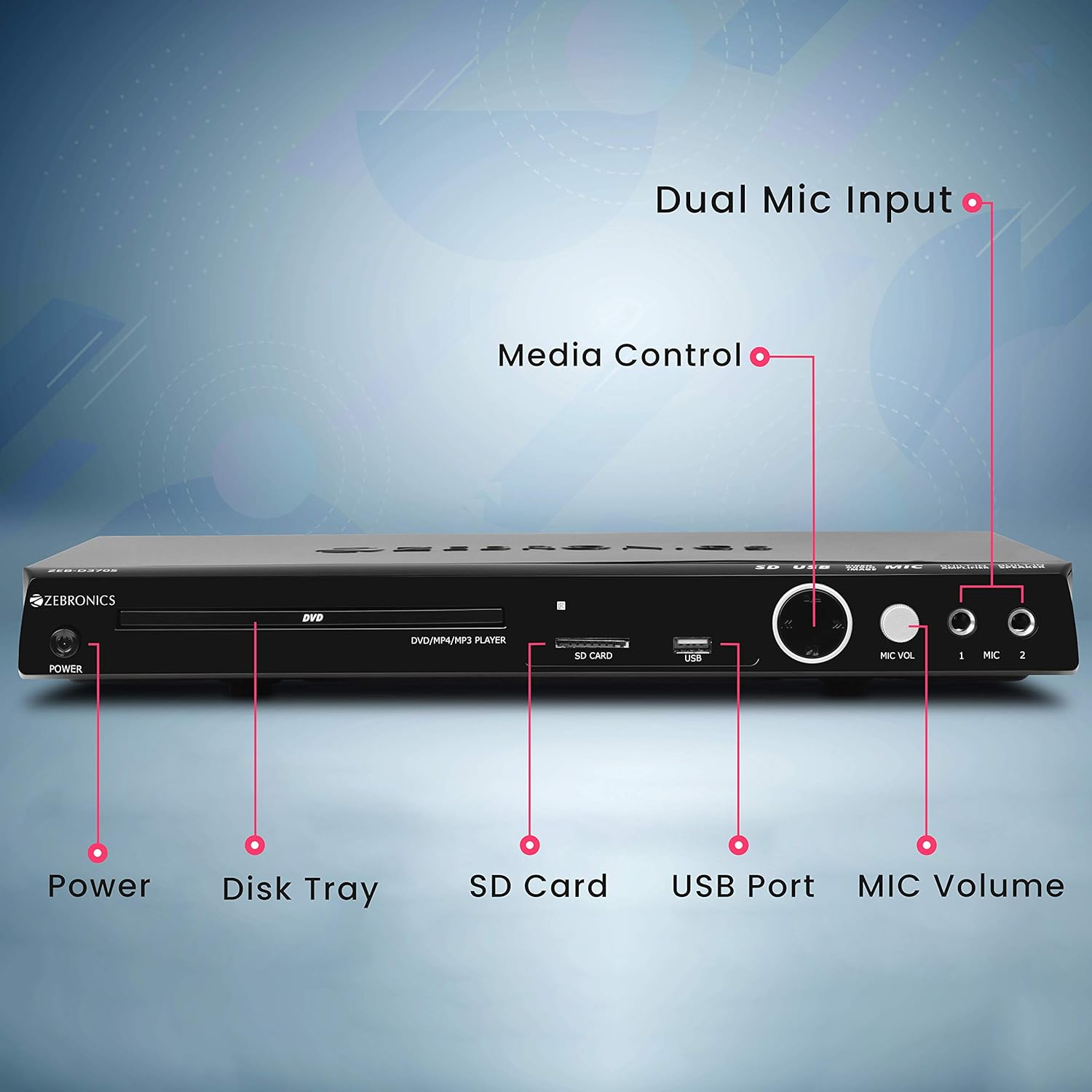
Front panel of the Zebronics Zeb-D370S DVD Player, showing the Power button, Disk Tray, SD Card slot, USB Port, MIC Volume control, and two Microphone inputs (MIC 1, MIC 2).
- Batani Lamphamvu: Kuyatsa kapena kuzimitsa unit.
- Disk Tray: For inserting DVDs, CDs, VCDs, and SVCDs.
- Slot Card Slot: Kwa kusewera media files kuchokera ku SD khadi.
- Doko la USB: Kwa kusewera media files kuchokera pa USB drive.
- Voliyumu ya MIC: Adjusts the volume of the connected microphones.
- MIC 1 & MIC 2: Inputs for connecting microphones for karaoke.
- Mabatani a Media Control: Play/Pause, Stop, Skip, etc.
Rear Panel Connections

Rear panel of the Zebronics Zeb-D370S DVD Player, detailing the Coaxial Output, Optical Output, 5.1 Channel Output, HDMI port, Composite video output, Component video output, S-Video output, and Ext-Audio Output.
- Kutulutsa kwa HDMI: For high-definition video and audio connection to a TV or display.
- Kanema Wophatikizika: Standard definition video output.
- Component Video Output: Higher quality analog video output (YPbPr).
- Zotulutsa za S-Video: Improved analog video output.
- Digital Audio Output (Optical & Coaxial): For connecting to external audio receivers or sound systems.
- Analog 5.1 Channel Output: For connecting to a 5.1 channel speaker system.
- Ext-Audio Output: Additional audio output connections.
- Zotulutsa za Spika: Terminals for connecting external speakers, utilizing the built-in ampwopititsa patsogolo ntchito.

Kumbuyo view of the Zebronics Zeb-D370S DVD Player highlighting the built-in amplifier, built-in speaker, and speaker output terminals.
Malangizo Okhazikitsira
1. Kulumikizana kwa Mphamvu
- Ensure the DVD player is placed on a stable, flat surface with adequate ventilation.
- Connect the power cable to the AC input on the rear of the DVD player.
- Plug the other end of the power cable into a standard electrical outlet (110V - 260V AC).
2. Video Connection to TV/Display
Sankhani imodzi mwa njira zotsatirazi zolumikizirana:
- HDMI (Yoyenera kugwiritsidwa ntchito pa khalidwe labwino kwambiri): Connect an HDMI cable from the HDMI output on the DVD player to an HDMI input on your TV.
- Kanema wagawo: Connect component video cables (Red, Green, Blue) from the DVD player's component outputs to the corresponding inputs on your TV.
- Kanema Wophatikiza: Connect a composite video cable (Yellow) from the DVD player's composite output to the yellow video input on your TV.
- S-Kanema: Connect an S-Video cable from the DVD player's S-Video output to the S-Video input on your TV.
3. Kulumikizana kwa Audio
Choose one of the following audio connection methods:
- HDMI: If using HDMI for video, audio will also be transmitted via the HDMI cable.
- 5.1 Channel Analog Output: Connect RCA cables from the 5.1 channel outputs (Front Left, Front Right, Center, Subwoofer, Surround Left, Surround Right) on the DVD player to a compatible 5.1 channel ampmakina opangira magetsi kapena speaker.
- Audio ya Digito (Yowunikira/Yokoka): Connect an optical or coaxial cable from the respective output on the DVD player to a digital audio input on your amplifier or home theater system for surround sound.
- Built-in Speaker Output: If using the built-in speakers, ensure no external speakers are connected to the 5.1 channel outputs unless desired.
4. Microphone Connection (Optional)
- Plug your microphones into the MIC 1 and/or MIC 2 inputs on the front panel.
- Adjust the MIC Volume knob to control microphone audio levels.
Malangizo Ogwiritsira Ntchito

Zebronics Zeb-D370S DVD Player with a disc inserted, remote control, and a visual representation of content playing on a screen, illustrating its multimedia capabilities.
1. Kusewera pa Disc
- Dinani pa Mphamvu button to turn on the DVD player.
- Dinani pa Tsegulani/Ttsekani button (usually on the remote or front panel) to open the disc tray.
- Place a compatible disc (DVD Video, DVD+RW/-RW/+R/-R, Dual Layer Disc, CD Audio, CD-R/-RW, VCD, SVCD) onto the disc tray with the label side facing up.
- Dinani pa Tsegulani/Ttsekani button again to close the tray. The player will automatically begin playback or display a menu.
- Use the remote control for playback functions such as Play, Pause, Stop, Fast Forward, Rewind, and Chapter Skip.
2. USB/SD Media Playback
- Insert a USB drive into the USB port or an SD card into the SD card slot on the front panel.
- The player should automatically detect the media and display a menu to browse files. If not, select the USB or SD source using the remote control's Gwero or Zolowetsa batani.
- Yang'anani pa yanu files (VOB, MP4, DIVX, AVI, MPEG-1, MPEG-2, 3GP, MP3, WMA, AAC, JPEG, TXT) using the remote control and press Sewerani kuyamba kusewera.
3. Ntchito ya Karaoke
- Connect one or two microphones to the MIC 1 and MIC 2 inputs.
- Play a karaoke disc or a media file with instrumental tracks.
- Adjust the MIC Volume knob on the front panel to control the microphone audio level.
4. Ntchito Zapamwamba
- Kudula CD: Convert audio CDs to digital formats (refer to on-screen menu for options).
- Picture Slideshow: View JPEG images from disc, USB, or SD card as a slideshow.
- Kusanthula Kwambiri: Provides a smoother, flicker-free image on compatible displays.
- Zoom IN/OUT: Magnify or reduce the displayed image during playback.
- High Speed Search: Quickly scan through disc or media content.
- Khomo la Makolo: Restrict playback of certain content based on ratings.
- Seweraninso Instant: Jump back a few seconds during playback.
- Disc Resume: Resume playback from where it was last stopped on a disc.
Kusamalira
- Kuyeretsa Unit: Use a soft, dry cloth to clean the exterior of the DVD player. Do not use liquid cleaners or abrasive materials.
- Kusamalira Chimbale: Gwirani ma disc m'mbali mwake. Asungeni oyera komanso opanda mikwingwirima. Gwiritsani ntchito nsalu yofewa, yopanda ulusi kuti mupukute ma disc kuchokera pakati kupita kunja.
- Mpweya wabwino: Onetsetsani kuti malo olowera mpweya satsekedwa kuti asatenthedwe.
Kusaka zolakwika
If you encounter issues with your DVD player, refer to the table below for common problems and solutions:
| Vuto | Chifukwa Chotheka | Yankho |
|---|---|---|
| Palibe mphamvu | Chingwe chamagetsi sichinalumikizidwe; Soketi yamagetsi sikugwira ntchito | Yang'anani kulumikizana kwa chingwe chamagetsi; Yesani soketi ina |
| Palibe zotulutsa kanema | Incorrect video cable connection; Incorrect input selected on TV | Ensure video cables are securely connected; Select the correct input source on your TV (e.g., HDMI 1, AV) |
| Palibe zotulutsa | Incorrect audio cable connection; TV/amplifier volume too low; Mute activated | Check audio cable connections; Increase volume; Deactivate mute function |
| Chimbale sichikusewera | Disc is dirty or scratched; Disc format not supported; Disc inserted incorrectly | Clean the disc; Ensure disc is compatible; Insert disc with label side up |
| USB/SD media not detected | USB drive/SD card not inserted correctly; Incompatible file format; Corrupted media | Reinsert USB/SD; Check supported file formats; Try a different USB/SD device |
Zofotokozera

Dimensions of the Zebronics Zeb-D370S DVD Player: 360mm (width), 220mm (depth), and 50mm (height).
| Mbali | Tsatanetsatane |
|---|---|
| Dzina lachitsanzo | Zeb D370S |
| Mtundu | AZEBERI |
| Miyeso Yazinthu | 28 x 39 x 82 mm (1.4 kg) |
| Kusamvana | 1920 x 1080 (Supported resolutions: 480i/576i/480p/576p/720p/1080i/1080p) |
| Zapadera | Surround Sound, Built-in Amplifier, Built-in Stereo Speaker, Karaoke Mic Input |
| Njira Zotulutsa Audio | Stereo, Surround (2CH / 5.1CH / Virtual Surround Sound) |
| Kukonzekera kwa Sipika Kuzungulira Sound Channel | 5.1 |
| Anathandiza Audio akamagwiritsa | Dolby Digital, MP3, WMA, AAC |
| Video Playback System | NTSC / PAL / AUTO |
| Mtundu Wolumikizira | HDMI, USB, SD Slot, MIC 1 & MIC 2, Composite, Component, S-Video, Digital Audio Output (Optical & Coaxial), Analog 5.1Ch Output, Ext-Audio Output x 2 |
| Media Type (Playback Disc) | DVD Video, DVD+RW/-RW/+R/-R, Dual Layer Disc, CD Audio, CD-R/-RW, VCD, SVCD |
| Media Files Kuthandizidwa | VOB, MP4, DIVX, AVI, MPEG-1, MPEG-2, 3GP, MP3, WMA, AAC, JPEG, TXT |
| Opaleshoni Voltage | 110V - 260V AC |
| Ntchito | CD Ripping, Picture SlideShow, Progressive scan, Zoom IN/OUT, High speed search, Parental lock, Instant replay, Disc resume |
Chitsimikizo ndi Thandizo
For warranty information, technical support, or service inquiries, please refer to the warranty card included with your product or visit the official Zebronics website. Do not attempt to repair the device yourself.


