Mawu Oyamba
This manual provides detailed instructions for the setup, operation, and maintenance of your HyperX Cloud II Wireless Gaming Headset. Designed for PC, PlayStation 5, and PlayStation 4, this headset offers a reliable 2.4GHz wireless connection, extended battery life, and immersive audio features.
Zamkatimu Phukusi
- HyperX Cloud II Wireless Headset
- Maikolofoni Yochotsa Phokoso-Kuletsa
- USB Wopanda Dongle
- USB-C Charging Chingwe

Chithunzi: HyperX Cloud II Wireless Headset with its detachable microphone, USB wireless dongle, and USB-C charging cable.
Zathaview

Chithunzi: Patsogolo view of the HyperX Cloud II Wireless Headset with the detachable microphone connected.
Zida zam'mutu
- Chovala chowongolera: Kuti zigwirizane bwino.
- Memory Foam Earcups: Yopangidwira chitonthozo panthawi yogwiritsidwa ntchito nthawi yayitali.
- Maikolofoni Osavuta: Flexible, noise-cancelling microphone with an LED mute indicator.
- Batani Lamphamvu: Located on the left earcup.
- Wheel Volume: For adjusting audio output level.
- Batani Loyimitsa Maikolofoni: Toggles microphone on/off.
- USB-C Charging Port: For recharging the headset battery.

Chithunzi: Pafupi view of the left earcup showing the power button, microphone mute button, and volume wheel.
Khazikitsa
1. Kulipiritsa Headset
- Connect the USB-C charging cable to the headset's charging port.
- Lumikizani mbali ina ya chingwe ku gwero lamagetsi la USB (mwachitsanzo, doko la USB la pakompyuta, adapter ya khoma la USB).
- The LED indicator on the headset will show charging status. A full charge provides up to 30 hours of use.
2. Connecting to PC, PS5, or PS4
- Insert the USB Wireless Dongle into an available USB port on your PC, PlayStation 5, or PlayStation 4.
- Power on the headset by pressing and holding the power button until the LED indicator illuminates.
- The headset and dongle should automatically pair. A solid LED on both indicates a successful connection.
- On PC, ensure the HyperX Cloud II Wireless is selected as the default audio input and output device in your sound settings.
- For DTS Headphone:X Spatial Audio functionality, download and install the HyperX NGENUITY software on your PC.

Chithunzi: The HyperX Cloud II Wireless Headset shown alongside its USB wireless dongle, illustrating the wireless connection components.

Chithunzi: A diagram indicating compatibility of the HyperX Cloud II Wireless Headset with PC, PS5, and PS4. DTS Headphone:X is available on PC.
Malangizo Ogwiritsira Ntchito
Kuyatsa/Kuzimitsa
- Kuti muyatse, dinani ndikugwira batani lamphamvu kwa masekondi atatu.
- Kuti muzimitse, dinani ndikugwira batani lamagetsi kwa masekondi awiri.
Kuwongolera Voliyumu
- Rotate the volume wheel on the left earcup up or down to adjust the headset's audio output level.
Maikolofoni Mute
- Press the microphone mute button on the left earcup to toggle the microphone on or off.
- The LED indicator on the microphone tip will illuminate red when muted.
DTS Headphone:X Spatial Audio (PC Only)
- Once HyperX NGENUITY software is installed on PC, you can activate DTS Headphone:X for enhanced positional audio.
- Refer to the NGENUITY software interface for specific controls.
Kuwunika Kwama Mic
- The headset features built-in mic monitoring, allowing you to hear your own voice through the headset. This helps prevent speaking too loudly and ensures clear communication.
- Mic monitoring can be adjusted or toggled via the HyperX NGENUITY software on PC.

Chithunzi: A user wearing the HyperX Cloud II Wireless Headset, with an icon representing mic monitoring functionality.
Kusamalira
Kuyeretsa
- Pukutani chomverera m'makutu ndi nsalu yofewa, youma.
- Pewani kugwiritsa ntchito mankhwala owopsa kapena zinthu zowononga.
- The earcups are removable for cleaning or replacement. Gently pull to detach and align to reattach.
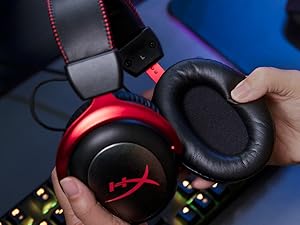
Chithunzi: Hands holding the HyperX Cloud II Wireless Headset and demonstrating the removal of an earcup, highlighting its replaceable design.
Kusamalira Battery
- To maximize battery lifespan, avoid fully discharging the headset frequently.
- Sungani chomvera m'makutu pamalo ozizira, owuma pomwe sichikugwiritsidwa ntchito.
Kusaka zolakwika
| Nkhani | Njira Yotheka |
|---|---|
| Palibe zomvera kuchokera pamutu |
|
| Maikolofoni sikugwira ntchito |
|
| Zomverera sizikulumikizana |
|
| Moyo wamfupi wa batri |
|
Zofotokozera
- Dzina lachitsanzo: Cloud II Wireless
- Nambala Yachitsanzo: Gawo #: HHSC2X-BA-RD / G
- Kulumikizana Technology: 2.4GHz opanda waya
- Headphones Fit Type: Pamakutu (Circumaural)
- Mtundu Woyendetsa Womvera: Dynamic Driver
- Kukula kwa Ma driver: 53 mamilimita
- Kusokoneza: 60 ohm
- Kuwongolera Phokoso: Kudzipatula Kumveka
- Moyo Wa Battery: Up to 30 Hours (at 50% headphone volume)
- Mtundu Wopanda Waya: Mpaka 20 metres
- Zida Zogwirizana: PC, PS5, PS4, Nintendo Switch
- Zofunika: Aluminum, Faux Leather, Memory Foam
- Kulemera kwa chinthu: 10.6 Ounces (approximately 300g)
- Makulidwe a Zamalonda: 7.48 x 5.35 x 3.66 mainchesi
- Zophatikiza: Headphones, Microphone, USB Dongle, Charging cable
- UPC: 196188047842
Chidziwitso cha Chitsimikizo
HyperX products are covered by a limited warranty. For detailed information regarding warranty terms, conditions, and duration, please refer to the official HyperX webtsamba kapena khadi yotsimikizira yophatikizidwa ndi malonda anu. Sungani umboni wanu wogula kuti mutenge chitsimikizo.
Thandizo
For the latest software, firmware updates, and additional support resources, please visit the official HyperX webtsamba:
For further assistance, contact HyperX customer support through their official channels.

Chithunzi: Side of the HyperX Cloud II Wireless packaging, displaying information about downloading NGENUITY software and firmware updates from hyperx.com/ngenuity.


