1. Mawu Oyamba
Thank you for choosing the ipega PG-9083S Wireless Gamepad. This device is designed to enhance your mobile gaming experience on both iOS and Android smartphones and tablets. Please read this manual carefully before use to ensure proper operation and to maximize your enjoyment of the product.
2. Zinthu Zamalonda ndi Zoposaview
The ipega PG-9083S offers a range of features for an immersive gaming experience:
- Kulumikizana kwa Wireless 4.0: Provides a stable and efficient connection to your mobile devices.
- Telescopic Holder: Adjustable holder accommodates devices from 5 to 10 inches, with a maximum extension of 28cm (11 inches).
- Kugwirizana Kwambiri: Supports iOS (iPhone 8/XR/XS and newer) and Android mobile phones and tablets.
- Mapangidwe a Ergonomic: Engineered for comfortable grip during extended gaming sessions.
- Mapu a Mabatani Omwe Mungasinthire Mwamakonda anu: Allows for personalized control settings to suit various game types and player preferences.
- High-Precision Joysticks: Designed for accurate control and smooth operation in games.

Figure 2.1: The ipega PG-9083S Wireless Gamepad, showcasing its design with a tablet inserted. This image highlights the sleek feel and how it holds a device.

Figure 2.2: The gamepad's telescopic function, illustrating its ability to hold various devices including smartphones and tablets, with a maximum length of 28cm (11 inches).

Figure 2.3: Illustration of the gamepad's ergonomic design for comfort and its support for both vertical and horizontal screen orientations for tablets.

Figure 2.4: Depiction of the customizable button mapping feature, allowing users to set function keys according to personal habits for various game control needs.
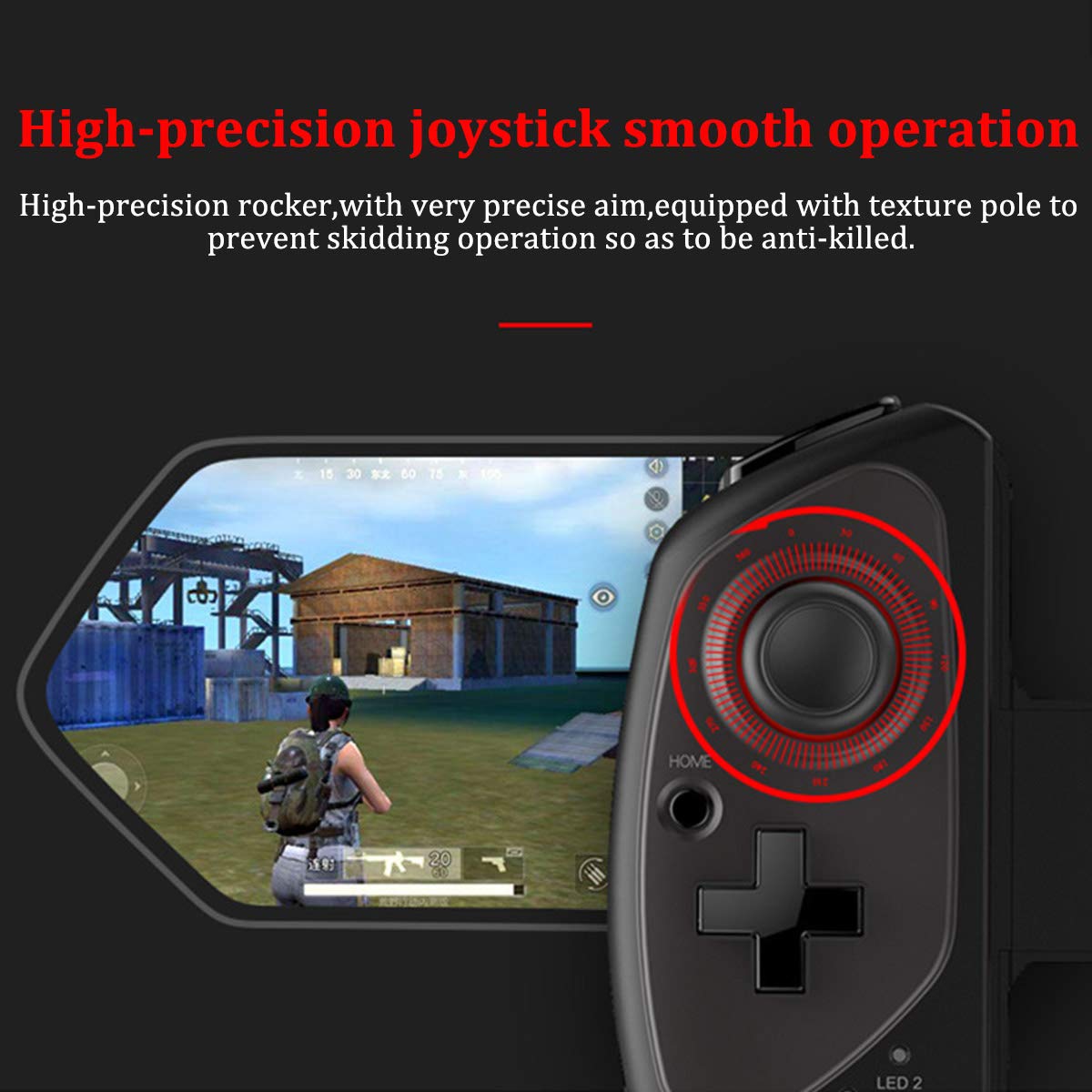
Figure 2.5: Close-up of the high-precision joystick, emphasizing its smooth operation and textured pole designed to prevent slipping during intense gameplay.
3. Kukonzekera Guide
3.1 Kuchaja Gamepad
Before initial use, fully charge the gamepad. Connect the provided USB charging cable to the gamepad's charging port and to a USB power source (e.g., computer, USB wall adapter). The LED indicator will show charging status and turn off or change color when fully charged.
3.2 Inserting Your Device
- Pull the telescopic arm outwards to unlock and extend it.
- Carefully place your smartphone or tablet into the holder, ensuring it is centered and securely seated.
- Release the telescopic arm to allow it to retract and firmly grip your device. Ensure the device is locked in place before gaming.

Chithunzi 3.1: Tsatanetsatane view of the security lock mechanism for the telescopic arm, illustrating how to extend and secure your device.
3.3 Kulumikizana kwa Bluetooth
To connect the gamepad to your device:
- Yatsani: Press and hold the Power button (usually the HOME button) for a few seconds until the LED indicator starts flashing, indicating it's in pairing mode.
- Yambitsani Bluetooth: On your smartphone or tablet, go to your Bluetooth settings and turn on Bluetooth.
- Saka Zipangizo: Your device will scan for available Bluetooth devices. Look for "PG-9083S" or a similar name in the list.
- Awiri: Select the gamepad from the list to initiate pairing. Once connected, the LED indicator on the gamepad will typically become solid.
- Mode Selection (if applicable): Some games or operating systems may require specific modes. Refer to your game's settings or the gamepad's quick start guide for specific mode switching instructions (e.g., Android Standard, iOS Direct Play).
4. Malangizo Ogwiritsira Ntchito
4.1 Kuyatsa/Kuzimitsa
- Yatsani: Press ndi kugwira KWAMBIRI button for approximately 3 seconds. The indicator light will flash.
- Kuzimitsa Mphamvu: Press ndi kugwira KWAMBIRI button for approximately 5 seconds until the indicator light turns off. The gamepad will automatically power off after a period of inactivity to save battery.
4.2 Gamepad Modes
The PG-9083S supports different operating modes for optimal compatibility with various platforms. Typically, these modes are activated by holding a specific button combination while powering on the gamepad.
- Android Standard Mode: Often activated by holding X + KWAMBIRI. For general Android gaming.
- iOS Direct Play Mode: Often activated by holding Y + KWAMBIRI. For iOS games that support direct gamepad input.
- Mitundu ina: Consult the quick start guide included with your product for any additional specific modes or button combinations for advanced functionality or specific game titles.
4.3 In-Game Control
Once connected, the gamepad will function as your primary input device for compatible games. The layout includes:
- Ndodo Zapawiri za Analogi: For precise movement and camera control.
- D-Pad: For directional input, often used in retro games or menu navigation.
- Mabatani Ochitapo Kanthu (A, B, X, Y): For in-game actions.
- Shoulder Buttons (L1, R1) and Triggers (L2, R2): For additional actions, often firing or accelerating.
- SELECT/BACK, START/MENU, HOME Buttons: For system functions and game menus.
Refer to individual game settings for specific button assignments and customization options.
5. Kusamalira
- Kuyeretsa: Use a soft, dry cloth to wipe the surface of the gamepad. Do not use harsh chemicals or abrasive cleaners.
- Posungira: Sungani gamepad pamalo ozizira, owuma kutali ndi dzuwa komanso kutentha kwambiri.
- Kusamalira Battery: To prolong battery life, avoid fully discharging the battery frequently. Charge the gamepad regularly, even if not in use for extended periods.
- Pewani Madontho: Tetezani chipangizocho ku madontho ndi zovuta, zomwe zingawononge zigawo zamkati.
6. Mavuto
6.1 Gamepad Not Connecting/Pairing
- Ensure the gamepad is charged.
- Onetsetsani kuti Bluetooth yayatsidwa pa chipangizo chanu.
- Yesani kuyiwala chipangizocho mu zoikamo za Bluetooth za foni yanu ndikulumikizanso.
- Ensure the gamepad is in the correct pairing mode for your operating system (Android/iOS).
- Restart both your mobile device and the gamepad.
6.2 Buttons or Joysticks Unresponsive/Inaccurate
- Verify the gamepad is properly connected and in the correct operating mode for the game.
- Some games may require specific controller configurations or do not fully support external gamepads. Check the game's settings.
- Ensure there are no physical obstructions preventing button presses or joystick movement.
- If experiencing issues with joystick sensitivity or "dead zones," check if the game offers in-game calibration or sensitivity adjustments.
6.3 Gamepad Not Charging
- Check the charging cable and USB power source. Try a different cable or adapter.
- Ensure the charging port on the gamepad is clean and free of debris.
6.4 Device Not Fitting Securely
- Ensure your device's dimensions are within the specified telescopic holder range (5-10 inches, up to 28cm/11 inches).
- Remove any bulky cases from your device that might prevent a secure fit.
7. Zofotokozera
| Nambala Yachitsanzo: | Chithunzi cha PG-9083S |
| Kulumikizana: | Wopanda zingwe 4.0 |
| Telescopic Holder Range: | 5 - 10 inches (up to 28 cm / 11 inches) |
| Kugwirizana: | iOS (iPhone 8/XR/XS and newer), Android (Mobile Phones, Tablets) |
| Kulemera kwa chinthu: | 13.1 ounces (pafupifupi 371 magalamu) |
| Makulidwe a Phukusi: | 9.53 x 6.81 x 2.44 mainchesi |
8. Zambiri Zachitetezo
- Do not expose the gamepad to extreme temperatures, humidity, or direct sunlight.
- Do not attempt to disassemble or modify the gamepad. This will void any potential warranty and may cause damage.
- Sungani chipangizocho kutali ndi madzi ndi zakumwa zina.
- Dispose of the battery according to local regulations. Do not dispose of batteries in household waste.
- Khalani kutali ndi ana aang'ono.


