Mawu Oyamba
This manual provides detailed instructions for the installation, operation, and maintenance of the Hanwha Techwin HCV-6070R 2MP Outdoor Vandal-Resistant Dome Camera. This camera is designed for outdoor security surveillance, offering 2-megapixel resolution, a 2.8-12mm manual varifocal lens, and night vision capabilities with a BNC connection.
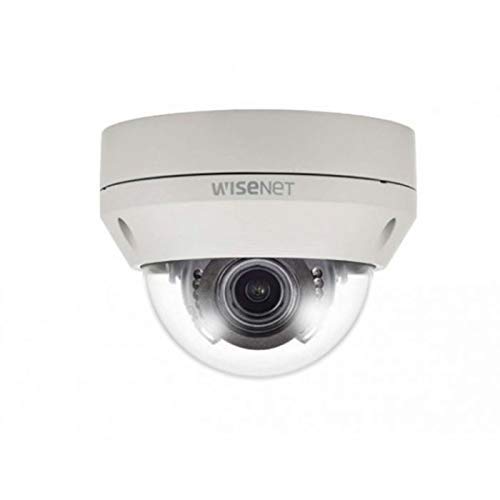
Figure 1: Hanwha Techwin HCV-6070R 2MP Outdoor Vandal-Resistant Dome Camera.
Zambiri Zachitetezo
Please read all safety instructions carefully before installing or operating the camera. Keep this manual for future reference.
- Ensure the power supply matches the camera's requirements to prevent electrical shock or fire.
- Musaike kamera pamalo otentha kwambiri, chinyezi, kapena malo owononga.
- Installation should be performed by qualified personnel in accordance with local electrical codes.
- Avoid direct exposure of the lens to strong light sources for extended periods.
- Musayese kusokoneza kapena kusintha kamera. Izi zipangitsa kuti chitsimikizo chisakhalepo.
Zamkatimu Phukusi
Onetsetsani kuti zinthu zonse zilipo mu phukusi:
- Hanwha Techwin HCV-6070R Dome Camera (1 unit)
- Zokwera Zopangira ndi Nangula
- Unsembe Chinsinsi
- Quick Start Guide
- Waterproof Cap (if applicable)
Khazikitsa
1. Kuyika Kamera
The HCV-6070R is designed for wall mounting. Choose a suitable outdoor location that provides the desired surveillance coverage and is protected from direct impact.
- Use the provided installation template to mark the drilling holes on the wall.
- Drill holes according to the template and insert the wall anchors.
- Secure the camera base to the wall using the mounting screws.
- Adjust the camera's viewing angle as needed before tightening all screws.
2. Wiring ndi ma Connections
The camera utilizes a BNC connection for video output and requires a separate power supply. Ensure all connections are secure and weatherproof for outdoor use.
- Kulumikizana kwamavidiyo: Connect a BNC cable from the camera's BNC port to the video input of your DVR (Digital Video Recorder).
- Kulumikiza Mphamvu: Connect a 12V DC power adapter (not included) to the camera's power input. The camera operates at 8 watts.
- Kulumikizana opanda zingwe: The camera supports Wi-Fi for remote control and monitoring. Refer to the operating section for initial Wi-Fi setup.

Chithunzi 2: Eksample of a BNC coaxial cable for video connection. Ensure a secure connection to the camera and DVR.
3. Kusintha Koyamba
After physical installation and power-up, access the camera settings via your connected DVR or a compatible mobile application (Android controller type specified).
- Sankhani tsiku ndi nthawi.
- Configure network settings for Wi-Fi connectivity.
- Adjust video quality and recording preferences.
Kugwiritsa ntchito kamera
1. Kanema Monitoring ndi Kujambula
The camera provides 2MP effective video resolution, capturing video at 1080p and a frame rate of 30 fps. Video is typically recorded in MPEG-4 format.
- Pezani pompopompo view and recorded footage through your connected DVR or the remote control application.
- Ensure your DVR is configured to record from the correct channel.
2. Adjusting Focus and Zoom
The HCV-6070R features a 2.8-12mm manual varifocal lens with optical zoom. Adjustments are made manually on the camera body.
- Loosen the focus and zoom locking screws on the camera lens assembly.
- Adjust the zoom ring to achieve the desired field of view.
- Adjust the focus ring until the image is clear and sharp.
- Tighten the locking screws to secure the settings.
3. Night Vision and Low Light Performance
Equipped with night vision and "Night Color" low light technology, the camera automatically switches to infrared mode in low light conditions to provide clear surveillance footage. The light source type is LED.
- Ensure no obstructions block the infrared LEDs on the camera.
- The camera will automatically activate its infrared illuminators when ambient light levels drop.
4. Kuzindikira Zoyenda
The camera supports motion-only alerts. Configure motion detection zones and sensitivity settings through your DVR or the remote control application.
- Fotokozani madera enaake mkati mwa kamera view kuti mudziwe zoyenda.
- Set the sensitivity level to minimize false alarms.
- Configure alert notifications (e.g., email, push notifications) via your DVR or application.
5. Kuwongolera kwakutali
The camera can be controlled remotely using a compatible Android application. Ensure the camera is connected to your Wi-Fi network.
- Download and install the Hanwha Techwin mobile application on your Android device.
- Follow the in-app instructions to add and connect to your HCV-6070R camera.
- Kudzera pulogalamu, mukhoza view khalani footage, access recordings, and adjust certain camera settings.
Kusamalira
Kusamalira pafupipafupi kumatsimikizira kuti kamera yanu imagwira ntchito bwino komanso imakhala ndi moyo wautali.
- Kuyeretsa Lens: Gently wipe the camera lens with a soft, clean, lint-free cloth. For stubborn dirt, use a lens cleaning solution specifically designed for optical surfaces.
- Kuyeretsa Nyumba: Clean the camera's exterior housing with a damp nsalu. Osagwiritsa ntchito mankhwala ankhanza kapena zotsukira abrasive.
- Kuyang'ana Chingwe: Periodically check all cables and connections for signs of wear, damage, or corrosion, especially for outdoor installations.
- Zosintha za Firmware: Check the Hanwha Techwin website for any available firmware updates to ensure your camera has the latest features and security patches.
Kusaka zolakwika
| Vuto | Chifukwa Chotheka | Yankho |
|---|---|---|
| Palibe zotulutsa kanema | No power; Loose BNC connection; Incorrect DVR input selected. | Check power supply; Secure BNC cable; Select correct channel on DVR. |
| Fuzzy or blurry image | Lens out of focus; Dirty lens. | Manually adjust focus (refer to Operating section); Clean the lens. |
| Masomphenya ausiku sakugwira ntchito | IR LEDs blocked; Insufficient power; Camera stuck in day mode. | Clear obstructions; Verify power supply; Restart camera. |
| Kuzindikira mayendedwe sikuyambitsa | Incorrect sensitivity settings; Motion detection zone not configured. | Adjust sensitivity; Configure motion detection zones in DVR/app. |
| Cannot connect via Wi-Fi | Incorrect Wi-Fi password; Camera out of range; Network issues. | Verify Wi-Fi credentials; Move camera closer to router; Check network status. |
Zofotokozera
| Chitsanzo | Chithunzi cha HCV-6070R |
| Mtundu | HANWHA Techwin |
| Kusintha Kwakanema Kwabwino | 2 MP (1080p) |
| Mtengo wa chimango | 30fps pa |
| Mtundu wa Lens | 2.8-12mm Manual Varifocal Lens |
| Mtundu wa Focus | Manual Focus |
| Mtundu wa Zoom | Optical Zoom |
| Kulumikizana Technology | Wireless (Wi-Fi), BNC Connection |
| Gwero la Mphamvu | Manual (requires external 12V DC power adapter) |
| Wattage | 8 watts |
| Kugwiritsa Ntchito M'nyumba / Panja | Panja |
| Mbali Yapadera | Night Vision (Night Color low light technology) |
| Fomu Factor | Nyumba |
| Mtundu Wokwera | Wall Mount |
| Zida Zogwirizana | DVR |
| Njira Yowongolera | Remote (Android Controller Type) |
| Mlingo wa Chitetezo Padziko Lonse | IP54 |
| Photo Sensor Technology | Mtengo CMOS |
| Kanema Capture Format | MPEG-4 |
| Mtundu Wochenjeza | Zoyenda Pokha |
Chitsimikizo ndi Thandizo
For warranty information and technical support, please refer to the official Hanwha Techwin webtsamba kapena funsani makasitomala awo mwachindunji. Sungani risiti yanu yogulira ngati umboni wa kugula kwa madandaulo a chitsimikizo.
Wopanga: Hanwha
Tsiku Loyamba Kupezeka: February 19, 2019


