Mawu Oyamba
This manual provides detailed instructions for the setup, operation, maintenance, and troubleshooting of your Trust Urban Bluetooth Wireless Headphones, Model 22764. Please read this manual carefully before using the product to ensure proper functionality and to maximize your listening experience.

Chithunzi: Patsogolo view of the Trust Urban Bluetooth Wireless Headphones in purple.
Khazikitsa
1. Kuliza Ma Headphone
Before first use, fully charge your headphones. A USB charging cable is included.
- Lumikizani mbali yaying'ono ya chingwe choyatsira cha USB ku doko loyatsira la mahedifoni.
- Lumikizani mbali yaikulu ya chingwe cha USB ku gwero lamagetsi la USB (monga, doko la USB la kompyuta, adaputala ya USB pakhoma).
- The LED indicator on the headphones will show the charging status. It typically turns off or changes color when fully charged.
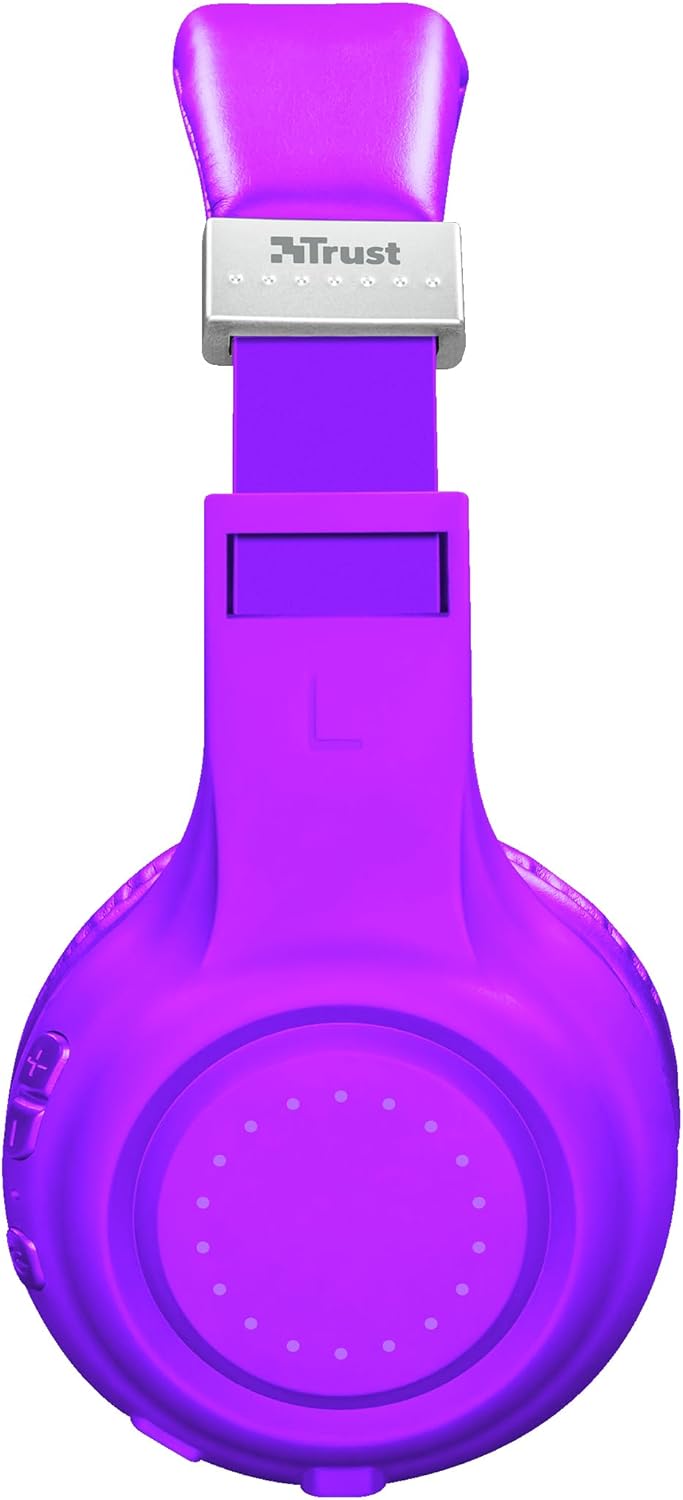
Chithunzi: Mbali view of the headphones, highlighting the charging port and control buttons.
2. Kuyanjanitsa kwa Bluetooth
Kuti mulumikize mahedifoni anu opanda waya ku chipangizo chanu:
- Onetsetsani kuti mahedifoni ali ndi charger ndikuzimitsa.
- Press and hold the Power button on the headphones until the LED indicator flashes rapidly (usually blue and red), indicating pairing mode.
- Pa chipangizo chanu (foni yam'manja, piritsi, laputopu), yatsani Bluetooth ndikusaka zida zatsopano.
- Select "Trust Dura" or a similar name from the list of available devices.
- Once connected, the LED indicator on the headphones will typically flash slowly or turn solid blue.
The headphones have a wireless range of up to 10 meters.
3. Lumikizani Mawaya (Mwasankha)
You can also use the headphones with a 3.5mm audio cable (not always included, check packaging) for a wired connection, which is useful when the battery is low or for devices without Bluetooth.
- Connect one end of the 3.5mm audio cable to the headphone jack on the headphones.
- Lumikizani mbali inayo ndi 3.5mm zotulutsa zomvera pa chipangizo chanu.
- Mahedifoni amangosintha kukhala mawaya.
Malangizo Ogwiritsira Ntchito
Kuyatsa/Kuzimitsa
- Yatsani: Dinani ndikugwira batani la Mphamvu pafupifupi masekondi atatu.
- Kuzimitsa Mphamvu: Press and hold the Power button for approximately 3-5 seconds.
Kusewera Nyimbo
- Sewerani/Imitsani: Press the Multi-function button (often the Power button) once.
- Nyimbo Yotsatira: Dinani ndikugwira batani la Volume Up (+).
- Njira Yakale: Dinani ndikugwira batani la Voliyumu Pansi (-).
Kuwongolera Voliyumu
- Lonjezani Voliyumu: Dinani batani la Volume Up (+).
- Kuchepetsa Vuto: Dinani batani la Volume Down (-).
Imbani Management
The headphones feature a built-in microphone for hands-free calls.
- Yankhani/Imitsani Kuyimba: Dinani batani la Multi-function kamodzi.
- Kanani Kuyimba: Dinani ndikusunga batani la Multi-function kwa pafupifupi masekondi awiri.
- Imbaninso Nambala Yomaliza: Dinani kawiri batani la Multi-function.
Wothandizira Mawu
Quickly access your smartphone's voice assistant (Siri, Google Assistant, etc.):
- Yambitsani Wothandizira Mawu: Press the Voice Assistant button (if available, or a specific combination as per device). Refer to your device's manual for specific button functions if not clearly marked.
Kusamalira
- Kuyeretsa: Gwiritsani ntchito nsalu yofewa, youma kuyeretsa mahedifoni. Osagwiritsa ntchito zotsukira abrasive kapena solvents.
- Posungira: Sungani mahedifoni pamalo ozizira, owuma kutali ndi dzuwa komanso kutentha kwambiri.
- Kusamalira Battery: Kuti batire lizigwira ntchito nthawi yayitali, pewani kutulutsa batire yonse pafupipafupi. Yatsani mahedifoni nthawi zonse, ngakhale simukugwiritsa ntchito kwa nthawi yayitali.
- Pewani Chinyezi: Musamaike mahedifoni pamalo amadzi kapena chinyezi chochuluka.
Kusaka zolakwika
| Vuto | Yankho |
|---|---|
| Mahedifoni samayatsa. | Ensure the headphones are fully charged. Connect them to a power source using the USB cable. |
| Sizingatheke kugwirizanitsidwa ndi chipangizo. |
|
| Palibe phokoso kapena kutsika kwamphamvu. |
|
| Maikolofoni sikugwira ntchito. |
|
Zofotokozera
| Dzina lachitsanzo | Dura |
| Nambala ya Model | 22764 |
| Mtundu | Khulupirirani |
| Mtundu | Wofiirira |
| Fomu Factor | Kukutu |
| Kulumikizana Technology | Wopanda zingwe (Bluetooth), Waya (jack ya 3.5mm) |
| Mtundu wopanda waya | 10 mita |
| Moyo wa Battery (Sewero) | Mpaka maola 6 |
| Mtundu Wabatiri | Lithium-ion (rechargeable, included) |
| Kulipira Port | USB (kuphatikizidwa ndi chingwe) |
| Maikolofoni yomangidwa | Inde |
| Mtundu Wowongolera | Buttons for volume, media, call management, voice assistant access |
| Zida Zogwirizana | Mobile phones, Tablets, Laptops, Desktop computers |
| Zakuthupi | Pulasitiki |
| Miyeso Yazinthu | 4 x 5.5 x 9.5 masentimita; 190 g pa |
Chidziwitso cha Chitsimikizo
Trust products are manufactured to high quality standards. For detailed warranty terms and conditions, please refer to the official Trust website or the warranty card included with your purchase. Typically, Trust offers a limited warranty against defects in materials and workmanship from the date of original purchase.
Chonde sungani umboni wanu wogula pazolinga zilizonse za chitsimikizo.
Thandizo
For further assistance, technical support, or frequently asked questions, please visit the official Trust support webtsamba:
You may also find additional resources and contact information on their webmalo.


