1. Mawu Oyamba
Thank you for choosing the HUION Inspiroy Q11K Wireless Graphic Drawing Tablet. This manual provides essential information for setting up, operating, and maintaining your device. The Inspiroy Q11K is designed to enhance your digital creative experience with its advanced features and user-friendly design.
Zofunika kwambiri ndi izi:
- 8192 Pen Pressure Levels: For precise and natural drawing.
- Kulumikizana opanda zingwe: Offers a cable-free workspace.
- 8 Customizable Shortcut Keys: For improved workflow efficiency.
- Malo Ambiri Ogwira Ntchito: 11 x 6.87 inches for ample creative space.
- Moyo Wa Battery Wautali: Over 40 hours of continuous use.
- Mapangidwe a Ergonomic: For comfortable extended use.
2. Zomwe zili mu Bokosi
Chonde onani zomwe zili mu phukusili kuti muwonetsetse kuti zinthu zonse zilipo:
- HUION Inspiroy Q11K Graphics Tablet
- Rechargeable Pen PF150
- Wireless Receiver
- Choyimira Cholembera
- 8 Pen Nibs (packed inside the Pen Box)
- Chingwe cha Micro USB
- Pen Charging Cable
- Quick Start Guide
- Kukhazikitsa CD

3. Kukhazikitsa
- Kuyika Madalaivala:
- Insert the provided Installation CD into your computer's CD-ROM drive. Follow the on-screen instructions to install the tablet driver.
- Alternatively, download the latest driver from the official HUION webtsamba (www.huion.com) for your specific operating system (Windows 7 or later, macOS 10.11 or later).
- Ensure any previous tablet drivers are uninstalled before installing the HUION driver.
- Connecting the Tablet:
- Kulumikiza Kwawaya: Plug the Wireless Receiver into an available USB port on your computer. Turn on the tablet using the power switch. The tablet will automatically connect.
- Kulumikiza Kwawaya: Connect the Micro USB Cable from the tablet to an available USB port on your computer.
- Pen Setup:
- The PF150 pen is rechargeable. Connect the Pen Charging Cable to the pen and a USB power source to charge it before first use.
- To replace a nib, use the built-in nib extractor by unscrewing the pen stand.

Video: Official HUION guide on how to use the pen tablet, demonstrating basic setup and functionality.
4. Malangizo Ogwiritsira Ntchito
4.1 Pen Usage
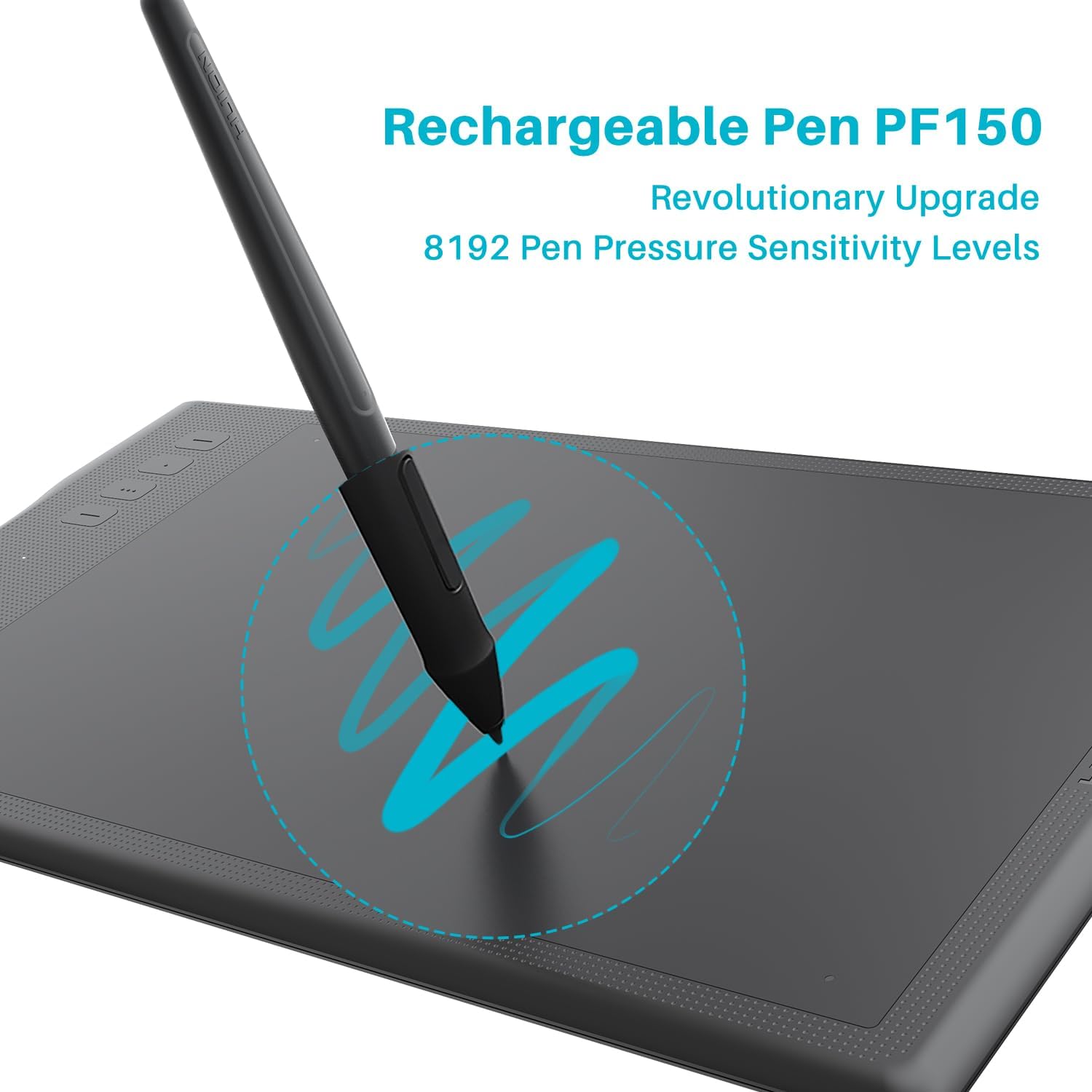
The new rechargeable PF150 pen offers 8192 levels of pressure sensitivity, allowing for precise control over line thickness and opacity. Its ergonomic design provides a comfortable grip for a natural drawing experience.
4.2 Customizable Shortcut Keys
The tablet features 8 customizable shortcut keys. These keys can be programmed to your favorite functions, enhancing efficiency and convenience during your creative process.

4.3 Kulumikizana Opanda zingwe
Enjoy a cable-free work experience with the 2.4GHz wireless connectivity, contributing to a tidier desktop environment. The built-in 2500mAh battery provides over 40 hours of continuous battery life.

4.4 Active Area and Ergonomics
The tablet offers a generous 11 x 6.87-inch active drawing area, made with high-end materials for a paper-like finish. Its curvy edges, round corners, and smooth surface are ergonomically designed to provide extra comfort, reducing fatigue during long working hours.

Video: Kufotokozera mwachiduleview of the Huion Inspiroy Q11K Graphics Tablet, showcasing kapangidwe ndi mawonekedwe ake.
5. Kusamalira
- Kuyeretsa: Use a soft, dry, lint-free cloth to clean the tablet surface. Avoid using harsh chemicals or abrasive materials.
- Peni Nibs: Replace pen nibs when they show signs of wear to maintain optimal performance. Extra nibs are provided in the pen stand.
- Kusamalira Battery: Charge the pen and tablet regularly to prolong battery life. Avoid completely draining the battery frequently.
6. Mavuto
- No Pen Response:
- Ensure the tablet is powered on and the wireless receiver is properly connected, or the USB cable is securely plugged in.
- Check if the pen battery is charged.
- Verify that the driver is correctly installed and running.
- Mavuto Oyendetsa:
- If you experience unexpected behavior, try reinstalling the latest driver from the HUION webmalo.
- Ensure no other tablet drivers are conflicting with the HUION driver.
- Mavuto a kulumikizana:
- For wireless connection, try a different USB port for the receiver or move closer to the computer to reduce interference.
- For wired connection, ensure the Micro USB cable is not damaged and is firmly connected.
For further assistance, please visit the official HUION support webtsamba kapena kulumikizana ndi kasitomala.
7. Zofotokozera
| Mbali | Tsatanetsatane |
|---|---|
| Miyeso Yazinthu | 15.35 x 8.78 x 0.43 mainchesi |
| Kulemera kwa chinthu | 1.94 mapaundi |
| Nambala Yachitsanzo Yachinthu | Q11K |
| Mabatire | 1 Batri ya Lithium Ion ikufunika |
| Mtundu | HUION |
| Kulumikizana Technology | USB (Wireless 2.4GHz) |
| Kutengeka kwa Pressure | 8192 mlingo |
| Opareting'i sisitimu | Windows 7 kapena mtsogolo, macOS 10.11 kapena mtsogolo |
| Mbali Yapadera | Ergonomic, Programmable Press Key |
8. Chitsimikizo ndi Thandizo
For warranty information and technical support, please refer to the warranty card included in your package or visit the official HUION webtsamba:
You can also find FAQs, driver downloads, and contact information for customer service on their webmalo.


