Mawu Oyamba
The ASTRO Gaming A40 TR Headset and MixAmp Pro TR are designed to provide a high-fidelity audio experience for gaming on PlayStation 4 and PC. The A40 TR headset offers user customization, allowing transformation from an open-back to a closed-back noise-canceling headset with optional Mod Kits. The MixAmp Pro TR features all-digital components for clear, interference-free audio and voice communication, with customizable settings via the ASTRO Command Center software.

Image: The ASTRO Gaming A40 TR Headset and MixAmp Pro TR, showcasing both components together. The headset is black with gold accents, and the MixAmp is a compact black unit with control dials.
Zamkatimu Phukusi
Onetsetsani kuti zinthu zonse zomwe zalembedwa pansipa zikuphatikizidwa mu phukusi la malonda anu:
- ASTRO A40 TR Headset
- ASTRO MixAmp Pro TR
- A40 TR Inline Mute Cable (2.0m)
- TOSlink Optical Cable (3.0m)
- Micro-USB Cable (3.0m)
- Digital Daisy Chain Cable (0.5m)
- Swappable Microphone
Khazikitsa
Connecting to PlayStation 4 (PS4)
- Gwirizanitsani ndi TOSlink Optical Cable from the MixAmp Pro TR's OPTICAL port to the PS4's Optical Out port.
- Gwirizanitsani ndi Chingwe cha Micro-USB from the MixAmp Pro TR's USB port to an available USB port on the PS4.
- Gwirizanitsani ndi A40 TR Inline Mute Cable from your A40 TR Headset to the headset port on the front of the MixAmp Pro TR.
- On your PS4, navigate to Settings > Sound and Screen > Audio Output Settings.
- Khalani Pulojekiti Yoyambira ku Digital Out (Optical).
- Sankhani Dolby Digital (Bitstream) for the audio format.
- Pitani ku Zikhazikiko> zipangizo> Audio zipangizo.
- Khalani Lowetsani Chipangizo ku USB Headset (ASTRO MixAmp Pro TR).
- Khalani Linanena bungwe Chipangizo ku USB Headset (ASTRO MixAmp Pro TR).
- Sinthani Kuwongolera Voliyumu (Mahedifoni) mpaka maximum.
- Khalani Kutulutsa ku Mahedifoni ku Chezani Audio or Audio Yonse as preferred.
Kugwirizana kwa PC
- Gwirizanitsani ndi Chingwe cha Micro-USB from the MixAmp Pro TR's USB port to an available USB port on your PC.
- Gwirizanitsani ndi A40 TR Inline Mute Cable from your A40 TR Headset to the headset port on the front of the MixAmp Pro TR.
- On your PC, ensure the MixAmp Pro TR is selected as the default playback and recording device in your sound settings.
- Koperani ndi kukhazikitsa ASTRO Command Center software from the official ASTRO Gaming website to customize settings, update firmware, and manage EQ presets.
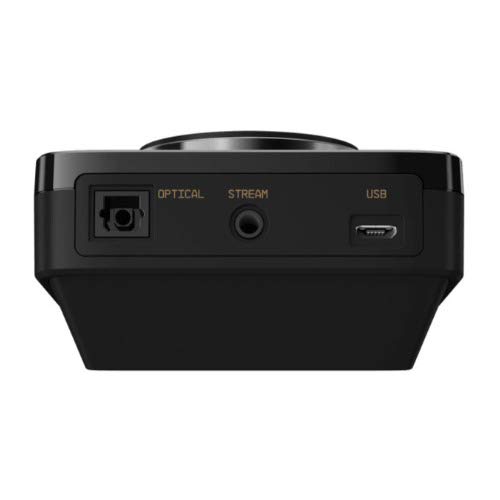
Chithunzi: Kumbuyo view of the ASTRO MixAmp Pro TR, highlighting the Optical, USB, AUX, and Stream ports for various connections.
Operating the MixAmp Pro TR
The MixAmp Pro TR provides intuitive controls for managing your audio experience:
- Master Volume Dial: The large dial on the left controls the overall volume of your headset. Rotate clockwise to increase volume, counter-clockwise to decrease.
- Game/Voice Balance Dial: The smaller dial on the right allows you to adjust the balance between game audio and voice chat.
- Rotate towards "GAME" to prioritize game audio.
- Rotate towards "VOICE" to prioritize voice chat.
- EQ Presets Button: Located in the center, this button cycles through four customizable equalizer presets. The active preset is indicated by the illuminated icon (star, headphone, etc.). These presets can be configured using the ASTRO Command Center software.
- Dolby Button: Activates or deactivates Dolby Surround Sound. When active, the Dolby logo will illuminate.
- Batani Loyimitsa Maikolofoni: Located on the A40 TR Inline Mute Cable, this switch mutes or unmutes your microphone. When muted, the MixAmp's volume dials will typically glow red.
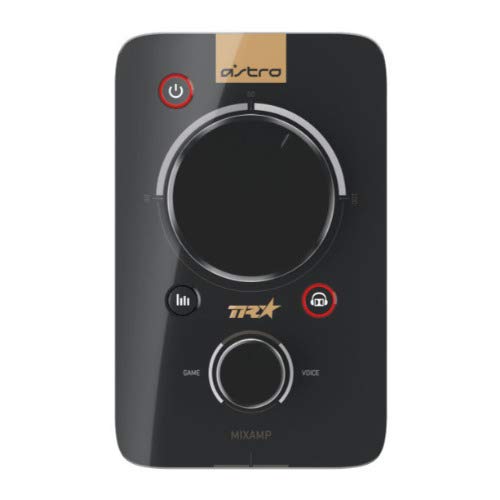
Chithunzi: Pamwamba view of the ASTRO MixAmp Pro TR, showing the large master volume dial, the smaller game/voice balance dial, and the EQ preset buttons.
Kusamalira
- Kuyeretsa: Use a soft, dry cloth to clean the headset and MixAmpPewani zotsukira zopopera kapena zosungunulira.
- Posungira: Store the headset and MixAmp m'malo ozizira, owuma kutali ndi kuwala kwa dzuwa ndi kutentha kwambiri.
- Kusamalira Chingwe: Gwirani zingwe mosamala kuti musawonongeke. Pewani kupindika kwambiri kapena kukoka kwambiri.
- Zosungira Makutu: Periodically check ear cushions for wear and tear. Replacement cushions are available from ASTRO Gaming.
Kusaka zolakwika
If you encounter issues with your ASTRO Gaming A40 TR Headset or MixAmp Pro TR, try the following solutions:
| Vuto | Yankho |
|---|---|
| Palibe zomvera kuchokera pamutu. |
|
| Maikolofoni sikugwira ntchito. |
|
| Ma audio olakwika kapena otsika. |
|
For more detailed troubleshooting, please refer to the official ASTRO Gaming support resources.
Zofotokozera
- Nambala Yachitsanzo: 939-001511
- Mayankho pafupipafupi: 20-20,000 Hz
- Nominal Impedans: 48 okhm
- Headband Pressure: 2.6n
- Makulidwe a Zamalonda: 9.06 x 13.87 x 4.33 mainchesi
- Kulemera kwa chinthu: 1.06 mapaundi
- Kulumikizana: Optical, USB
- Kugwirizana: PlayStation 4, PC
Chitsimikizo ndi Thandizo
For detailed warranty information and product support, please visit the official ASTRO Gaming website or refer to the provided documentation:
Ensure you register your product on the ASTRO Gaming website for the latest updates and support.


