1. Mawu Oyamba
The D-Link DIR-808L Wireless AC600 Dual-Band Cloud Router provides high-speed Wi-Fi connectivity with dual-band technology and Fast Ethernet ports. This device is designed to deliver a reliable networking experience for home use, supporting activities such as HD media streaming, online gaming, and web browsing. It includes security features and mydlink Cloud Services for remote network management.
The DIR-808L is backward compatible with existing Wi-Fi devices (802.11a/b/g/n) for seamless integration into your current network setup.
2. Zamkatimu Phukusi
Onetsetsani kuti phukusi lanu lili ndi zinthu izi:
- Wireless AC600 Dual Band Cloud Router (DIR-808L)
- Adapter yamagetsi
- Ethernet Cable
- Quick Install Guide
If any of the above items are missing or damaged, please contact your local D-Link reseller.
3. Zofunikira Zochepa Zofunikira
To set up and use the D-Link DIR-808L router, ensure your computer meets the following minimum requirements:
- Opareting'i sisitimu: Windows® 8, Windows® 7, Windows Vista®, Windows® XP SP3, or Mac OS® X (v10.4 or higher)
- Web Msakatuli: Internet Explorer® v6, Mozilla® Firefox®, Google Chrome, or Safari 4 or higher
- Zida: Network Interface Card (NIC)
For Internet access, you will also need:
- Chingwe kapena DSL Modem
- Kulembetsa ndi Wopereka Utumiki Wapaintaneti (ISP)
4. Hardware Paview
Familiarize yourself with the physical components and ports of your DIR-808L router.

Chithunzi 4.1: Patsogolo view of the DIR-808L router with power and internet status indicators.

Chithunzi 4.2: Rear panel of the DIR-808L router, detailing port layout.
Kufotokozera Kwagulu Lambuyo:
- Madoko a LAN (1-4): Four Fast Ethernet ports for connecting wired devices such as computers, gaming consoles, or network storage.
- Internet Port: Imalumikizana ndi modemu yanu kuti mupeze intaneti.
- Bwezerani Batani: Press and hold for 10 seconds to restore the router to factory default settings.
- Kulowetsa Mphamvu: Lumikizani adapter yamagetsi yophatikizidwa apa.
- WPS batani: Use for easy, secure wireless connection to WPS-compatible devices.
5. Kukhazikitsa ndi Kuyika
Follow these steps to set up your D-Link DIR-808L router.
5.1 Kulumikizana Kwathupi
- Kuzimitsa Mphamvu: Chotsani mphamvu kuchokera ku modemu yanu ndi rauta (ngati kuli koyenera).
- Connect Modem: Connect an Ethernet cable from your modem's Ethernet port to the Intaneti port on the back of your DIR-808L router.
- Connect Computer (Optional): For initial setup, connect an Ethernet cable from your computer's Ethernet port to any of the LAN ports (1-4) on the back of your DIR-808L router. You can also connect wirelessly using the default Wi-Fi name and password found on the device label.
- Mphamvu pa Modem: Connect the power adapter to your modem and power it on. Wait for the modem's indicator lights to stabilize, indicating an active internet connection.
- Mphamvu pa rauta: Lumikizani adaputala yamagetsi yophatikizidwa ku Kulowetsa Mphamvu on the back of your DIR-808L router and plug it into a power outlet. The power LED on the front of the router should illuminate.
5.2 Kakonzedwe Koyamba (Web Msakatuli)
After physical connections are made, configure your router using a web msakatuli.
- Tsegulani a web msakatuli (monga Chrome, Firefox, Edge) pa kompyuta yolumikizidwa ku rauta.
- Mu ma adilesi, lembani
http://dlinkrouter.localor192.168.0.1ndikudina Enter. - The D-Link Setup Wizard should appear. Follow the on-screen instructions to configure your Internet connection, wireless network name (SSID), and password.
- Create a unique password for your router's administration interface for security.
5.3 Quick Router Setup Mobile App
Alternatively, you can use the D-Link Quick Router Setup mobile app for convenient setup from your smartphone or tablet.
- Download the "D-Link QRS Mobile" app from the Apple App Store or Google Play Store.
- Connect your mobile device to the router's default Wi-Fi network (SSID and password are on the router's label).
- Launch the QRS Mobile app and follow the instructions to complete the setup.
6. Ntchito
This section covers the basic operation of your DIR-808L router.
6.1 Dual-Band Wireless Performance
The DIR-808L operates on two frequency bands: 2.4 GHz and 5 GHz.
- 2.4 GHz Band: Provides wider coverage and better penetration through walls, suitable for general internet use and older devices.
- 5 GHz Band: Offers faster speeds and less interference, ideal for high-bandwidth activities like HD video streaming and online gaming, but with a shorter range.
You can configure separate SSIDs (network names) for each band or use a single SSID for both, allowing the router to intelligently assign devices to the optimal band.
6.2 Kulumikizana ndi Waya
The four Fast Ethernet LAN ports allow you to connect up to four wired devices directly to the router for stable and fast connections.
6.3 mydlink Cloud Management
mydlink Cloud Services enable you to monitor and manage your network remotely from anywhere using the mydlink Lite app or the mydlink web portal.
- Kufikira kutali: View connected devices, block unwanted users, and receive notifications.
- Ulamuliro wa Makolo: Manage internet access schedules and block specific webmasamba.
To use mydlink services, you will need to register your router with a mydlink account during or after the initial setup process.
6.4 Chitetezo Chopanda zingwe
The DIR-808L supports WPA/WPA2 encryption to secure your wireless network. It is recommended to use WPA2-PSK (AES) for the strongest security.
- WPS (Wi-Fi Protected Setup): Provides a simple way to connect WPS-compatible devices to your wireless network by pressing the WPS button on the router and the device.
7. Kusamalira
Proper maintenance ensures optimal performance and longevity of your router.
- Zosintha za Firmware: Nthawi ndi nthawi yang'anani thandizo la D-Link website for firmware updates. Updating firmware can improve performance, add new features, and fix security vulnerabilities. Instructions for updating firmware are typically provided with the update package.
- Kuyeretsa: Keep the router in a clean, dust-free environment. Use a soft, dry cloth to clean the exterior. Do not use liquid cleaners or aerosols.
- Kuyika: Place the router in a central location, away from obstructions and devices that may cause interference (e.g., cordless phones, microwaves).
8. Mavuto
This section addresses common issues you might encounter with your DIR-808L router.
8.1 Palibe intaneti
- Chongani Zingwe: Ensure all Ethernet cables are securely connected to the correct ports on the router and modem.
- Mphamvu Yozungulira: Power off your modem, then your router. Wait 30 seconds, then power on your modem first. Once the modem is fully online (indicator lights stable), power on your router.
- Mkhalidwe wa Modem: Verify that your modem has an active internet connection. Check its indicator lights or consult your modem's manual.
- Zokonda za ISP: Confirm your Internet Service Provider (ISP) settings are correctly entered in the router's web mawonekedwe.
8.2 Slow Wireless Speed or Poor Range
- Kuyika kwa rauta: Position the router in a central location, elevated, and away from large metal objects, concrete walls, and other electronic devices that may cause interference.
- Kusokoneza: Other wireless devices (cordless phones, microwaves, Bluetooth devices) can interfere with Wi-Fi signals. Try changing the wireless channel in the router's settings.
- Dual-Band Usage: Connect devices that require high bandwidth (e.g., streaming devices) to the 5 GHz band, and other devices to the 2.4 GHz band.
- Firmware: Onetsetsani kuti firmware ya router yanu ndi yatsopano.
8.3 Simungathe Kulowa mu Router Web Chiyankhulo
- IP Address: Onetsetsani kuti kompyuta yanu yakonzedwa kuti ipeze adilesi ya IP yokha (DHCP).
- Adilesi Yolondola: Double-check that you are typing the correct address:
http://dlinkrouter.localor192.168.0.1. - Temporary Disable Firewall/Antivirus: Zimitsani kwakanthawi pulogalamu iliyonse yachitetezo pakompyuta yanu kapena antivayirasi yomwe ikulepheretsani kulowa.
- Bwezeretsani Rauta: If all else fails, perform a factory reset by pressing and holding the Reset button on the back of the router for 10 seconds. Zindikirani: This will erase all your custom settings.
9. Mafotokozedwe aukadaulo
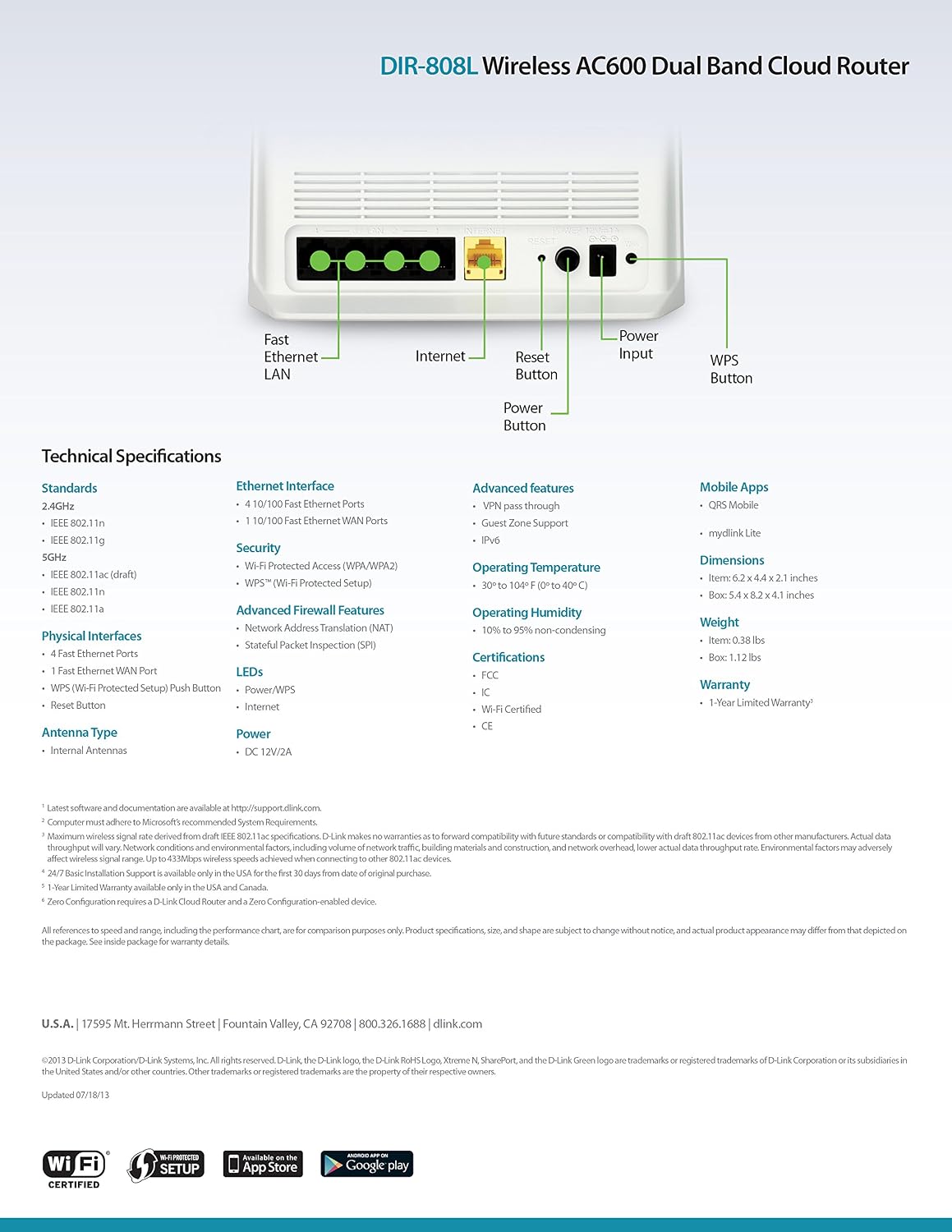
Chithunzi 9.1: Technical specifications and rear panel diagram of the DIR-808L router.
| Mbali | Kufotokozera |
|---|---|
| Dzina lachitsanzo | DIR-808L |
| Mtundu Wopanda Waya | 802.11ac (AC600), 802.11a/b/g/n |
| Kalasi ya Frequency Band | Dual-Band (2.4 GHz & 5 GHz) |
| Kulumikizana kwa Wired | 4 x Fast Ethernet LAN Ports, 1 x Fast Ethernet WAN Port |
| Chitetezo | WPA/WPA2, WPS (Wi-Fi Protected Setup) |
| Kugwirizana kwa Operating System | Mawindo, Mac, Android |
| Makulidwe (LxWxH) | 2.1 x 6.1 x 4.4 mainchesi |
| Kulemera kwa chinthu | 7.2 ounces (0.45 mapaundi) |
| Kulowetsa Mphamvu | Kufotokozera: 12V DC, 1A |
| Kutentha kwa Ntchito | 0 mpaka 40°C (32 mpaka 104°F) |
| Kuchita Chinyezi | 10% mpaka 95% osasunthika |
| Zitsimikizo | FCC, Wi-Fi Certified, CE |
10. Chidziwitso cha Chitsimikizo
The D-Link DIR-808L Wireless AC600 Dual-Band Cloud Router comes with a Chitsimikizo Chochepa Chazaka 1 kuyambira tsiku logula. Chitsimikizo ichi chimakwirira zolakwika muzinthu ndi kapangidwe kake pansi pakugwiritsa ntchito bwino.
For full warranty terms and conditions, please refer to the warranty card included with your product or visit the official D-Link webmalo.
Legal Disclaimer: D-Link is not responsible for honoring warranty claims from unauthorized resellers. Please contact the manufacturer directly for official warranty service.
11. Thandizo laukadaulo
If you encounter problems that are not addressed in this manual, or require further assistance, please contact D-Link Technical Support.
- Thandizo la D-Link Webtsamba: Pitani support.dlink.com for FAQs, documentation, and firmware downloads.
- Phone Support (U.S.): You may contact D-Link customer support at 1-877-453-5465. Please have your product model number (DIR-808L) and serial number ready when calling.


