1. Mawu Oyamba
This manual provides detailed instructions for the installation, operation, and maintenance of your JVC KDR820BT Wireless Bluetooth Dual USB-CD Receiver. Please read this manual thoroughly before using the unit to ensure proper operation and to prevent damage.
The JVC KDR820BT is designed to provide versatile audio playback and communication features in your vehicle. It includes built-in Bluetooth for hands-free calling and audio streaming, dual USB ports for device connectivity, and CD playback capabilities. The unit also features a customizable display with variable color options.
2. Zamkatimu Phukusi
Tsimikizani kuti zinthu zonse zilipo mu phukusi musanayambe kukhazikitsa:
- JVC KDR820BT Head Unit
- Wireless Remote Control (RM-RK52)
- USB Bluetooth adaputala
- Maikolofoni Yoyenda
- Kulumikizana mangani
- Mounting Hardware
- Buku la eni ake (chikalata ichi)
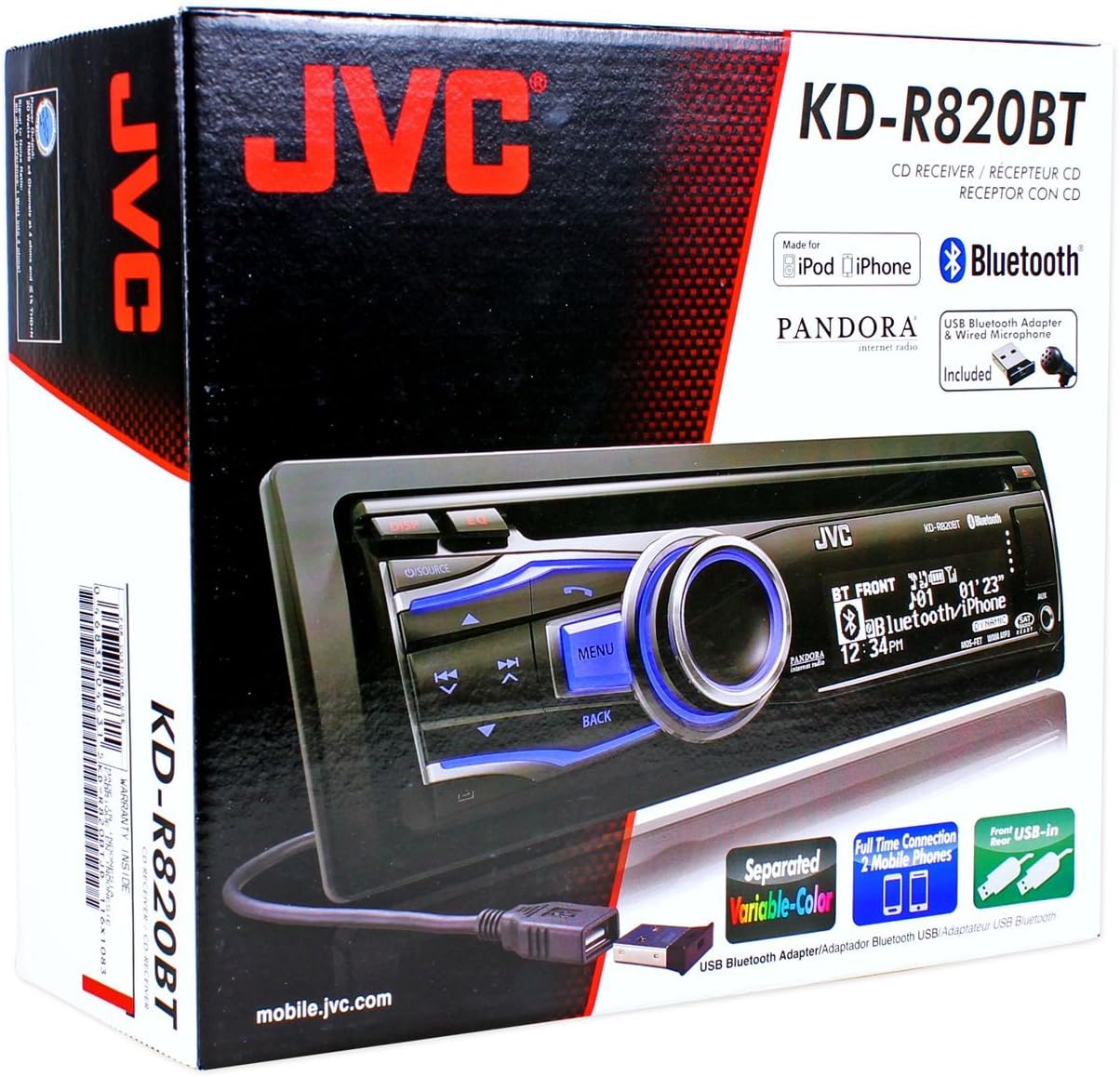
Figure 2.1: JVC KDR820BT Product Packaging. The box illustrates the main unit, remote, USB Bluetooth adapter, and wired microphone.
3. Kuyika
Professional installation is recommended. Ensure the vehicle's battery is disconnected before starting installation to prevent electrical damage.
3.1 Kulumikizana kwa Wiring
Connect the wiring harness to the vehicle's electrical system and speakers. Refer to your vehicle's wiring diagram for specific connections.
- Yellow Waya: Lumikizani ku mphamvu ya 12V yokhazikika.
- Waya Wofiyira: Connect to switched 12V accessory power.
- Waya Wakuda: Lumikizani ku malo a chassis yamagalimoto.
- Waya Wabuluu/Woyera: Lumikizani ku mlongoti wamagetsi kapena amplifier remote turn on lead.
- Mawaya a Spika: Connect to vehicle speakers (ensure correct polarity).
- RCA Pre-out Jacks: For connecting external amplifiers (Front, Rear, Subwoofer).
- Kulowetsa Maikolofoni: Connect the supplied wired microphone for hands-free calling.
- Madoko a USB: Front USB for general connectivity, Rear USB for additional devices or the Bluetooth adapter.

Figure 3.1: Rear Panel Connections. This image displays the rear of the receiver with its wiring harness, RCA pre-outs, and antenna input.
3.2 Kukhazikitsa Unit
Install the mounting sleeve into the vehicle's dashboard opening. Secure the unit by sliding it into the sleeve until it locks into place. Attach the trim ring.
3.3 Connecting the Bluetooth Adapter
The supplied USB Bluetooth adapter must be connected to one of the USB ports (front or rear) for Bluetooth functionality. For a cleaner installation, the rear USB port is often preferred.
4. Kukonzekera Koyamba
After installation, reconnect the vehicle battery. The unit will power on. Follow these steps for initial configuration:
- Kuyatsa Koyamba: Dinani pa SOURCE batani kuti mutsegule unit.
- Kusintha koloko: Access the system menu to set the current time.
- Zokonda Pamawu: Adjust basic audio settings such as bass, treble, balance, and fader.
- Mtundu Wowonetsera: Customize the display and button illumination colors using the variable color settings.
5. Malangizo Ogwiritsira Ntchito

Chithunzi 5.1: Gulu Lotsogolaview. This image shows the main controls and display of the JVC KDR820BT.

Figure 5.2: Receiver with Remote Control. The image displays the head unit and the included wireless remote control (RM-RK52).
5.1 Zowongolera Zoyambira
- Batani la Mphamvu/Chitsime: Press to turn on/off or change audio source (FM/AM, CD, USB, Bluetooth Audio, AUX).
- Buku Knob: Rotate to adjust volume. Press to mute/pause audio.
- Batani la Menyu: Access system settings and advanced options.
- Batani Lobwerera: Return to the previous menu or display.
- Skip/Seek Buttons: Navigate tracks, radio stations, or menu options.
5.2 Kugwira Ntchito pa Wailesi (AM/FM)
- Press SOURCE to select FM or AM.
- Gwiritsani ntchito Fufuzani buttons to find stations automatically.
- To manually tune, press and hold the Fufuzani mabatani.
- To store a preset, tune to the desired station, then press and hold a preset number button (1-6).
5.3 Kusewera ma CD
- Insert a CD into the disc slot. The unit will automatically switch to CD source and begin playback.
- Gwiritsani ntchito Dumphani mabatani kusintha nyimbo.
- Dinani pa Buku Knob kuyimitsa/kusewera.
- Dinani pa Chotsani button to remove the CD.
5.4 USB Device Playback
- Connect a USB device (flash drive, iPod/iPhone, digital audio player) to either the front or rear USB port.
- Press SOURCE kusankha USB.
- Gwiritsani ntchito Dumphani mabatani kuti muyendetse nyimbo.
- Dinani pa Menyu button to browse folders and files.
5.5 Bluetooth Ntchito
Ensure the USB Bluetooth adapter is connected to the unit.
5.5.1 Pairing a Bluetooth Device
- Yatsani Bluetooth pa foni yanu yam'manja.
- On the JVC KDR820BT, select the Bluetooth source.
- Saka available devices on your mobile phone. Select "JVC unit" (or similar) from the list.
- Enter the PIN code (usually "0000") if prompted.
- Once paired, the Bluetooth indicator on the receiver will illuminate. The unit supports connecting two phones simultaneously.
5.5.2 Kuyimba Kwaulere Pamanja
- Kuyimba foni: Use your phone's voice dial feature (if supported) or dial directly from your phone. The audio will transfer to the receiver.
- Kuyankha Kuyimba: Dinani pa Foni button on the receiver when an incoming call is detected.
- Kuyimitsa Kuyimba: Dinani pa Foni batani kachiwiri kuti mumalize kuyimba.
- Phone Book Access: The unit supports Phone Book Access Profile (PBAP) for transferring contacts.
5.5.3 Bluetooth Audio Streaming
- Select Bluetooth Audio as the source.
- Play audio from your paired mobile device. The receiver will stream the audio wirelessly.
- Gwiritsani ntchito Dumphani buttons on the receiver to control playback (play/pause, skip track).
- The unit supports Pandora Internet Radio control from an iPhone.
5.6 Zikhazikiko za Phokoso
- 3-Band Parametric iEQ: Access the sound menu to adjust the equalizer settings for customized audio output.
- MOS-FET 50W x 4 Ampchotsitsa: Provides powerful audio output.
- TI/Burr-Brown 24-bit DAC: Ensures high-quality digital-to-analog audio conversion.
5.7 Zikhazikiko zowonetsera
- Separated Variable Color: Customize the illumination color of the keys and LCD panel from over 30,000 choices. Access this setting through the system menu.
- Kuwongolera Kuwala: Adjust display brightness for day and night viewndi.
6. Kusamalira
- Kuyeretsa Unit: Gwiritsani ntchito nsalu yofewa, youma kuti mupukuta kutsogolo. Kwa zinyalala zamakani, dampPewani zotsukira kapena zosungunulira.
- CD Player Care: Keep the disc slot free of dust and debris. Use only clean, scratch-free CDs.
- Kuchotsa Faceplate: The detachable faceplate can be removed for security. Store it in a protective case.
7. Mavuto
Review the following common issues and solutions before seeking service.
| Vuto | Chifukwa Chotheka / Njira Yothetsera |
|---|---|
| Palibe mphamvu | Check power and ground wiring connections. Ensure the vehicle's ignition is on. Check vehicle fuses. |
| Palibe phokoso | Check speaker wiring. Ensure volume is not muted or too low. Verify the power antenna/remote wire is connected if using an external ampwopititsa patsogolo ntchito. |
| Bluetooth echo during calls | Adjust microphone gain settings. Reposition the microphone away from reflective surfaces (e.g., windshield). Reduce the receiver's volume during calls. |
| Sitingathe kulunzanitsa chipangizo cha Bluetooth | Ensure the USB Bluetooth adapter is securely connected. Make sure Bluetooth is enabled on your mobile device and the receiver is in pairing mode. Delete previous pairings from your phone and try again. |
| Unit loses settings after power off | The yellow constant 12V power wire may not be connected correctly or is losing power. This can also occur if the vehicle battery is disconnected. |
| Display text is truncated or difficult to read | The display has limited character space. Some long names may be truncated. There is no option to increase scroll speed for folder/file mayina. |
| Buttons or rotary knob are unresponsive | Ensure the faceplate is securely attached. Clean around the buttons to remove any debris. If the issue persists, it may indicate a hardware malfunction. |
8. Zofotokozera
| Mbali | Kufotokozera |
|---|---|
| Nambala ya Model | KDR820BT |
| Mphamvu Zotulutsa | MOS-FET 50W x 4 (20W RMS x 4) |
| DAC | TI/Burr-Brown 24-bit |
| Equalizer | 3-Band Parametric iEQ |
| Kulumikizana | Bluetooth, Dual USB (Front & Rear), AUX Input |
| Mawonekedwe a Bluetooth | Hands-Free Call, Audio Streaming, Phone Book Access Profile, Text Message Receipt Notification, Connects 2 Phones |
| Media Playback | CD, MP3, WMA, WAV |
| Mtundu Wowonetsera | LCD with Separated Variable Color |
| Preamp Voltage | 2 volts |
| Kukula kwa Chassis | DIN Yonse |
| Makulidwe (W x H x D) | 7.19 x 2.06 x 6.25 mainchesi (pafupifupi) |
| Kulemera | 4 mapaundi (pafupifupi) |
| Ntchito Zothandizira pa intaneti | Pandora Internet Radio |
| Njira Yowongolera | Remote Control, Android (via USB) |
9. Chitsimikizo ndi Thandizo
Zinthu za JVC zimapangidwa pamlingo wapamwamba kwambiri. Kuti mudziwe zambiri za chitsimikizo, chonde onani khadi la chitsimikizo lomwe lili ndi malonda anu kapena pitani ku JVC yovomerezeka. webmalo. Sungani risiti yanu yogulira ngati umboni wa kugula kwa madandaulo a chitsimikizo.
For technical support, service, or inquiries regarding your JVC KDR820BT receiver, please contact JVC customer service or visit their official support channels. Contact information can typically be found on the JVC webtsamba kapena muzopaka zamalonda.


