Mawu Oyamba
This manual provides detailed instructions for setting up, operating, maintaining, and troubleshooting your DBIT N300 2.4GHz WiFi Router (Model T1 Pro). Please read this guide carefully to ensure proper use and optimal performance of your device.

The DBIT N300 T1 Pro WiFi Router, designed for reliable 2.4GHz wireless connectivity.
Malangizo Okhazikitsira
Follow these steps for the initial setup of your DBIT N300 WiFi Router:
- Lumikizani Hardware: Connect the router to the power adapter and plug it into an electrical outlet. Connect the WAN port of the DBIT N300 router to your existing modem or superior router using the provided Ethernet cable.
- Lumikizani ku Wi-Fi ya Router: On your computer or mobile device, connect to the default Wi-Fi network name (SSID) of the DBIT N300 router. The default SSID and password are usually found on a label on the bottom of the router.
- Pitani ku Web Chiyankhulo: Tsegulani a web browser and enter the default login URL, typically "192.168.10.1", into the address bar. Log in using the default username and password (also found on the router label).
- Konzani Zokonda pa Wi-Fi: Follow the on-screen guide to configure your Wi-Fi network name (SSID) and password. It is recommended to change the default settings for security.
- Reconnect and Enjoy: After saving your settings, your devices will disconnect from the old Wi-Fi network. Reconnect your devices to the newly configured Wi-Fi network.

Visual guide for the easy and straightforward setup process.

Diagram illustrating the connection flow from internet to modem, router, and terminal devices.
Kulumikizana Mwakuthupi
The DBIT N300 router features several ports for wired connections:
- Port WAN: Connects to your internet source (modem).
- LAN Ports (LAN1, LAN2, LAN3): Connect to wired devices such as computers, smart TVs, or gaming consoles.
- DC MU: Mphamvu yolowera phukusi.
- WPS/Bwezerani Batani: Used for WPS connection or factory reset.
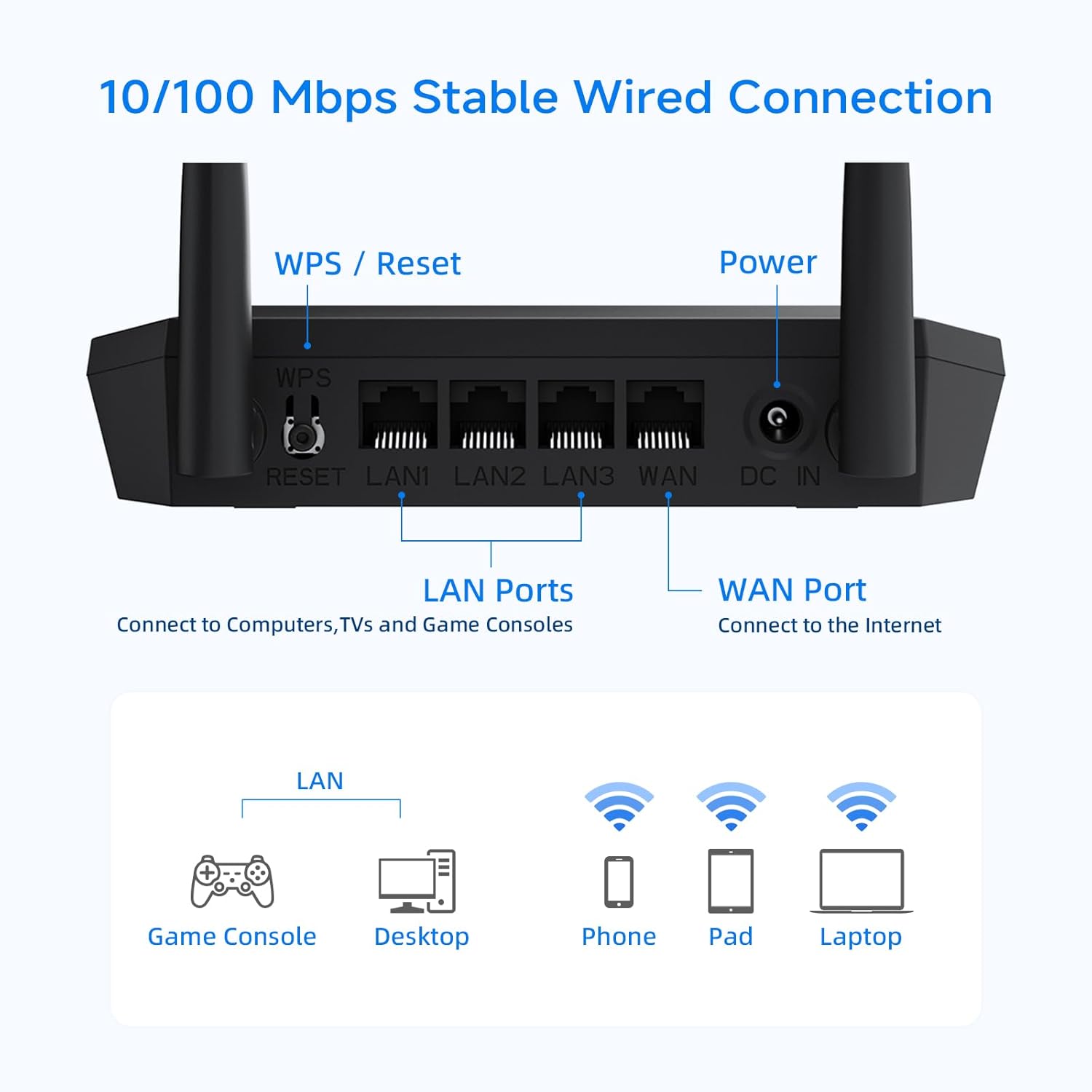
Mwatsatanetsatane view of the router's rear panel, showing the WPS/Reset button, LAN ports, WAN port, and power input.
Njira Zogwirira Ntchito ndi Zochita
Wopanda waya Router
In this standard mode, the router connects to your modem and broadcasts a Wi-Fi signal, allowing multiple devices to access the internet wirelessly.
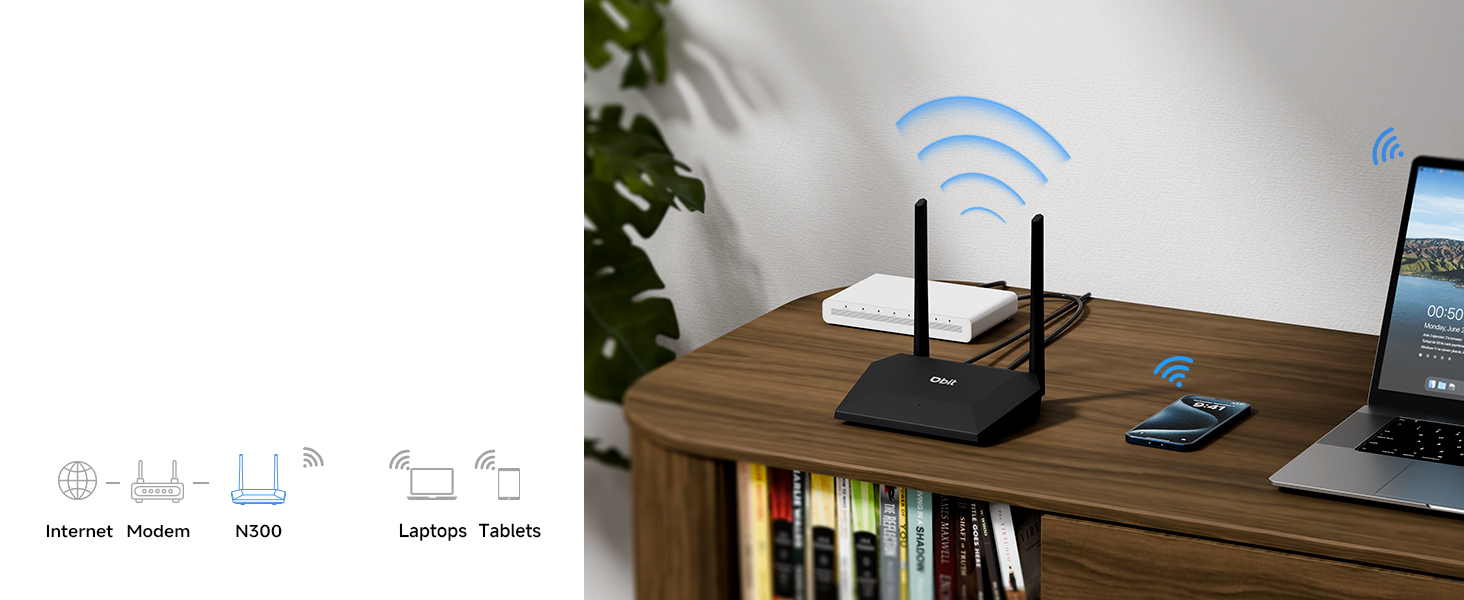
Illustration of the router operating in standard wireless router mode.
WISP/Wireless Repeater Mode
The DBIT N300 can function as a wireless repeater (WISP mode) to extend your existing Wi-Fi coverage. In this mode, the router wirelessly connects to an existing network and rebroadcasts the signal, effectively eliminating dead zones in larger areas.
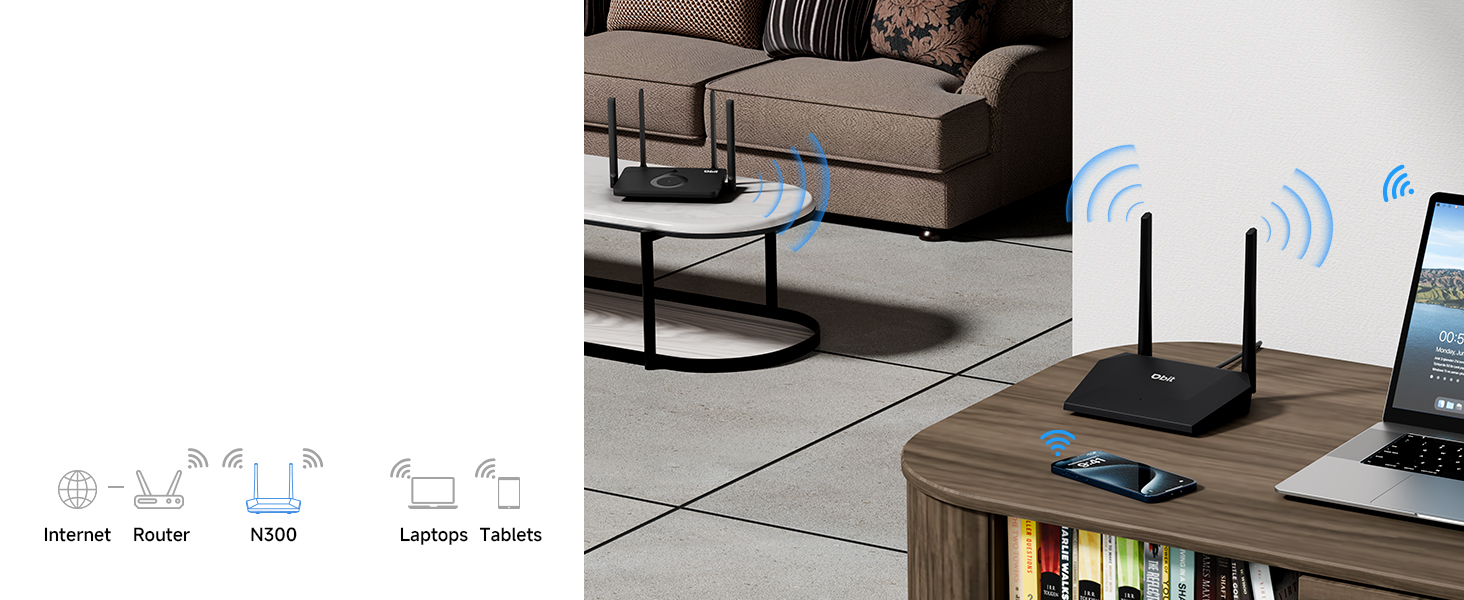
Diagram showing the router extending Wi-Fi coverage as a wireless repeater.
Guest Network
Create a separate Wi-Fi network for guests. This feature provides internet access to visitors while isolating them from your main network, enhancing your network's security and privacy.
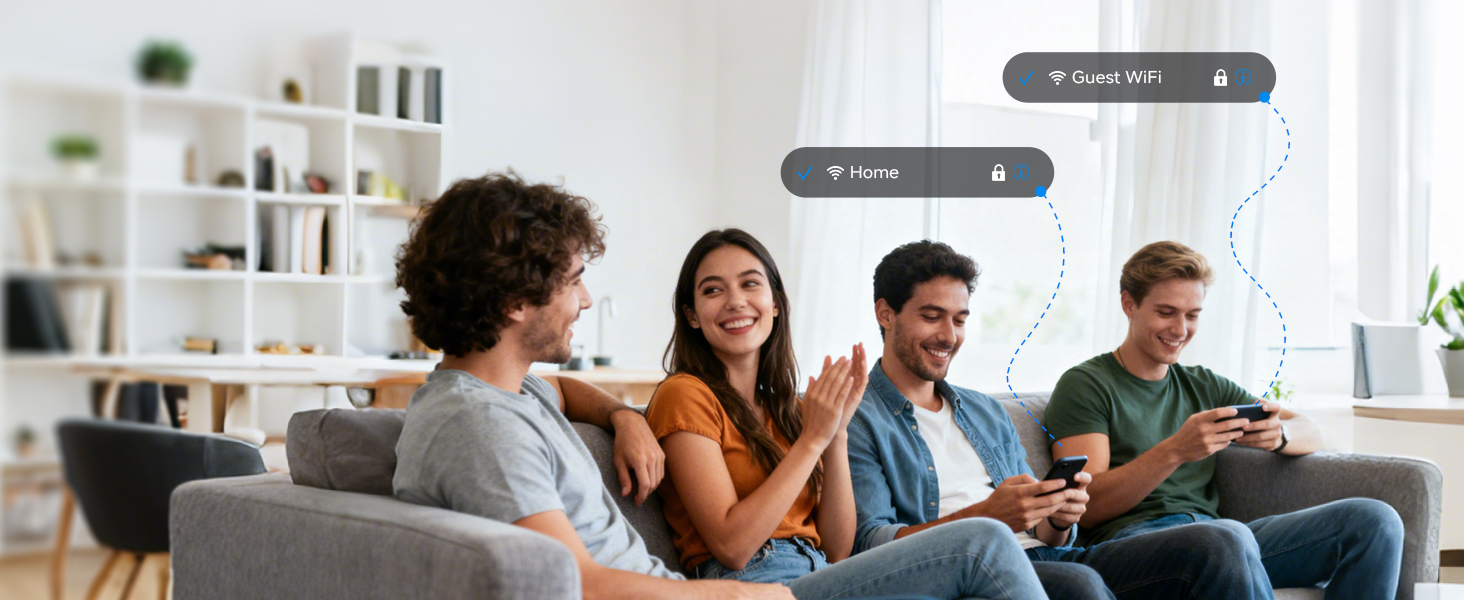
Illustration of the secure and separate Guest WiFi network feature.
Ulamuliro wa Makolo
Manage internet access for specific devices using Parental Controls. Features include:
- WLAN Schedule: Set specific times for Wi-Fi to be active or inactive, useful for managing screen time.
- Internet Access Control: Block specific devices from accessing the internet entirely.

Image representing the parental control features for managing internet usage.
Quality of Service (QoS) Speed Limit
Prioritize bandwidth for critical activities such as video calls or gaming. This prevents one device from consuming all available bandwidth, ensuring a smoother online experience for all connected devices.

Graphic illustrating the QoS speed control feature for bandwidth management.
IPTV/VLAN Support
The router supports IPTV (IGMP Proxy) and VLAN, ensuring optimal performance for IPTV services. This delivers high-quality video streaming without lag or buffering.

Image showing the router connected to a television, indicating IPTV support.
Chitetezo cha WPA2
The DBIT N300 router utilizes the advanced WPA2-PSK security protocol to encrypt your wireless connection. This protects your network from unauthorized access and safeguards your personal data.
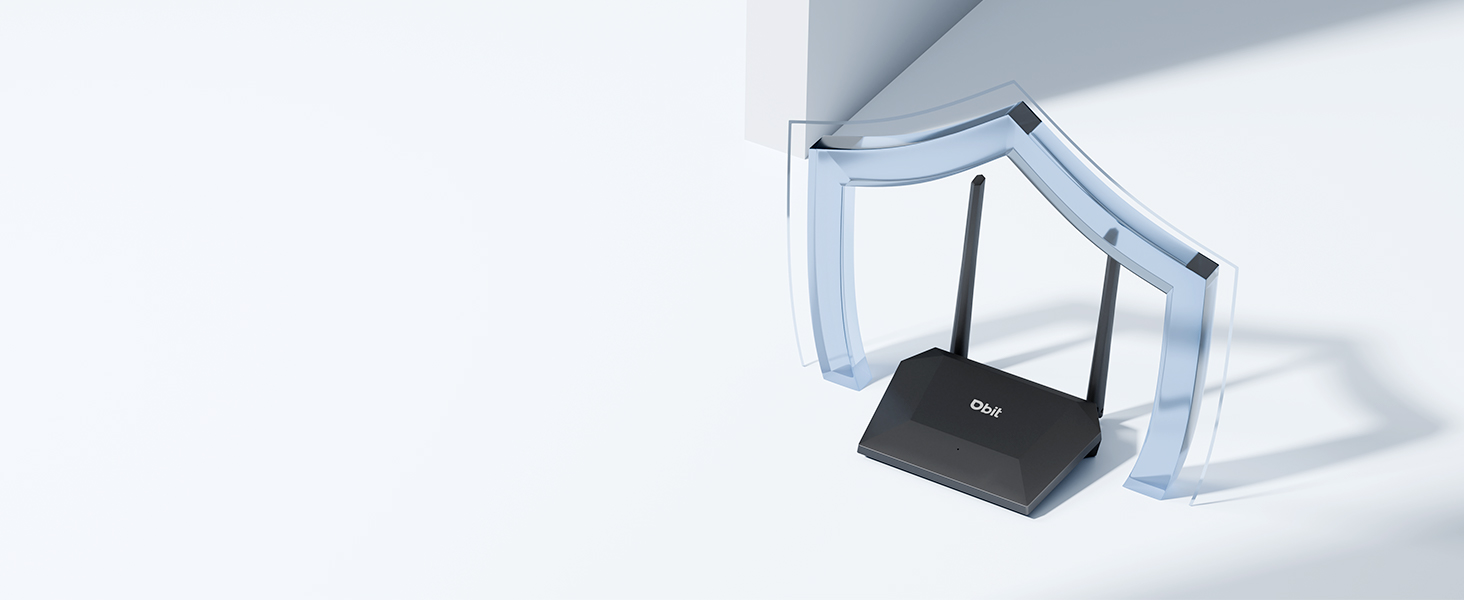
Image of the router with a shield icon, symbolizing robust WPA2 security.
Kugwirizana kwa WPS
WPS (Wi-Fi Protected Setup) allows for easy connection of WPS-enabled devices to your wireless network by simply pressing the WPS button on the router.

A finger pressing the WPS button on the router for easy device connection.
Kusamalira
To ensure the longevity and optimal performance of your DBIT N300 WiFi Router, consider the following maintenance tips:
- Kuyika: Place the router in a central location, away from obstructions and other electronic devices that may cause interference.
- Kuyeretsa: Periodically clean the router's exterior with a soft, dry cloth. Avoid using liquid cleaners or aerosols.
- Zosintha za Firmware: Onani opanga website regularly for firmware updates. Keeping your router's firmware updated can improve performance, add new features, and enhance security.
- Mphamvu Yozungulira: If you experience connectivity issues, try power cycling the router (unplugging it for 10-15 seconds and then plugging it back in).
Kusaka zolakwika
Nazi njira zothetsera mavuto omwe mungakumane nawo:
- Palibe intaneti:
- Onani ngati modemu yanu ikugwira ntchito bwino.
- Onetsetsani kuti zingwe zonse zalumikizidwa bwino ndi rauta ndi modemu.
- Yatsani modem yanu ndi rauta yanu.
- Chizindikiro cha Wi-Fi Chofooka Kapena Malo Opanda Mphamvu:
- Sinthani rautayi kukhala pakati.
- Minimize physical obstructions (walls, large furniture) between the router and your devices.
- Consider using the router in WISP/Repeater mode to extend coverage.
- Difficulty Changing SSID or Password:
- Ensure you are accessing the correct web mawonekedwe URL (e.g., 192.168.10.1) and using the correct login credentials.
- Refer to the detailed instructions in the router's web interface or the manufacturer's online resources for specific steps.
- Router Resets to Factory Settings After Power Loss:
- This behavior is not typical. Ensure the router is connected to a stable power source.
- If the issue persists, contact DBIT customer support for assistance, as this may indicate a hardware fault.
- WPS Connection Issues:
- Ensure your device supports WPS and that the WPS function is enabled on both the router and the device.
- Try connecting manually by entering the Wi-Fi password.
Zofotokozera
| Mbali | Tsatanetsatane |
|---|---|
| Mtundu | Mtengo wa DBIT |
| Dzina lachitsanzo | T1 Pro N300 WiFi Router |
| Nambala Yachitsanzo Yachinthu | T1 Pro |
| Miyeso Yazinthu | 5.91 x 5.04 x 5.91 mainchesi |
| Kulemera kwa chinthu | 4.6 pawo |
| Mtundu | Wakuda |
| Kalasi ya Frequency Band | Single-Band (2.4GHz) |
| Opanda zingwe Kulankhulana Standard | 802.11b, 802.11g, 802.11n |
| Kulumikizana Technology | Ethernet, Wi-Fi |
| Zapadera | Guest Mode, IPTV, WPS, Wireless Repeater Mode, WPA2-PSK Security |
| Zida Zogwirizana | Gaming Console, Personal Computer, Tablet, Smart Television, Smartphone, Printer, Security Camera |
| Kuphatikiza Zida | T1 Pro N300 WiFi Router, Power Adapter, Ethernet Cable, Quick Installation Guide |
Chidziwitso cha Chitsimikizo
DBIT products typically come with a limited manufacturer's warranty. For specific details regarding the warranty period and terms for your T1 Pro N300 WiFi Router, please refer to the warranty card included in the product packaging or visit the official DBIT webmalo. Sungani risiti yanu yogulira ngati umboni wa kugula kwa madandaulo a chitsimikizo.
Thandizo la Makasitomala
If you encounter any issues or have questions that are not addressed in this manual, please contact DBIT customer support. You can typically find support contact information on the official DBIT webtsamba kapena kudzera kwa wogulitsa komwe mudagula malonda.
For online resources and frequently asked questions, visit the DBIT Store on Amazon kapena boma la wopanga webmalo.