

Mawu Oyamba
This manual provides essential information for the safe and efficient operation of your Philips PLD2030P7 DVD Player. Please read these instructions thoroughly before using the device and retain them for future reference.
1. Kukhazikitsa
1.1 Kutulutsa
Chotsani mosamala zigawo zonse zapakhomo. Onetsetsani kuti zonse zomwe zalembedwa pansipa zilipo:
- Philips PLD2030P7 DVD Player
- Kuwongolera Kwakutali
- Chingwe cha HDMI
- Chingwe cha RCA
1.2 Kulumikizana ndi TV
The Philips PLD2030P7 DVD Player offers both HDMI and RCA connections for video and audio output.
HDMI Connection (Recommended for HD TVs)
- Connect one end of the HDMI cable to the HDMI OUT port on the DVD player.
- Lumikizani mbali ina ya chingwe cha HDMI ku doko la HDMI IN lomwe lilipo pa wailesi yakanema yanu.
- Select the corresponding HDMI input on your television using its remote control.
Illustration of the HDMI connection process, highlighting the 1080P upconversion capability from 480P resolution.
RCA Connection (For older TVs or alternative audio)
- Connect the red, white, and yellow RCA plugs from the RCA cable to the corresponding color-coded AV OUT jacks on the DVD player.
- Connect the other end of the RCA cable to the matching color-coded AV IN jacks on your television or home stereo system.
- Select the corresponding AV input on your television or stereo system.

Visual guide to various connection types, including HDMI for Smart TVs, projectors, and monitors, and RCA for older TVs, speakers, soundbars, amplifiers, and tuners.
1.3 Yatsani
After connecting the player to your TV, plug the power cord into an electrical outlet. Press the Power button on the front panel or the remote control to turn on the DVD player.
1.4 Region Free Setup Guide
This DVD player supports multiple regions (1,2,3,4,5,6). To adjust region settings:
- Connect your DVD player to a TV.
- Ensure no disc is in the compartment, or press the TSEGULANI/TSEKANI button to eject the disc tray. The TV screen should display 'NO DISC'.
- Using the remote control, input the number "5168" to access the Super Setup Mode.
- Dinani pa UP button to highlight "REGION". Press the KUDALIRA button to highlight the region code. Press the UP button to highlight "TEST 0". Press the LOWANI batani kuti mutsimikizire.
- Press KHAZIKITSA kutuluka.
Visual instructions detailing the process to configure the DVD player for region-free playback, including remote control input and screen prompts.
2. Malangizo Ogwiritsira Ntchito
2.1 Kusewera kwa Diski
The Philips PLD2030P7 is compatible with CD, (S),VCD,DVD,DVD+R/RW,DVD-R/RW, or MP3 discs.
- Dinani pa TSEGULANI/TSEKANI batani kutsegula chimbale thireyi.
- Ikani diski pang'onopang'ono pa thireyi ndipo mbali yolembera ikuyang'ana mmwamba.
- Dinani pa TSEGULANI/TSEKANI button again to close the tray. The player will automatically begin playback or display a disc menu.
- Use the remote control to navigate menus and control playback (Play, Pause, Stop, Skip, Fast Forward/Rewind).
2.2 USB Media Kusewera
The player supports media playback from USB devices for JPEG, MP3, and MP4 files.
- Insert your USB device into the USB port on the front of the DVD player.
- The player should automatically detect the USB device and display a media browser. If not, press the USB batani pa remote control.
- Yang'anani pa yanu filepogwiritsa ntchito remote control ndikudina SEWERANI or LOWANI kuyamba kusewera.

Demonstration of the USB input functionality, illustrating how to connect a USB device and the supported media formats including video (AVI, DIVX, MPG, MPEG, VOB), images (JPG), and music.
2.3 Screen Fit Feature
To optimize the picture to fill your screen, press the Screen Fit button on the remote control during playback. This feature adjusts the aspect ratio to match your display.
2.4 Audio and Video Quality
The player features a 10-bit/108 MHz video DAC for superior picture quality and a built-in Dolby decoder chip for immersive audio.

Visual representation emphasizing the DAC/Dolby audio technology, which provides an immersive audio experience.

Description of the 10-bit/108 MHz video processing, ensuring sharp and natural images.
3. Kusamalira
3.1 Kuyeretsa Gawo
To clean the exterior of the DVD player, use a soft, dry cloth. Do not use liquid or aerosol cleaners, as they may damage the finish. Ensure the unit is unplugged before cleaning.
3.2 Kusamalira Chimbale
Handle discs by their edges to avoid fingerprints. Store discs in their cases when not in use to prevent scratches and dust accumulation. Clean discs with a soft, lint-free cloth, wiping from the center outwards.
4. Mavuto
Ngati mukukumana ndi mavuto ndi DVD player yanu, onani mavuto ndi mayankho ofala awa:
| Vuto | Chifukwa Chotheka | Yankho |
|---|---|---|
| Palibe mphamvu | Chingwe chamagetsi sichimalumikizidwa; Chotulutsa magetsi sichikugwira ntchito | Ensure power cord is securely plugged in; Test outlet with another device |
| Palibe chithunzi pa TV | Incorrect input selected on TV; Loose video cable connection | Select correct HDMI/AV input on TV; Check HDMI/RCA cable connections |
| Palibe phokoso | TV/receiver volume too low; Loose audio cable connection | Increase volume; Check HDMI/RCA audio cable connections |
| Chimbale sichikusewera | Disc is dirty or scratched; Incorrect disc type; Region code mismatch | Clean disc; Ensure disc is compatible (DVD, CD, VCD); Verify region settings (refer to 1.4) |
| Kuwongolera kutali sikukugwira ntchito | Mabatire afa kapena alowetsedwa molakwika; Kulepheretsa pakati pa remote ndi player | Replace batteries; Ensure correct polarity; Remove obstructions; Point remote directly at player |
5. Zofotokozera
Below are the technical specifications for the Philips PLD2030P7 DVD Player:
| Mbali | Tsatanetsatane |
|---|---|
| Mtundu | Philips |
| Dzina lachitsanzo | PLD2030P7 |
| Media Type | CD, DVD, VCD |
| Mbali Yapadera | Compact, Progressive Scan |
| Kusamvana | 1280x800 (Internal processing), Video Output: 1080p |
| Mtundu Wolumikizira | HDMI |
| Kulumikizana Technology | HDMI |
| Mtundu | Wakuda |
| Kulemera kwa chinthu | 2.3 mapaundi |
| Njira Zotulutsa Audio | Kuzungulira |
| Anathandiza Audio Format | Dolby Digital |
| Kukonzekera kwa Surround Sound Channel | 5.1 |
| Total Number of HDMI Ports | 1 |
| Kanema Encoding | MPEG-2 |
| Zida Zogwirizana | AV Receiver, Home Stereo System, Television |
| File Format (USB) | JPEG, MP3, MP4 |
| Media Yomangidwa | DVD Player, HDMI Cable, RCA Cable, Remote Control |
| UPC | 850041387796 |
| ASIN | B0F4F53JSS |
| GTIN | 850041387796 |

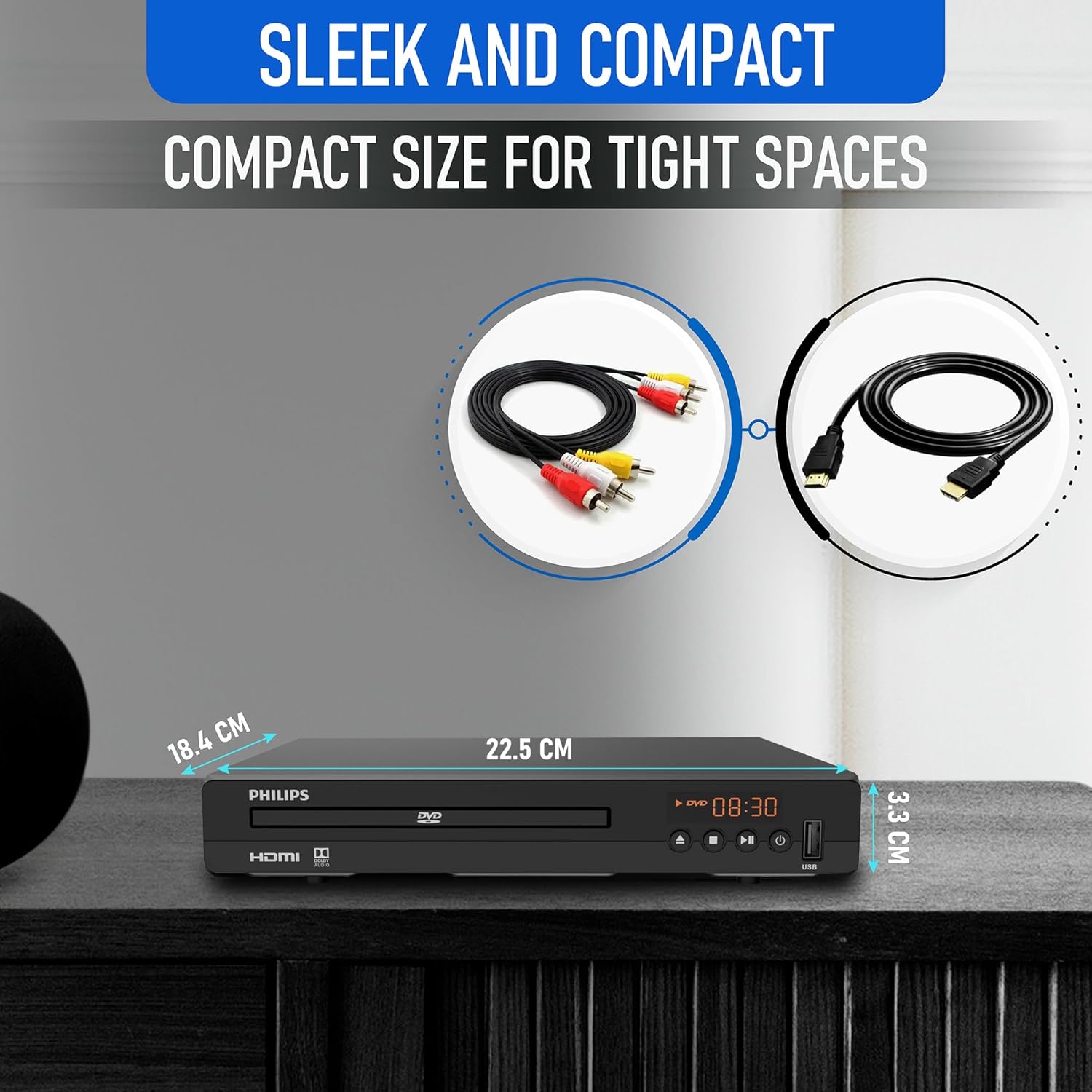
Diagram illustrating the compact dimensions of the DVD player: 22.5 cm (width), 18.4 cm (depth), and 3.3 cm (height).
6. Chidziwitso cha Chitsimikizo
For detailed warranty information, please refer to the warranty card included in your product packaging or contact Philips customer support. The manufacturer's warranty covers defects in materials and workmanship under normal use.
7. Thandizo la Makasitomala
If you require further assistance or have questions not covered in this manual, please contact Philips customer support through their official webtsamba kapena mauthenga omwe aperekedwa muzolemba zamalonda anu.