
1. Mawu Oyamba
The FeiyuTech VB4 SE is a compact and foldable 3-axis smartphone gimbal stabilizer designed to capture smooth and stable video footage with your iPhone or Android device. This manual provides detailed instructions for setup, operation, and maintenance to ensure optimal performance and longevity of your device.
2. Zofunika Zachitetezo
- Do not immerse the gimbal in water or expose it to rain.
- Pewani kugwetsa kapena kugwetsa gimbal mwamphamvu.
- Sungani gimbal kutali ndi malo otentha komanso dzuwa lolunjika.
- Do not attempt to disassemble or modify the gimbal. Repairs should only be performed by authorized service personnel.
- Ensure the smartphone is securely mounted and balanced before powering on the gimbal.
- Gwiritsani ntchito chingwe cholipirira chomwe mwapereka komanso adapter yamagetsi yogwirizana.
3. Zamkatimu Phukusi
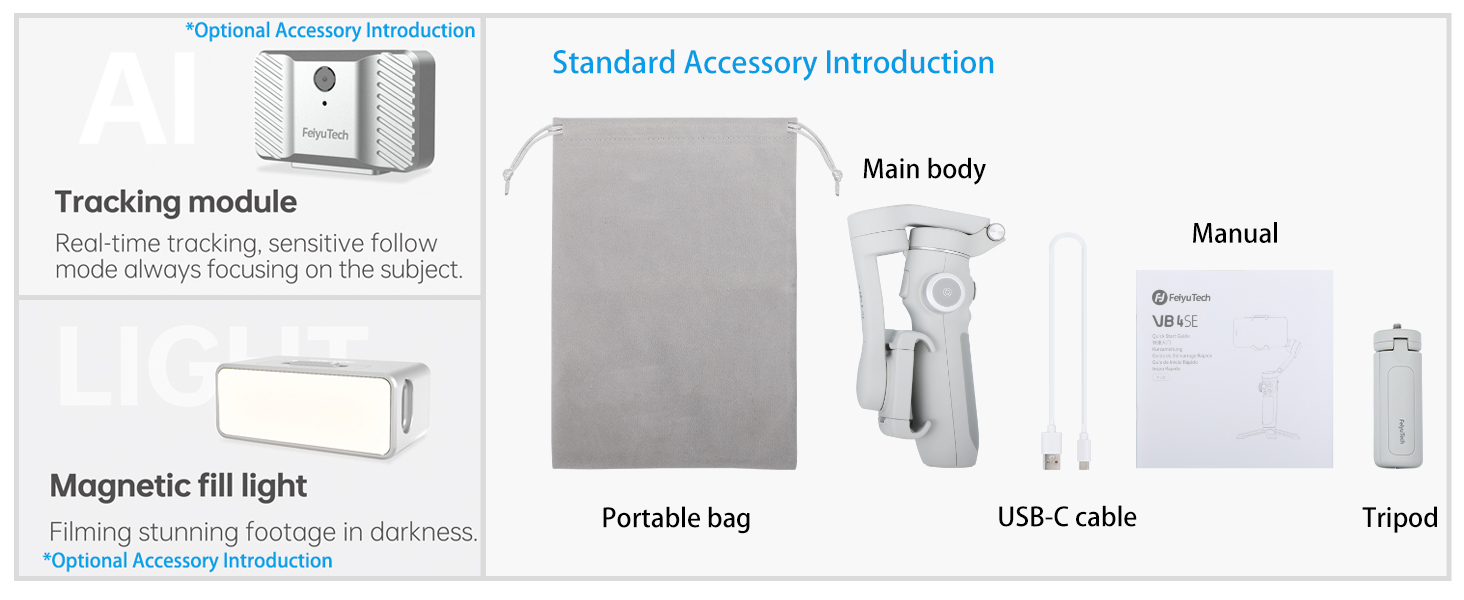
Onetsetsani kuti zinthu zonse zilipo mu phukusi lanu:
- FeiyuTech VB4 SE Gimbal (Main body)
- Chikwama Chonyamula
- USB-C Charging Chingwe
- Mini Tripod
- Buku Logwiritsa Ntchito

Image: FeiyuTech VB4 SE package contents. Includes the gimbal, a portable bag, a USB-C cable, and a tripod.
4. Zamalonda Zathaview
Familiarize yourself with the components of your FeiyuTech VB4 SE gimbal.

Chithunzi: Chapafupi view of the FeiyuTech VB4 SE gimbal showing the control panel with joystick, multifunction knob, and buttons.
Zofunika Kwambiri:
- Kukhazikika kwa 3-Axis: Ensures smooth and steady footage.
- Mapangidwe Opanga: Yang'ono komanso yonyamula kuti ikhale yosavuta kuyenda.
- Built-in Extension Rod: Extends for wider shots and selfies.
- Multifunction Knob: Controls pan, tilt, focus, and zoom.
- Kuwongolera Manja: Start/stop recording or take photos with hand gestures.
- Kutsata Zinthu: Automatically follows a selected subject.
- One-Button Vertical Shooting: Quickly switch between horizontal and vertical modes.
- Moyo Wa Battery Wautali: Integrated 1300mAh battery for extended use.

Image: Diagram illustrating the key features of the FeiyuTech VB4 SE, including its foldable design, lightweight nature, magnetic expansion, gesture control, multi-functional knob, smart AI follow, one-button portrait/landscape switch, and album control.
5. Kukhazikitsa
5.1 Kulipiritsa Gimbal
Before first use, fully charge the gimbal. Connect the USB-C charging cable to the charging port located near the power button and plug the other end into a USB power adapter (not included). The indicator lights will show charging status.
5.2 Mounting the Smartphone
Extend the phone clamp and carefully place your smartphone in it. Ensure the phone is centered and secure. The camera lens should be on the left side when facing the gimbal's front.
5.3 Kulinganiza Gimbal
The gimbal features an automatic balancing system. Once the phone is mounted, power on the gimbal, and it will automatically adjust to balance the phone. Manual adjustment may be needed if the phone is significantly off-center.
5.4 App Installation (Feiyu ON)
Download the Feiyu ON app from your smartphone's app store (iOS App Store or Google Play Store). The app unlocks advanced features and provides a better user experience.
5.5 Kulumikizana kwa Bluetooth
Turn on the gimbal and enable Bluetooth on your smartphone. Open the Feiyu ON app and search for available devices. Select "VB4 SE" to connect. Once connected, the Bluetooth indicator light on the gimbal will turn solid blue.
6. Ntchito
6.1 Kuyatsa/Kuzimitsa
- Yatsani: Dinani ndikugwira batani lamphamvu kwa masekondi atatu.
- Kuzimitsa Mphamvu: Dinani ndikugwira batani lamphamvu kwa masekondi atatu.
Video: This video demonstrates the basic power on/off function, joystick control, stabilization, and switching between horizontal and vertical modes of the FeiyuTech VB4SE gimbal.
6.2 Zowongolera Zoyambira
- Zosangalatsa: Controls the pan and tilt movements of the smartphone.
- Multifunction Knob: Rotates to control focus or zoom, and can switch between three-axis rotation modes.
- Chotsekera batani: Dinani kamodzi kuti mujambule chithunzi, dinani ndikusunga kuti mujambule kanema.
- Batani la Modi (M): Cycles through different operating modes (Pan Follow, Tilt Follow, FPV, Lock Mode).
Chithunzi: Zambiri view of the gimbal's control panel, highlighting the indicator area for battery and connection status, the button area for various functions, and the multi-functional knob for sensitive control.
6.3 Njira Zogwiritsira Ntchito
Press the Mode button (M) to switch between the following modes:
- Pan Follow (PF): The camera pans left/right with your hand movements, while tilt and roll axes are locked.
- Yendani Kutsatira (TF): The camera follows both pan and tilt movements, while the roll axis is locked.
- Njira ya FPV: The camera follows all three axes (pan, tilt, and roll) for a first-person view zochitika.
- Lock Mode: All three axes are locked, keeping the camera pointed in a fixed direction.
6.4 Kulamulira Manja
Enable gesture control in the Feiyu ON app. Use specific hand gestures to initiate actions like taking photos, starting/stopping video recording, or activating object tracking.

Image: Visual guide for gesture control, showing hand signs for taking photos, recording video, starting face tracking, zoom function (iOS only), switching to vertical mode, horizontal mode, and stopping tracking.
6.5 Object Tracking
In the Feiyu ON app, select a subject on your screen, and the gimbal will automatically track its movement, keeping it in the frame.

Image: The gimbal tracking a dog in motion, with a green box indicating the tracked subject on the smartphone screen.
6.6 Vertical/Horizontal Switching
Press the dedicated button to quickly switch your smartphone between horizontal (landscape) and vertical (portrait) shooting orientations, ideal for social media content.

Image: The gimbal rotating a smartphone from horizontal to vertical orientation, demonstrating the quick switch feature.
6.7 Scenario Modes (via Feiyu ON App)
The Feiyu ON app offers various creative shooting modes:
- Njira Yopepuka: Capture stunning light trails in low-light conditions.
- Kuwonetsedwa kawiri: Combine two images into one creative shot.
- Dolly Zoom: Create a dramatic cinematic effect where the background appears to zoom while the foreground remains constant.
- Kutha nthawi: Condense long events into short, dynamic videos.
6.8 Kugwiritsa Ntchito Ndodo Yowonjezera
The built-in extension rod can be pulled out to extend the gimbal's reach, allowing for wider angles, higher shots, and easier selfies.

Image: The FeiyuTech VB4 SE gimbal with a smartphone mounted, standing on its mini tripod with the extension rod partially extended.
7. Kusamalira
7.1 Kuyeretsa
Wipe the gimbal with a soft, dry cloth. Do not use liquid cleaners or solvents.
7.2 Kusungirako
Store the gimbal in its portable bag in a cool, dry place away from direct sunlight. Avoid placing heavy objects on top of it.
7.3 Kusamalira Battery
To prolong battery life, charge the gimbal at least once every three months if not in regular use. Avoid fully discharging the battery frequently.
8. Mavuto
- Gimbal sakugwira ntchito: Onetsetsani kuti batire yachajidwa. Lumikizani ku chochajira ndikuyesanso.
- Gimbal unstable/vibrating: Check if the smartphone is properly mounted and balanced. Restart the gimbal.
- Mavuto okhudzana ndi Bluetooth: Ensure Bluetooth is enabled on your phone and the gimbal. Restart both devices and try reconnecting via the Feiyu ON app.
- Pulogalamu siyikuyankha: Close and reopen the Feiyu ON app. Ensure your app and phone's operating system are up to date.
- Motors making noise: This can occur if the gimbal is not properly balanced or if the phone is too heavy. Re-balance the phone or check its weight compatibility.
9. Zofotokozera
| Chitsanzo | VB4 SE |
| Miyeso Yazinthu | 7.87 x 3.94 x 7.87 mainchesi (osatambasuka) |
| Kukula Wopindidwa | Approximately 6 inches (length) |
| Kulemera kwa chinthu | 11.1 ounces (315 magalamu) |
| Mphamvu ya Battery | 1300mAh Lithium Ion |
| Kulipira Port | USB-C |
| Kulumikizana | bulutufi |
| Zida Zogwirizana | Smartphones up to 3.5" wide and 9.2 oz in weight |
10. Chitsimikizo ndi Thandizo
FeiyuTech products come with a standard manufacturer's warranty. For detailed warranty information, please refer to the warranty card included in your package or visit the official FeiyuTech website. For technical support, product inquiries, or service requests, please contact FeiyuTech customer service through their official channels.
Chonde sungani umboni wanu wogula kuti mupereke chitsimikizo.