
GeekTale F02-02
Buku Lophunzitsira la GeekTale F02-02 Smart Deadbolt
Model: F02-02 | Brand: GeekTale
1. Mawu Oyamba
This manual provides comprehensive instructions for the installation, operation, and maintenance of your GeekTale F02-02 Smart Deadbolt. Please read this manual thoroughly before installation and use to ensure proper function and safety.
The GeekTale F02-02 is a 4-in-1 keyless entry door lock offering multiple access methods: fingerprint, keypad passcode, Bluetooth app control, and traditional physical keys. It is designed for enhanced security and convenience in residential settings.
2. Zamkatimu Phukusi
Onetsetsani kuti zigawo zonse zilipo musanayambe kukhazikitsa.
- GeekTale F02-02 Smart Deadbolt (Exterior and Interior Assemblies)
- Zipangizo Zoyikira (Zomangira, Mabotolo)
- Strike Plate and Reinforcement Plate
- Physical Keys (2)
- Unsembe Chinsinsi
- Buku Logwiritsa Ntchito

3. Zofotokozera
| Mbali | Tsatanetsatane |
|---|---|
| Dzina lachitsanzo | F02-02 |
| Mtundu | GeekTale |
| Mtundu wa loko | Biometric Deadbolt |
| Zakuthupi | Aluminiyamu |
| Tsitsani Mtundu | Polished (Satin Nickel) |
| Njira Yowongolera | App, Touch (Fingerprint/Keypad) |
| Kuthekera kwa Zisindikizo Zala | Mpaka 50 |
| Passcode Kukhoza | Mpaka 20 |
| Gwero la Mphamvu | 4 AA mabatire (osaphatikizidwe) |
| Mphamvu Zadzidzidzi | USB-C Doko |
| Makulidwe (L x W x H) | 2.95 x 2.16 x 5.31 mainchesi |
| Kulemera kwa chinthu | 1.94 mapaundi (0.88kg) |

4. Kuyika
The GeekTale F02-02 Smart Deadbolt is designed for easy installation and can replace most existing deadbolts. Ensure your door meets the specifications outlined in Section 3 before proceeding.
4.1 Kukonzekera
- Zida Zofunika: Phillips head screwdriver, measuring tape.
- Kugwirizana kwa Khomo: Ensure your door thickness is between 1-3/8" (35mm) and 2-1/8" (54mm). The door hole diameter should be 2-1/8" (54mm). The backset (distance from door edge to center of bore hole) should be 2-3/4" (70mm) or 2-3/8" (60mm).
- Dziwani Kupereka Pakhomo: The lock is reversible for left-handed and right-handed doors.
4.2 Kuyika pang'onopang'ono
- Chotsani Deadbolt yomwe ilipo: Unscrew and remove your current deadbolt from the door.
- Install Latch Bolt: Insert the new latch bolt into the door edge. Ensure the "UP" arrow on the latch bolt faces upwards. Secure with screws.
- Ikani Msonkhano Wakunja: Feed the cable from the exterior keypad unit through the door hole. Align the exterior unit with the latch bolt and secure it to the door.
- Ikani Mbale Yoyikira Mkati: Route the cable through the mounting plate. Secure the mounting plate to the exterior assembly using the provided screws.
- Lumikizani Chingwe ndikuyika Cholumikizira Chamkati: Connect the cable from the exterior unit to the interior unit's port. Ensure the thumb-turn spindle is correctly aligned with the latch bolt mechanism. Secure the interior assembly to the mounting plate with screws.
- Ikani Strike Plate: Install the strike plate and reinforcement plate on the door frame, aligning them with the latch bolt.
- Lowetsani Mabatire: Open the battery cover on the interior unit and insert 4 AA alkaline batteries (not included). Close the cover.
- Kuyesa: Manually test the deadbolt by rotating the thumb-turn. Ensure it extends and retracts smoothly.

5. Malangizo Ogwiritsira Ntchito
The GeekTale F02-02 Smart Deadbolt offers multiple ways to lock and unlock your door.
5.1 Kukhazikitsa Koyamba ndi Kugwirizanitsa Mapulogalamu
- Tsitsani App: Saka the "GeekTale" app in your smartphone's app store (iOS/Android).
- Pangani akaunti: Follow the in-app instructions to create a user account.
- Onjezani Chipangizo: In the app, select "Add Device" and follow the prompts to pair your smart deadbolt via Bluetooth. Ensure Bluetooth is enabled on your phone and you are within range of the lock.
- Set Administrator: The first fingerprint or passcode registered through the app will typically be designated as the administrator.

5.2 Njira Zotsegula
- Kutsegula Mzere wa Zala: Place your registered finger on the fingerprint sensor on the exterior unit. The lock will unlock if the fingerprint is recognized.

Fingerprint unlocking in progress. - Tsegulani Passcode: Enter your registered 6-digit passcode on the keypad. The lock will unlock upon correct entry.

Keypad entry with anti-peep function, where random digits can be entered before or after the actual passcode. - App Bluetooth Unlock: Open the GeekTale app on your smartphone, ensure Bluetooth is active, and tap the unlock icon.
- Physical Key Unlock: In case of battery depletion or electronic malfunction, use the provided physical keys to unlock the deadbolt.
5.3 Locking Methods
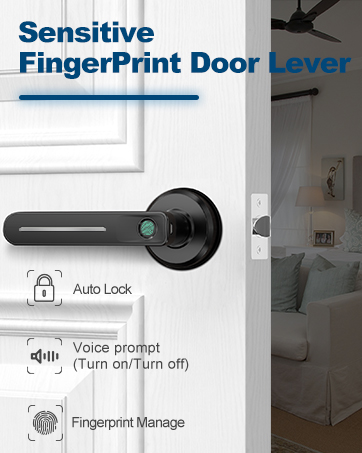
- Kutseka Kokha: The lock can be configured via the app to automatically lock after a set period (e.g., 5-60 seconds) once unlocked.

The auto-lock feature automatically secures the deadbolt after a preset time. - Choko Chokhudza Chimodzi: Press the '#' key on the keypad to manually lock the door from the outside.
- App Bluetooth Lock: Open the GeekTale app on your smartphone and tap the lock icon.
- Manual Lock (Interior): Rotate the thumb-turn on the interior unit to lock the door.
5.4 Mawonekedwe a App
- Kasamalidwe ka Ogwiritsa: Add, modify, or delete fingerprints and passcodes for up to 20 family members.
- Logi Yofikira: View a history of lock and unlock events, including method and user.
- Temporary Passcodes: Generate one-time or time-limited passcodes for guests or service providers.
- Njira Yoyimira: Enable or disable sound feedback from the lock for quiet operation.
- Chidziwitso cha Battery Yochepa: Receive notifications when battery levels are low.
- Auto-Lock Timer: Adjust the duration for the auto-lock feature.


6. Kusamalira
- Kusintha Battery: Replace all 4 AA batteries when the low battery alert is triggered. Use only new, high-quality alkaline batteries. Do not mix old and new batteries or different battery types.
- Kuyeretsa: Clean the lock's exterior surfaces with a soft, dry cloth. Avoid abrasive cleaners or solvents that could damage the finish or electronic components.
- Chizindikiro Chala: Sungani chala chala chaukhondo komanso chowuma kuti chigwire bwino ntchito.
- Mphamvu Yowopsa: If batteries deplete completely, connect a USB-C power bank to the emergency power port on the exterior unit to temporarily power the lock and gain access.
7. Mavuto
| Vuto | Chifukwa Chotheka | Yankho |
|---|---|---|
| Loko samayankha. | Mabatire akufa. | Replace batteries. Use emergency USB-C power if needed. |
| Chizindikiro cha chala sichinazindikirike. | Finger dirty/wet, sensor dirty, fingerprint not properly registered. | Clean finger and sensor. Re-register fingerprint if issue persists. |
| Passcode not working. | Incorrect passcode entered, passcode expired (temporary). | Verify passcode. Check app for temporary passcode status. |
| App cannot connect to lock. | Bluetooth off, phone too far, app issue. | Ensure Bluetooth is on and phone is close. Restart app/phone. |
| Lock grinds or doesn't fully extend/retract. | Misalignment during installation, obstruction. | Check installation alignment. Ensure no obstructions in door frame/latch. |
8. Chitsimikizo ndi Thandizo
GeekTale provides localized after-sales customer service. For any issues or questions regarding your product, please contact GeekTale customer support through the official channels. Refer to your purchase documentation for specific warranty terms and contact information.
Zambiri zamalumikizidwe: Chonde pitani ku GeekTale Store on Amazon or refer to the contact details provided with your product packaging.