
1. Mawu Oyamba
Thank you for choosing the Goshyda Portable Multimedia 1080P Projector. This compact and versatile device is designed to provide a personal cinema experience, supporting various multimedia inputs for entertainment, presentations, and more. Please read this manual carefully before using the projector to ensure proper operation and to maximize its lifespan.

Image 1.1: The Goshyda YG300 Mini Portable Projector in a home entertainment setting.
2. Zambiri Zachitetezo
- Magetsi: Use only the specified 5V 2A power adapter or a compatible power bank. Incorrect voltage akhoza kuwononga chipangizo.
- Mpweya wabwino: Musatseke mipata yolowera mpweya. Onetsetsani kuti mpweya uli wokwanira kuzungulira pulojekitala kuti mupewe kutentha kwambiri.
- Chilengedwe: Avoid exposing the projector to water, moisture, dust, or extreme temperatures. Operate in a clean, dry environment.
- Kuyeretsa: Chotsani mphamvu musanayeretse. Gwiritsani ntchito nsalu yofewa, youma. Osagwiritsa ntchito zotsukira zamadzimadzi kapena aerosol.
- Kusokoneza: Musayese kusokoneza kapena kukonza pulojekitala nokha. Tumizani ntchito zonse zokonzanso kwa anthu oyenerera.
- Chitetezo cha Maso: Osayang'ana molunjika mu lens ya projector pomwe lamp ili pa.
3. Zamkatimu Phukusi
Chonde onani zomwe zili mu phukusili mukatsegula bokosi. Ngati zinthu zina zikusowa kapena zawonongeka, funsani wogulitsa wanu.
- Goshyda Portable Projector
- Kuwongolera Kwakutali
- Chingwe cha AV
- Adapter yamagetsi
- Buku la ogwiritsa (chikalatachi)

Image 3.1: Included accessories with the Goshyda Portable Projector.
4. Zamalonda Zathaview
4.1. Makhalidwe a Pulojekitala
- 1080P Resolution Support: Amapereka zithunzi zomveka bwino komanso zatsatanetsatane.
- Compact and Portable Design: Weighing approximately 290g, it is easy to carry.
- Multi-Port Connectivity: Includes USB, HDMI, AV, memory card slot, and audio output.
- Zolankhula Zomangidwa: Amapereka nyimbo zophatikizika kuti zikhale zosavuta.
- Flexible Power: Can be powered by a 5V 2A wall charger or power bank.

Image 4.1: Visual representation of the projector's main features.
4.2. Projector Ports and Controls
Familiarize yourself with the various ports and controls on your projector.
- Lens: Front-facing projection lens.
- Ganizirani Mphete: Imasintha kumveka bwino kwa chithunzi.
- Power Input (DC IN): Connects to the 5V 2A power adapter.
- Doko la HDMI: Kulumikiza zipangizo kudzera pa chingwe cha HDMI.
- Doko la USB: Polumikiza zida zosungirako za USB.
- AV Port: For connecting devices via AV cable.
- MicroSD Card Slot: For inserting a memory card.
- Kutulutsa kwamawu: Polumikiza ma speaker akunja kapena mahedifoni.
- Mabatani Owongolera: On the top panel for basic navigation and selection.

Chithunzi 4.2: Mbali view of the projector highlighting its connectivity ports.

Image 4.3: Close-up of the projector lens.
5. Kukhazikitsa
5.1. Kulumikizana kwa Mphamvu
- Lumikizani adaputala yamagetsi yomwe yaperekedwa ku doko la DC IN pa pulojekitala.
- Lumikizani adaputala yamagetsi mumagetsi okhazikika.
- Alternatively, for portable use, connect a 5V 2A power bank to the DC IN port.

Image 5.1: Powering the projector via wall adapter or power bank.
5.2. Kuyika ndi Kuyerekeza
Place the projector on a stable, flat surface. The optimal projection distance is between 1 to 2.5 meters, allowing for a screen size of up to 60 inches.
- For a 24-inch screen, place the projector approximately 0.8 meters away.
- For a 47-inch screen, place the projector approximately 1.2 meters away.
- For a 60-inch screen, place the projector approximately 1.6 meters away.
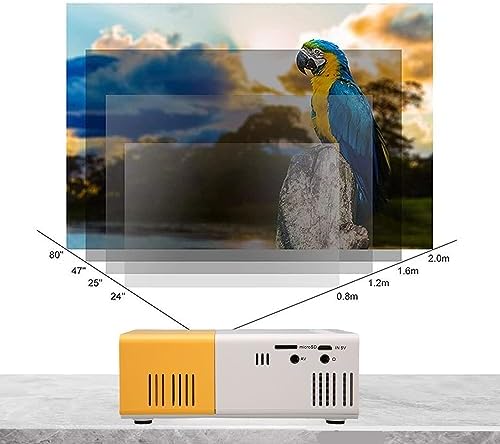
Image 5.2: Projection distance guidelines for various screen sizes. Note: Maximum recommended projection size is 60 inches.
5.3. Kusintha kwa Kuyikira Kwambiri
After placing the projector and powering it on, rotate the focus ring located around the lens until the projected image appears clear and sharp.
6. Malangizo Ogwiritsira Ntchito
6.1. Kuyatsa/Kuzimitsa
- Yatsani: Dinani batani lamphamvu pa projekita kapena pa remote control.
- Kuzimitsa Mphamvu: Press the power button again. The projector will shut down.
6.2. Kusankha Kochokera
Use the 'Source' button on the remote control or the projector's control panel to cycle through available input sources (HDMI, USB, AV, MicroSD).
6.3. Menyu Navigation
Use the arrow buttons on the remote control or projector to navigate through menus. Press 'OK' or 'Enter' to confirm selections. Use the 'Return' or 'Back' button to go back to the previous menu.
7. Kulumikizana
The projector offers multiple connectivity options for various devices.

Image 7.1: Connectivity options for the Goshyda projector.
7.1. Kugwirizana kwa HDMI
Connect devices such as laptops, TV Sticks, game consoles (e.g., for Xbox One), or Blu-ray players using an HDMI cable. Select 'HDMI' as the input source.
7.2. Kugwirizana kwa USB
Ikani USB kung'anima galimoto mu USB doko kusewera TV files directly. Select 'USB' as the input source and navigate through your files.
7.3. Kulumikizana kwa AV
Use the provided AV cable to connect older devices like DVD players. Select 'AV' as the input source.
7.4. Smartphone/Tablet Connection
To connect directly to your smartphone or tablet, you will need an appropriate adapter (e.g., Micro USB to HDMI, Type-C to HDMI, or a dedicated HD multimedia interface device), depending on your device's operating system (OS X or Android) and available ports. These adapters are sold separately.
7.5. Kutulutsa Kwama Audio
Connect external speakers or headphones to the audio output port for enhanced sound.
8. Kusamalira
- Kuyeretsa Magalasi: Use a soft, lint-free cloth specifically designed for optical lenses to gently wipe the projector lens. Do not use abrasive materials or harsh chemicals.
- Kuyeretsa Kunja: Pukutani kunja kwa pulojekitala ndi nsalu yofewa komanso youma.
- Posungira: Ngati simukugwiritsa ntchito kwa nthawi yayitali, sungani pulojekitala pamalo ozizira komanso ouma, kutali ndi dzuwa ndi fumbi.
9. Mavuto
| Vuto | Chifukwa Chotheka | Yankho |
|---|---|---|
| Palibe mphamvu | Power adapter not connected or faulty; insufficient power supply. | Ensure the 5V 2A power adapter is securely connected and plugged into a working outlet. Try a different power source or power bank. |
| Palibe chithunzi | Incorrect input source selected; cable not connected properly; device not outputting signal. | Select the correct input source (HDMI, USB, AV). Check all cable connections. Ensure the connected device is powered on and outputting a signal. |
| Chithunzichi sichimadziwika | Kuyikirako sikunasinthidwe; Pulojekitala ili pafupi kwambiri/kutali ndi zenera. | Rotate the focus ring to sharpen the image. Adjust the projection distance within the recommended range (1-2.5m). |
| Palibe phokoso | Volume too low or muted; external speakers not connected; audio format not supported. | Increase the volume on the projector and the source device. Check if external speakers are properly connected. Ensure the audio format is supported. |
10. Zofotokozera
| Mbali | Tsatanetsatane |
|---|---|
| Mtundu | Goshyda |
| Nambala ya Model | Goshyda89pkbg17g0 |
| Kuwonetseratu | 1920 x 1080 (1080P Support) |
| Kuwala | 200 Lumens |
| Mbali Ration | 4:3 |
| Kutalikirana | 1 - 2.5 mamita |
| Kukula kwa Projection | Mpaka 60 inchi |
| Kulumikizana Technology | HDMI, USB, AV, MicroSD, Audio Out |
| Kulowetsa Mphamvu | 5v2 ndi |
| Mtundu Wowonetsera | LCD |
| Miyeso Yazinthu | 12L x 8.5W x 4.6H cm (Approx. 4.7 x 3.3 x 1.8 inches) |
| Fomu Factor | Zonyamula |
| Mtundu Wokwera | Phiri la Table |
11. Chitsimikizo ndi Thandizo
For warranty information and customer support, please refer to the documentation provided with your purchase or contact your retailer directly. Keep your proof of purchase for warranty claims.