1. Mawu Oyamba
Zikomo pogulaasing the GLIDiC Sound Air TW-5000s True Wireless Earbuds. This manual provides essential information for the safe and effective use of your device. Please read it thoroughly before use and retain it for future reference.
2. Zambiri Zachitetezo
- Musamaike ma earbuds kapena chikwama chochajira pamalo otentha kwambiri, padzuwa lachindunji, kapena pamalo onyowa kwambiri.
- Avoid dropping, impacting, or disassembling the device. This may cause damage and void the warranty.
- Keep the device away from water and liquids. While sweatproof, immersion can cause damage.
- Gwiritsani ntchito chingwe chochapira chomwe mwaperekedwa kapena chofanana nacho chovomerezeka.
- Kumvetsera kwanthawi yayitali pamilingo yayikulu kungayambitse kuwonongeka kwa makutu. Sinthani mawu kukhala mulingo wotetezeka.
- Be aware of your surroundings when using earbuds, especially in traffic or hazardous environments.
3. Zamkatimu Phukusi
Onetsetsani kuti zinthu zonse zilipo mu phukusi lanu:
- GLIDiC Sound Air TW-5000s True Wireless Earbuds (Left and Right)
- Mlandu Wolipira
- USB Charging Cable (Type-A to Micro-USB)
- Kukula kwamakutu angapo (S, M, L)
- Buku Lachidziwitso (chikalata ichi)
4. Zamalonda Zathaview
Familiarize yourself with the components of your GLIDiC Sound Air TW-5000s earbuds and charging case.

Figure 4.1: GLIDiC Sound Air TW-5000s Earbuds and Charging Case. The image displays the black charging case with the GLIDiC logo on top, positioned next to the two black earbuds.
Zida Zam'makutu
- Batani la Multifunction: Located on the outer surface of each earbud, used for playback control, call management, and voice assistant activation.
- Chizindikiro cha LED: Provides status information (pairing, charging, power).
- Maikolofoni: For voice calls and voice assistant commands.
- Kulipira Contacts: Located on the underside of each earbud, for charging within the case.
- Langizo M'khutu: Silicone tip for in-ear comfort and sound isolation.
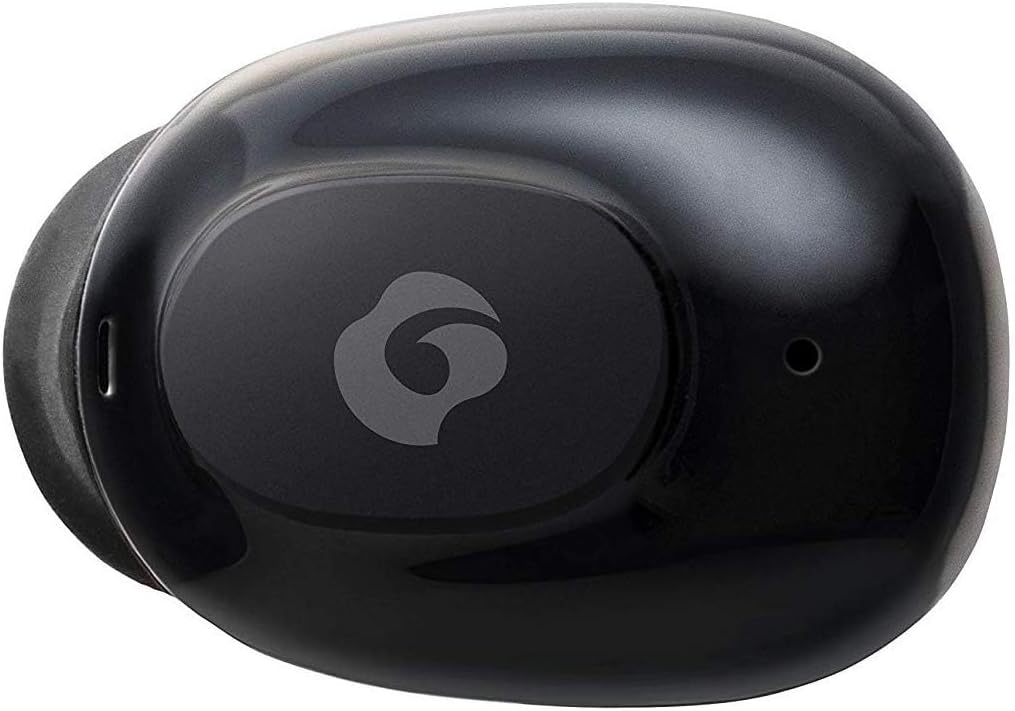
Chithunzi 4.2: Pafupi view of a single GLIDiC earbud, highlighting the multifunction button with the GLIDiC logo and the microphone opening.
Zigawo za Case Charge
- Madoko Olipiritsa: Internal contacts for earbuds, external port for case charging.
- Case LED Indicator: Shows charging status of the case.
- Chivundikiro: Protects earbuds and secures them during charging.
5. Kukhazikitsa
5.1 Kulipira Koyamba
- Place both earbuds into the charging case. Ensure they are correctly seated, and the LED indicators on the earbuds illuminate.
- Connect the USB charging cable to the charging port on the case and plug the other end into a USB power source (e.g., computer, wall adapter).
- The case LED indicator will show charging status. Allow approximately 2 hours for a full charge of both earbuds and the case.
- Once fully charged, disconnect the charging cable. The earbuds offer up to 60 days of standby time when stored in the fully charged case.
5.2 Kulumikizana ndi Chipangizo cha Bluetooth
- Onetsetsani kuti zomverera m'makutu zachajitsidwa.
- Tsegulani mlandu wolipira. Zomverera m'makutu zimangolowetsamo pairing mode, ndipo zizindikiro zawo za LED zidzawala.
- Pa chipangizo chanu chogwiritsa ntchito Bluetooth (foni yam'manja, piritsi, ndi zina zotero), pitani ku zoikamo za Bluetooth.
- Saka available devices. Select "GLIDiC TW-5000s" from the list.
- Once connected, the earbud LED indicators will stop flashing and may show a solid light or turn off, depending on the model. A voice prompt may also confirm the connection.
- If pairing fails, place the earbuds back in the case, close the lid, wait a few seconds, and then repeat the steps.
6. Malangizo Ogwiritsira Ntchito
6.1 Kuyatsa/Kuzimitsa
- Yatsani: Open the charging case, or press and hold the multifunction button on each earbud for approximately 3 seconds.
- Kuzimitsa Mphamvu: Place the earbuds back into the charging case and close the lid, or press and hold the multifunction button on each earbud for approximately 5 seconds.
6.2 Kujambula Nyimbo
- Sewerani/Imitsani: Press the multifunction button once on either earbud.
- Nyimbo Yotsatira: Double-press the multifunction button on the right earbud.
- Njira Yakale: Double-press the multifunction button on the left earbud.
- Onjezani Pamwamba: Triple-press the multifunction button on the right earbud.
- Voliyumu Pansi: Triple-press the multifunction button on the left earbud.
6.3 Kuwongolera Kuyimba
- Yankhani/Imitsani Kuyimba: Press the multifunction button once on either earbud.
- Kanani Kuyimba: Press and hold the multifunction button on either earbud for approximately 2 seconds.
6.4 Wothandizira Mawu
- Yambitsani Wothandizira Mawu: Press and hold the multifunction button on either earbud for approximately 2 seconds (when not on a call).
6.5 Multi-Communication Mode
The GLIDiC Sound Air TW-5000s features a multi-communication mode that allows select ambient sounds to be heard without compromising audio quality. This enhances user awareness and safety.
- Activate/Deactivate Multi-Communication Mode: Consult the specific instructions provided with your device, as activation methods can vary. Typically, this involves a specific press sequence on the multifunction button or an option within a companion app if available.
7. Kusamalira
7.1 Kuyeretsa
- Pukutani zotchingira m'makutu ndi pozitengera ndi nsalu yofewa, youma, yopanda lint.
- Osagwiritsa ntchito zotsukira abrasive, mowa, kapena zosungunulira mankhwala.
- Gently remove ear tips and clean them with mild soap and water if necessary. Ensure they are completely dry before reattaching.
- Use a dry cotton swab to carefully clean the charging contacts on both the earbuds and the case.
7.2 Kusungirako
- Mukasagwiritsidwa ntchito, sungani zomvetsera m'makutu awo poziteteza kuti muteteze ndikuwonetsetsa kuti zimakhalabe zachaji.
- Sungani chipangizocho pamalo ozizira, owuma, kutali ndi dzuwa komanso kutentha kwambiri.
8. Mavuto
If you encounter issues with your GLIDiC Sound Air TW-5000s, refer to the following common problems and solutions:
| Vuto | Njira Yotheka |
|---|---|
| Zomvera m'makutu siziyatsidwa. | Ensure earbuds are charged. Place them in the charging case and connect the case to a power source. |
| Mahedifoni a m'makutu sagwirizana ndi chipangizocho. |
|
| M'makutu umodzi wokha uli ndi mawu. |
|
| Kulipiritsa sikulipiritsa. |
|
| Ubwino wa mawu ndi wochepa kapena wosakhazikika. |
|
9. Zofotokozera
| Mbali | Tsatanetsatane |
|---|---|
| Dzina lachitsanzo | TW-5000s |
| Kulumikizana Technology | Wopanda zingwe (Bluetooth) |
| Mtundu wa Bluetooth | 10 mita |
| Nthawi zambiri | 20 Hz - 20,000 Hz |
| Battery Life (Carrying Case Standby) | Mpaka masiku 60 |
| Madzi Resistance Level | Yosalowa Madzi (Yosatuluka Thukuta) |
| Mtundu Wowongolera | Media Control, Touch, Voice |
| Zapadera | Microphone Included, Noise Cancellation, Multi-communication mode |
| Zakuthupi | Plastic, TPE, and Silicone |
| Dimensions (Earbud) | 0.98 x 0.67 x 0.91 mainchesi (pafupifupi) |
| Kulemera kwa chinthu | Ma ounces 9.6 (kulemera konse kwa phukusi) |
| UPC | 811559030024 |
10. Chitsimikizo ndi Thandizo
GLIDiC products are designed for reliability and performance. For specific warranty details, please refer to the warranty card included with your purchase or visit the official GLIDiC website. If you require technical support or have questions not covered in this manual, please contact GLIDiC customer service through their official channels.
Chonde sungani umboni wanu wogula kuti mupereke chitsimikizo.