
Mawu Oyamba
This manual provides essential information for the proper setup, operation, and maintenance of your Philips 346B1C Curved Monitor. This 34-inch WQHD (3440 x 1440) display features a 100 Hz refresh rate, 5ms response time, and a curved VA panel for an immersive viewing experience. Key features include USB-C docking, MultiView functionality, FreeSync technology, LowBlue Mode, and FlickerFree technology for enhanced user comfort and productivity.

Chithunzi: Patsogolo view of the Philips 346B1C curved monitor, showcasing its ultrawide display and key features like WQHD, USB-C Docking, and MultiView.
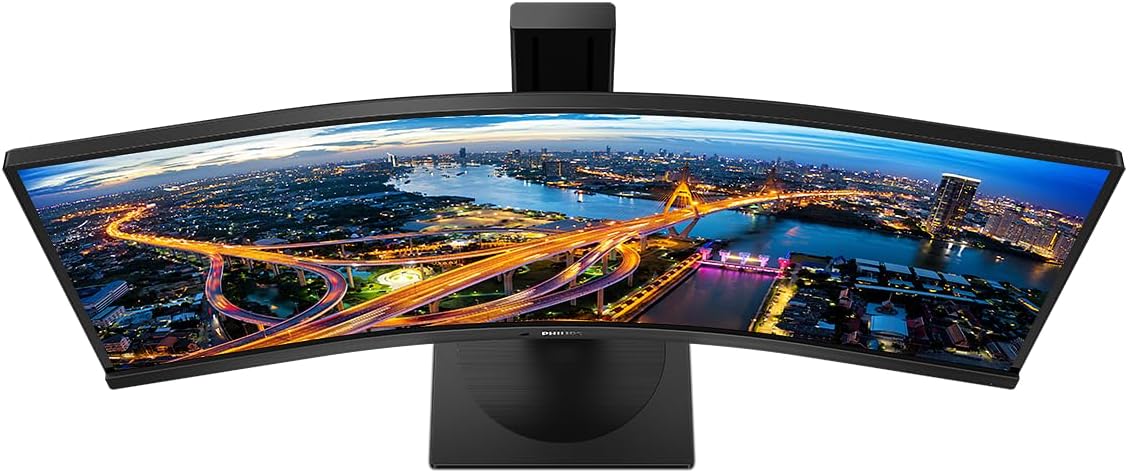
Chithunzi: Pamwamba-pansi view of the Philips 346B1C curved monitor, emphasizing the curvature of the screen.
Zomwe zili mu Bokosi
Onetsetsani kuti zigawo zonse zilipo musanayambe kukonza.
- Philips 346B1C Curved Monitor
- Monitor Stand (Base and Neck)
- Chingwe Chamagetsi
- Chingwe cha HDMI
- Chingwe cha DisplayPort
- Chingwe cha USB-C kupita ku USB-C
- USB-A to USB-B Cable (Upstream)
- Documentation (Quick Start Guide, User Manual CD)
Malangizo Okhazikitsira
1. Kusonkhanitsa Choyimilira
- Ikani chowunikiracho pansi pa malo ofewa komanso oyera kuti musakandane.
- Mangani khosi la choyimilira ku bolodi la chowunikira. Onetsetsani kuti chatsekedwa bwino kapena chamangidwa ndi zomangira ngati chilipo.
- Attach the stand base to the stand neck. Tighten the thumb screw or screws from the bottom of the base.

Chithunzi: Kumbuyo view of the Philips 346B1C monitor, showing the stand attachment point and VESA mounting holes.
2. Kulumikiza ku Kompyuta Yanu
Connect the monitor to your computer using one of the following methods:
- Kulumikizana kwa HDMI: Lumikizani mbali imodzi ya chingwe cha HDMI ku doko la HDMI la chowunikiracho ndi mbali inayo ku HDMI yotulutsa ya kompyuta yanu.
- Kulumikizana kwa DisplayPort: Connect one end of the DisplayPort cable to the monitor's DisplayPort and the other end to your computer's DisplayPort output.
- Kulumikiza kwa USB-C: Connect one end of the USB-C cable to the monitor's USB-C port and the other end to your computer's USB-C port. This connection supports video, data, and power delivery (up to 90W) to your laptop.
For USB hub functionality, connect the USB-A to USB-B upstream cable from your computer to the monitor's USB-B upstream port.
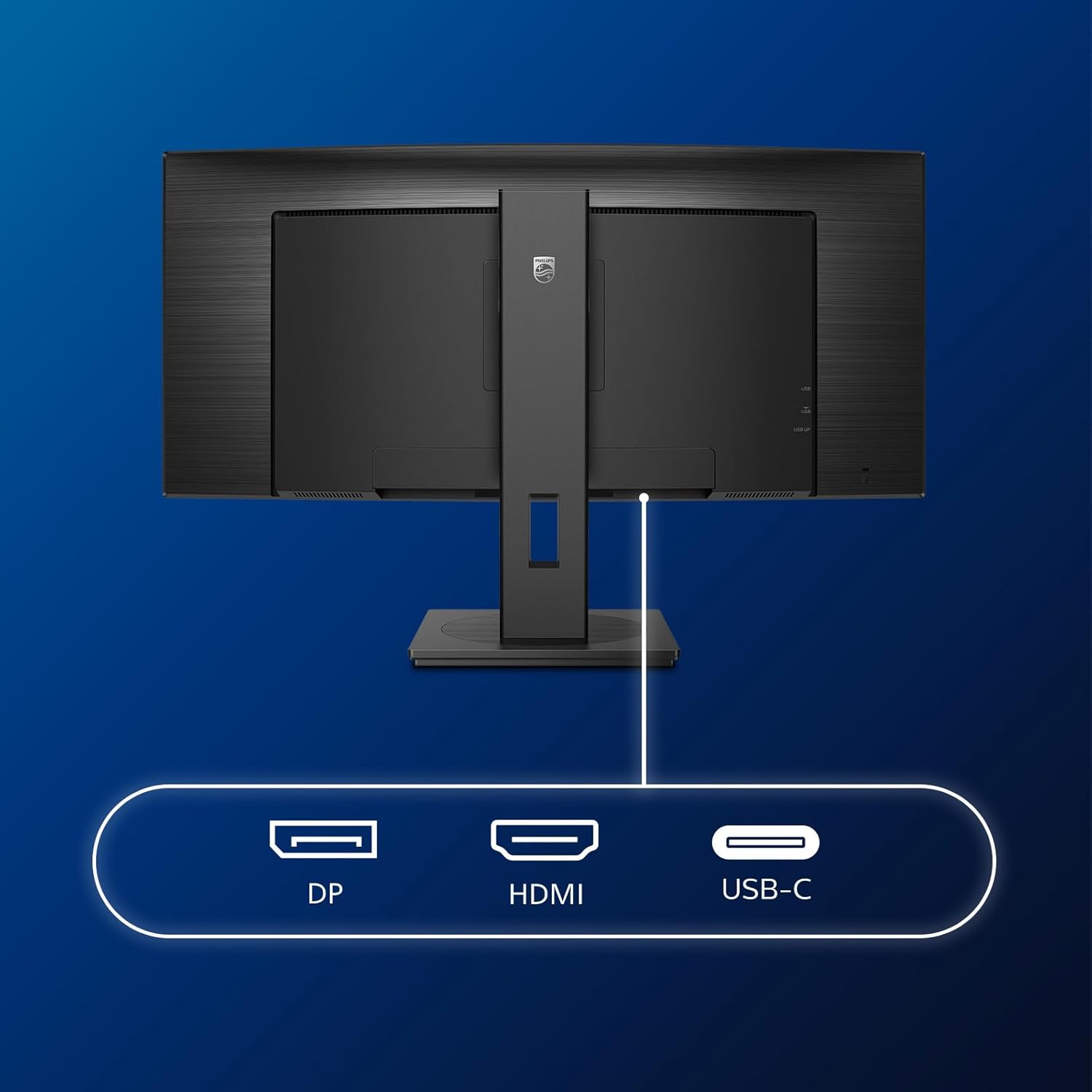
Chithunzi: Zambiri view of the monitor's input ports, including DisplayPort (DP), HDMI, and USB-C, for connecting to various devices.
3. Kulumikizana kwa Mphamvu
Lumikizani chingwe chamagetsi kumagetsi a chowunikira kenako ndi potengera magetsi.
4. Mphamvu Yoyambira
Press the power button located on the monitor to turn it on. The monitor should automatically detect the input signal. If not, use the On-Screen Display (OSD) menu to select the correct input source.
Malangizo Ogwiritsira Ntchito
Menyu Yowonetsera Pa-Screen (OSD).
The OSD menu allows you to adjust various monitor settings. Use the joystick control located on the back or bottom of the monitor to navigate the menu.
- Kuwala/Kusiyanitsa: Sinthani kuwunikira konse ndi kusiyanitsa kwa chiwonetserocho.
- Zokonda pamitundu: Konzani kutentha kwa mtundu, gamma, ndi malo a mtundu.
- Sankhani Zolowetsa: Manually switch between HDMI, DisplayPort, and USB-C inputs.
- Audio: Adjust volume or mute the built-in speakers.
- Chithunzi: Select from preset picture modes (e.g., Standard, Gaming, Text).
ZambiriView Kachitidwe
The MultiView feature allows you to connect and view content from two different sources simultaneously on the screen. Access this feature through the OSD menu to select Picture-by-Picture (PbP) or Picture-in-Picture (PiP) modes and configure input sources.
USB-C Docking
When connected via USB-C, the monitor acts as a docking station, providing video, data transfer through its integrated USB hub, and power delivery to charge your connected laptop (up to 90W).
SmartErgoBase and Adjustability
The monitor's SmartErgoBase allows for ergonomic adjustments including height, swivel, and tilt to optimize your viewchitonthozo.

Image: Illustrations demonstrating the monitor's adjustable features, including height adjustment, tilt, and swivel capabilities for ergonomic positioning.
Zosangalatsa za Maso
- LowBlue Mode: Reduces harmful shortwave blue light emissions to prevent eye strain. Activate this mode via the OSD menu.
- FlickerFree Technology: Regulates brightness and reduces flicker for more comfortable viewing. This feature is always active.
- PowerSensor & LightSensor: These sensors automatically adjust monitor brightness based on ambient light conditions and user presence, saving energy and reducing eye strain.
Kusamalira
Kukonza Monitor
- Nthawi zonse chotsani chowunikira musanayeretse.
- Gwiritsani ntchito nsalu yofewa, yopanda lint mopepuka dampyomangidwa ndi madzi kapena chotsukira chotchinga chofewa, chosasokoneza.
- Do not use alcohol, solvents, or ammonia-based cleaners, as these can damage the screen surface.
- Pukutani chophimba pang'onopang'ono kuchotsa fumbi ndi smudges.
- Tsukani chowunikira casing ndi nsalu yofewa, youma.
General Care
- Pewani kuyika zinthu zolemera pa polojekiti kapena zingwe zake.
- Musayike chowunikiracho pamalo pomwe dzuwa limawonekera mwachindunji, kutentha kwambiri, kapena kuzizira kwambiri.
- Onetsetsani kuti pali mpweya wabwino mozungulira mozungulira.
Kusaka zolakwika
Ngati mukukumana ndi zovuta ndi polojekiti yanu, yang'anani njira zotsatirazi zothetsera mavuto:
| Vuto | Chifukwa Chotheka | Yankho |
|---|---|---|
| Palibe chithunzi pazenera | Chingwe chamagetsi chatsekedwa; Chingwe cha kanema chatsekedwa; Kwasankhidwa gwero lolakwika lolowera. | Ensure power cable is securely connected; Check video cable connections (HDMI, DP, USB-C); Select correct input source via OSD menu. |
| Chithunzicho ndi chosawoneka bwino kapena chopotoka | Kusasinthika kolakwika; Vuto la dalaivala wa zithunzi. | Set display resolution to 3440 x 1440; Update graphics card drivers. |
| Palibe mawu ochokera kwa okamba | Volume muted or too low; Incorrect audio output selected on computer. | Adjust monitor volume via OSD; Check computer's audio output settings. |
| Madoko a USB sakugwira ntchito | USB upstream cable not connected. | Ensure the USB-A to USB-B upstream cable is connected from the monitor to your computer. |
Kuti mupeze thandizo lina, chonde onani gawo lothandizira kapena funsani ntchito ya makasitomala ku Philips.
Zofotokozera
| Mbali | Tsatanetsatane |
|---|---|
| Mtundu | Philips |
| Nambala ya Model | 346B1C |
| Kukula kwa Screen | 34 mainchesi (86 cm) |
| Kusamvana | 3440 x 1440 (WQHD) |
| Mbali Ration | 21:9 |
| Screen Surface | Gulu la VA lopindika |
| Mtengo Wotsitsimutsa | 100hz pa |
| Nthawi Yoyankha | 5 Milliseconds (GtG) |
| Kusiyana kwa kusiyana | 3000: 1 (Wamba) |
| Kuwala | 300 cd/m² |
| Viewngodya | 178° (H) / 178° (V) |
| Kulumikizana | 1x HDMI 2.0, 1x DisplayPort 1.2, 1x USB-C 3.2 Gen 1 (upstream, power up to 90W), 1x USB-B (upstream), 4x USB 3.2 (downstream), RJ45 (Ethernet) |
| Kulunzanitsa kwa Adaptive | FreeSync |
| Oyankhula Omangidwa | 2x5 pa |
| Kugwiritsa Ntchito Mphamvu | 5 Watts (Eco mode) |
| Kulemera | 7.8 Kilograms (with stand) |
Chitsimikizo ndi Thandizo
Chidziwitso cha Chitsimikizo
This Philips monitor comes with a 2-year wopanga chitsimikizo. The specific terms and conditions of the warranty can be found in the detailed documentation provided with your product or on the official Philips support website. Your statutory rights as a consumer are not affected by this warranty.
Thandizo la Makasitomala
For technical assistance, product inquiries, or warranty claims, please visit the official Philips support website or contact their customer service department. You may need your monitor's model number (346B1C) and serial number (found on the back of the monitor) when contacting support.
Thandizo la Philips Webtsamba: www.philips.com/support