
Mawu Oyamba
This manual provides essential instructions for the safe operation, setup, and maintenance of your Protocol Director HD Foldable Drone. Please read this manual thoroughly before operating the drone to ensure proper function and to prevent damage or injury.
The Protocol Director HD is a foldable drone equipped with a live streaming HD camera, designed for capturing aerial video and photos. It features an intuitive 2.4 GHz remote control, an altitude sensor for stable flight, and a free downloadable app for enhanced camera control and flight path drawing.
Chitetezo
- Always operate the drone in open, unobstructed areas, away from people, animals, and obstacles.
- Do not operate near airports, restricted airspace, or sensitive facilities.
- Maintain a safe distance from power lines, trees, and water bodies.
- Onetsetsani kuti ma propeller onse alumikizidwa bwino komanso osawonongeka musanayende.
- Musamauluke mphepo yamphamvu kapena nyengo yoipa.
- Sungani zala ndi tsitsi kutali ndi ma propeller ozungulira.
- Adult supervision is recommended for users under 18 years of age. Recommended age for operation is 14 years and up.
- Only use original Protocol replacement parts and accessories.
- Musayese kusintha drone kapena zigawo zake.
- Zimitsani drone ndi remote control ngati simukugwiritsa ntchito.
Zamkatimu Phukusi
Onetsetsani kuti zinthu zonse zilipo mu phukusi:
- Protocol Director HD Foldable Drone with Camera
- Remote Control with Phone Mount
- USB Charging Chingwe
- 2 x Drone Batteries
- Chikwama Choyenda
- Buku Lachidziwitso (chikalata ichi)
- Spare Parts: Blades, Screwdriver

Image: The Protocol Director HD Foldable Drone, showcasing its compact design with propellers extended and camera visible at the front.
Khazikitsa
1. Kuchaja Batri ya Drone
- Insert one of the drone batteries into the USB charging cable.
- Lumikizani chingwe choyatsira cha USB ku gwero lamagetsi la USB (monga, doko la USB la kompyuta, adaputala ya khoma la USB).
- The charging indicator light on the USB cable will illuminate during charging and turn off when fully charged.
- Charging typically takes approximately 60-90 minutes. Do not overcharge.
2. Kukhazikitsa Mabatire Akutali
- Tsegulani batire kumbuyo kwa chowongolera chakutali.
- Ikani mabatire 4 a AA (osaphatikizidwa), kuonetsetsa kuti polarity (+/-) ndi yolondola.
- Tsekani batire motetezedwa.

Image: The drone's remote control with a smartphone securely mounted, displaying a live feed from the drone's camera.
3. Kutsegula Drone
- Gently unfold each of the four rotor arms until they click into place.
- Ensure all arms are fully extended and locked before flight.
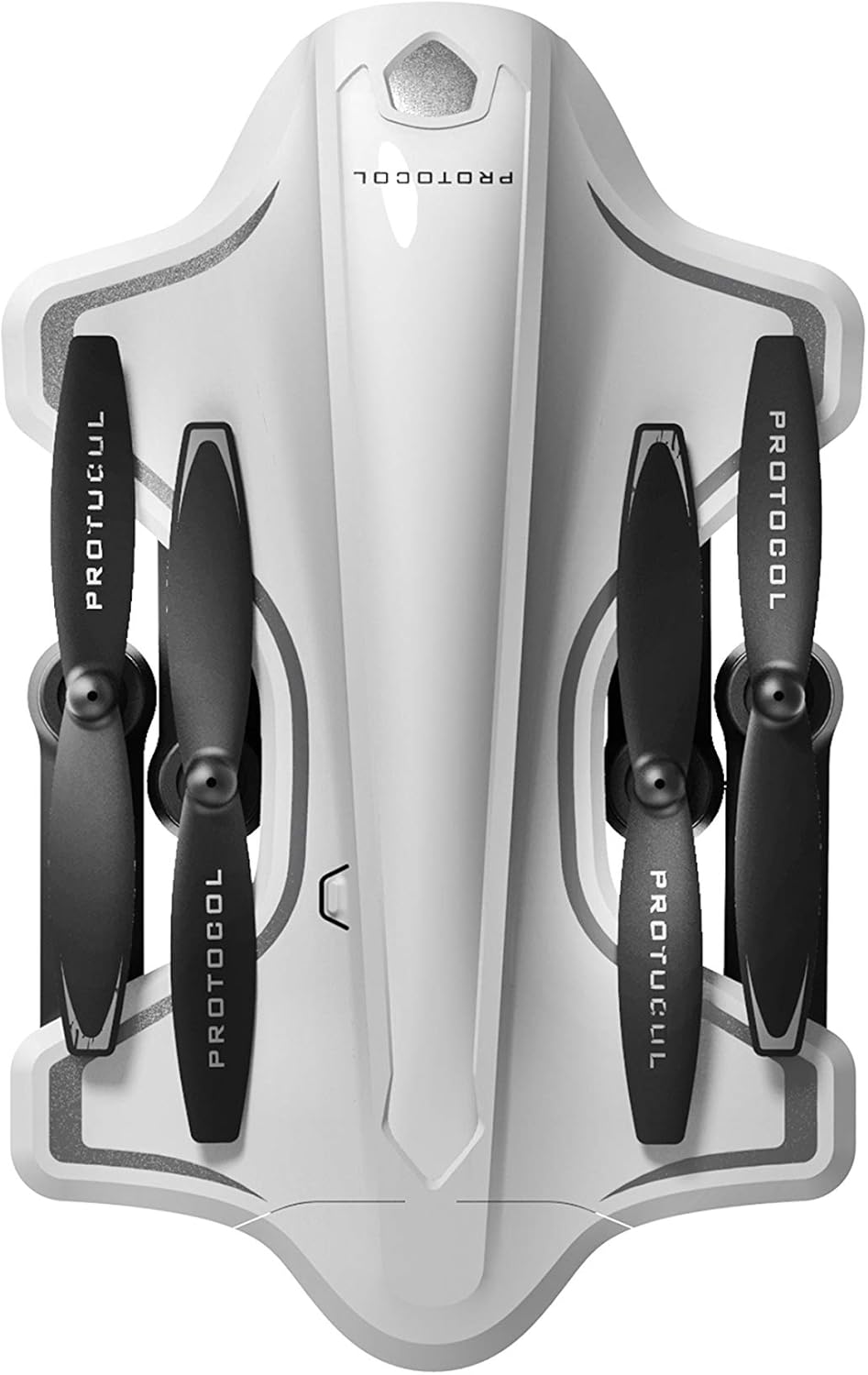
Image: The Protocol Director HD Foldable Drone in its compact, folded configuration, ready for transport.
4. Installing the Drone Battery
- Pezani chipinda cha batri pa drone.
- Insert the fully charged drone battery, ensuring it is securely seated.
- Tsekani chivundikiro cha chipinda cha batri.
5. Downloading the App (Optional for Camera Features)
- Saka the "Protocol Director HD" app in your smartphone's app store (iOS or Android).
- Download and install the free application.
- Mount your smartphone onto the remote control's phone mount.
Malangizo Ogwiritsira Ntchito
1. Kuyatsa ndi Kuyanjanitsa
- Ikani drone pamalo athyathyathya.
- Turn on the drone by pressing the power button. The drone's lights will flash.
- Yatsani mphamvu yakutali.
- Push the left joystick (throttle) all the way up, then all the way down. The drone's lights will become solid, indicating successful pairing.
2. Calibrating the Gyroscope
After pairing, it is recommended to calibrate the gyroscope for stable flight:
- With the drone on a flat surface, push both joysticks down and to the right simultaneously for a few seconds.
- The drone's lights will flash rapidly and then become solid, indicating calibration is complete.
3. Basic Flight Controls
The Protocol Director HD features auto launch, hover, and land functions due to its altitude sensor.
- Auto Launch: Press the dedicated auto launch button on the remote. The drone will ascend to a stable hovering altitude.
- Throttle (Kumanzere Joystick):
- Push up: Increase altitude
- Push down: Decrease altitude
- Push left/right: Rotate drone left/right (yaw)
- Directional Control (Right Joystick):
- Push up: Fly forward
- Push down: Fly backward
- Push left: Fly left (strafe)
- Push right: Fly right (strafe)
- Auto Land: Press the dedicated auto land button. The drone will slowly descend and land.
- Kusankha Liwiro: Use the speed button on the remote to cycle through three selectable speeds (low, medium, high).
4. Camera and App Features
Connect your smartphone to the drone's Wi-Fi network (usually named "Protocol_Drone_XXXXXX") to access live streaming and advanced camera functions via the app.
- Kukhamukira Kwaposachedwa: View the drone's camera feed in real-time on your smartphone.
- Kujambula Kanema: Initiate and stop video recording (480p resolution) through the app.
- Jambulani zithunzi: Take still images through the app.
- Multiple Camera Angles: The app supports three different camera angles (Aerial, POV, Selfie) for varied content creation.
- Kujambulira mawu: The app allows for audio recording alongside video.
- Draw Your Own Flight Path: Utilize the app's feature to draw a flight path on your screen, and the drone will follow it.
- VR Capability: The app is VR capable; VR goggles are sold separately.
Kusamalira
- Kuyendera kwa Propeller: Regularly check propellers for cracks, bends, or damage. Replace any damaged propellers using the provided spare parts and screwdriver.
- Kuyeretsa: Use a soft, dry cloth to clean the drone and remote control. Avoid using liquids or harsh chemicals.
- Kusamalira Battery:
- Osachulukitsa mabatire.
- Sungani mabatire pamalo ozizira, owuma.
- Remove batteries from the drone and remote control during long periods of non-use.
- Posungira: Fold the drone arms for compact storage in the provided travel bag when not in use. Store in a cool, dry environment.
Kusaka zolakwika
| Vuto | Chifukwa Chotheka | Yankho |
|---|---|---|
| Drone siyiyatsa. | Batire silinaperekedwe kapena kuyikidwa molakwika. | Onetsetsani kuti batire yachangidwa bwino ndikuyikidwa bwino. |
| Remote control does not power on. | AA batteries are dead or incorrectly installed. | Replace AA batteries, checking polarity. |
| Drone and remote do not pair. | Pairing sequence not followed correctly. | Ensure drone is on, then remote. Push left joystick up then down completely. |
| Drone imayandama panthawi ya ndege. | Gyroscope needs calibration; uneven surface at launch. | Land the drone, place on a flat surface, and recalibrate the gyroscope (both joysticks down and right). |
| One propeller does not spin. | Propeller damaged or motor issue. | Check for obstructions. Replace damaged propeller. If issue persists, contact support. |
| No live video feed on smartphone. | Silikulumikizidwa ku Wi-Fi ya drone; pulogalamu siitsegulidwa. | Ensure smartphone is connected to the drone's Wi-Fi network and the app is running. |
Zofotokozera
| Mtundu | Ndondomeko |
| Dzina lachitsanzo | Director HD |
| Nambala ya Model | 6182-7RCHA |
| Makulidwe (Osanjidwa) | Approximately 4.75 inches (length) |
| Makulidwe (Okulitsidwa) | Approximately 9 inches (length, including blades) |
| Kulemera | 0.94 Makilo (940g) |
| Kusintha kwa Kamera | 480p (Video Capture) |
| Kulumikizana | Wi-Fi (for app control and live streaming), 2.4 GHz (for remote control) |
| Kukhazikika | 6-axis motion-sensitive auto stabilizers, Altitude sensor |
| Mitundu Yothamanga | Three selectable speeds |
| Drone Battery | Ingathe kubwezeretsedwanso (ziwiri zikuphatikizidwa) |
| Battery Yakutali | 4 x AA mabatire (osaphatikizidwa) |
| Zakuthupi | Plastic (Crash-resistant) |
| Zaka zovomerezeka | Zaka 14 ndi pamwamba |
Chitsimikizo ndi Thandizo
For warranty information, technical support, or to purchase replacement parts, please visit the official Protocol webtsamba kapena funsani dipatimenti yawo yothandizira makasitomala. Sungani lisiti yanu yogulira ngati umboni wogula.
Webtsamba: www.protocolny.com (Kulample ulalo, ulalo weniweni ukhoza kusiyana)
Contact: Refer to the Protocol website for contact details, including phone numbers or email support.