
1. Mawu Oyamba
This manual provides essential information for the safe and efficient operation of your Philips 40PFL4609/F8 40-inch Full HD LED Smart TV. Please read these instructions carefully before using your television and retain them for future reference.
2. Zambiri Zachitetezo
Nthawi zonse tsatirani njira zodzitetezera mukamagwiritsa ntchito wailesi yakanemayi kuti muchepetse ngozi ya moto, kugwedezeka kwamagetsi, ndi kuvulala.
- Osawonetsa kanema wawayilesi kumvula kapena chinyezi.
- Osatsegula nduna; kutumiza ntchito zonse kwa anthu oyenerera.
- Onetsetsani kuti pali mpweya wabwino wozungulira TV.
- Tetezani chingwe chamagetsi kuti chisayendedwe kapena kukanidwa.
- Chotsani wailesi yakanema pa nthawi ya mphepo yamkuntho kapena ngati simunaigwiritse ntchito kwa nthawi yaitali.
3. Zamkatimu Phukusi
Onetsetsani kuti zinthu zonse zili m'bokosi:
- Philips 40PFL4609/F8 40-inch Full HD LED Smart TV
- Kuwongolera Kutali (kumafuna mabatire a 2 AAA, ophatikizidwa)
- Chingwe cha Mphamvu
- Tabletop Stand and Screws
- Quick Start Guide (osaphatikizidwa m'buku la digito ili)
- Buku la ogwiritsa (chikalatachi)
4. Kukhazikitsa
4.1 Kutsegula ndi Kuyika
Carefully remove the television from its packaging. Inspect the TV for any physical damage. Place the television on a stable, flat surface or mount it on a wall using a compatible VESA 200x200mm wall mount (sold separately).
4.2 Stand Assembly
If using the tabletop stand:
- Ikani TV nkhope pansi pamalo ofewa, aukhondo kuti musawononge skrini.
- Gwirizanitsani choyimilira ndi mabowo okwera pansi pa TV.
- Tetezani choyimira pogwiritsa ntchito zomangira zomwe zaperekedwa.
4.3 Mphamvu yolumikizira
Connect the power cord to the TV's power input, then plug the other end into a 110 VAC, 60 Hz electrical outlet.
4.4 Kulumikiza Zida Zakunja
Your Philips TV offers various connection options for external devices.
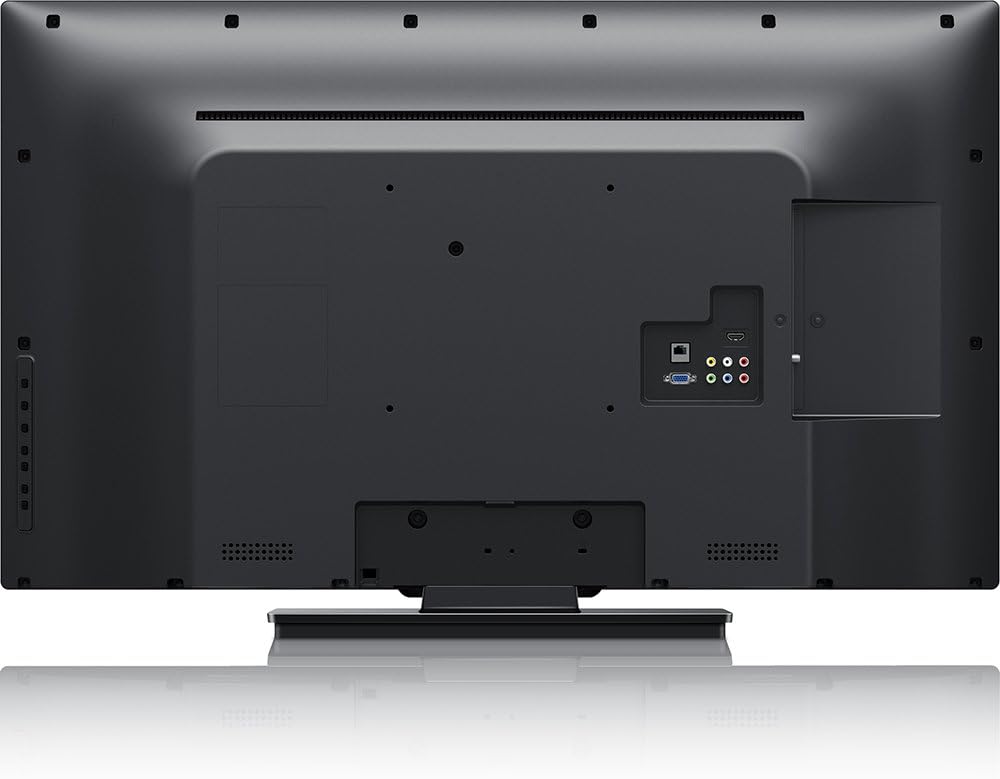
Chithunzi: Kumbuyo view of the Philips 40PFL4609/F8 television, highlighting the input ports including HDMI, DVI, and other audio/video connections.
- HDMI: Connect Blu-Ray players, game consoles, or other HDMI-enabled devices. This model has 1 HDMI port.
- DVI: Connect computers or other DVI-enabled devices.
- USB: Connect USB storage devices for media playback. This model has 1 USB 2.0 port.
- Mlongoti/Chingwe: Lumikizani mlongoti kapena chizindikiro cha TV pamayendedwe owulutsa.
4.5 Wizard Yoyambira Yoyambira
Mukayatsa koyamba, TV idzakuwongolerani njira yokhazikitsira:
- Kusankha Chiyankhulo: Sankhani chilankhulo chomwe mumakonda.
- Kulumikizana ndi netiweki: Connect to your home Wi-Fi network. The TV supports Wi-Fi connectivity.
- Jambulani Channel: Scan for available broadcast channels (if an antenna or cable is connected).
5. Kugwiritsa ntchito TV
5.1 Kuwongolera kwakutaliview
The included remote control allows you to navigate menus, adjust settings, and control playback. Insert two AAA batteries into the remote control, ensuring correct polarity.
5.2 Ntchito Zoyambira
- Mphamvu: Dinani batani lamphamvu kuti muyatse kapena kuyimitsa TV.
- Voliyumu: Gwiritsani ntchito mabatani a voliyumu kuti musinthe kuchuluka kwa mawu.
- Channel: Gwiritsani ntchito mabatani a tchanelo kuti musinthe makanema apa TV.
- Zolowetsa: Press the input button to select connected devices (HDMI, DVI, etc.).
5.3 Smart TV Features (Net TV)
Your Philips TV features Net TV, providing access to online content and applications.
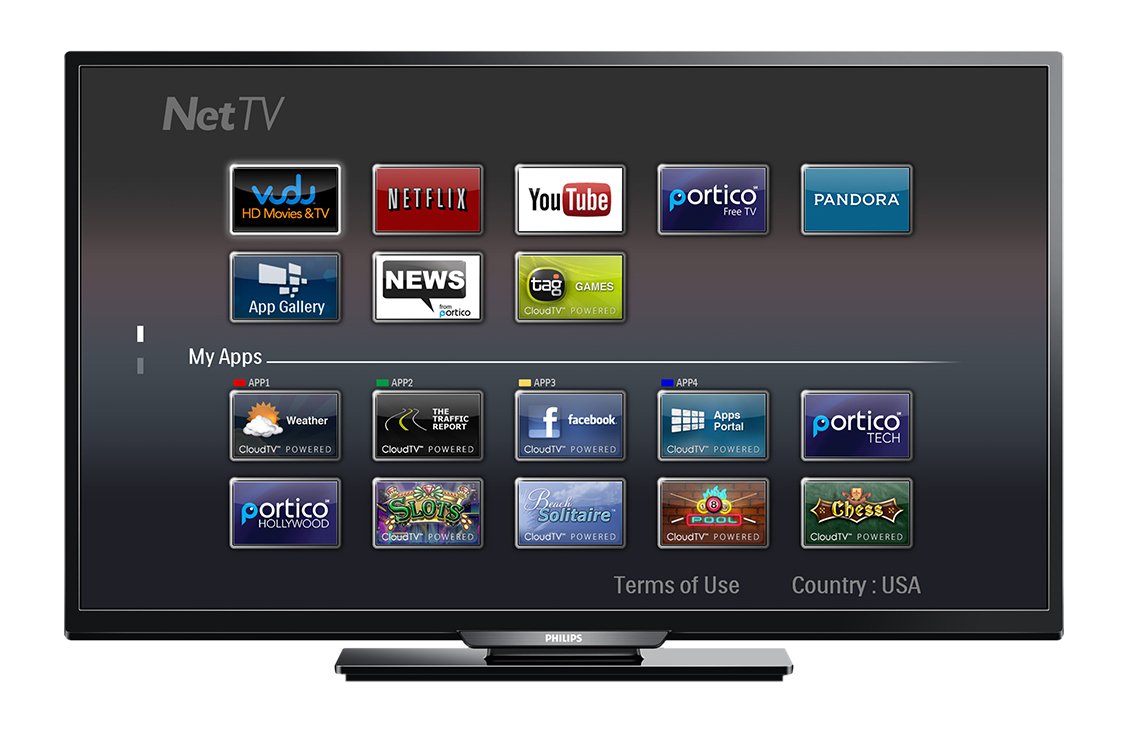
Chithunzi: Patsogolo view of the Philips 40PFL4609/F8 television, showing the Net TV interface with various application icons such as Netflix, YouTube, and other streaming services.
- Kulowa mu Mapulogalamu: Use the remote control to navigate to the Net TV menu and select applications like Netflix and YouTube.
- Kulumikizana kwa Wi-Fi: Ensure your TV is connected to a stable Wi-Fi network for optimal Smart TV performance.
Mapangidwe a Chithunzi cha 5.4
Adjust picture settings to enhance your viewzochitika:
- Pixel Plus HD: This video engine enhances detail, depth, and clarity.
- 120Hz PMR (Perfect Motion Rate): Provides sharp images in fast-moving scenes.
- Access the picture menu to adjust brightness, contrast, color, and sharpness.
5.5 Zikhazikiko za Phokoso
Optimize audio output:
- SRS TruSurround: Enjoy immersive sound with this integrated surround sound format.
- Access the audio menu to adjust bass, treble, and sound modes.
5.6 Media Kusewera kudzera pa USB
Connect a USB storage device to the TV's USB 2.0 port to view zithunzi, sewerani nyimbo, kapena onerani makanema.
6. Kusamalira
6.1 Kuyeretsa Screen
Pang'onopang'ono pukutani chinsalu ndi nsalu yofewa, yopanda lint. Kwa zizindikiro zamakani, dampen the cloth with a small amount of water or a specialized screen cleaner. Do not spray liquid directly onto the screen.
6.2 Kuyeretsa Casing
Pukutani TV casing ndi nsalu yofewa, youma. Pewani kugwiritsa ntchito zotsukira abrasive kapena solvents.
6.3 Zosintha za Mapulogalamu
This model may not support automatic software updates via the internet. Check the Philips support website for information on manual firmware updates, if available, to ensure optimal performance and access to the latest features.
7. Mavuto
Ngati mukukumana ndi mavuto ndi wailesi yakanema yanu, onani njira zotsatirazi zomwe zimadziwika bwino:
- Palibe Mphamvu: Ensure the power cord is securely plugged into both the TV and the electrical outlet. Check the power outlet with another device.
- Palibe Chithunzi/Kamvekedwe: Verify the correct input source is selected. Check all cable connections (HDMI, DVI, antenna).
- Palibe Network Network: Ensure your Wi-Fi router is working correctly. Re-enter your Wi-Fi password if necessary.
- Net TV Limitations: Some users have reported that the Net TV functionality on this model can be basic or limited in terms of additional app installation or software updates. If you find the built-in Smart TV features insufficient, consider connecting an external streaming device.
- Kuwonongeka Kwathupi: Upon unboxing, carefully inspect the screen and casing for any damage, especially along the edges, which could affect display quality. Contact your retailer immediately if damage is found.
- Kuwongolera Kwakutali Sikugwira Ntchito: Replace the AAA batteries. Ensure there are no obstructions between the remote and the TV's IR sensor.
8. Zofotokozera

Chithunzi: Mbali view of the Philips 40PFL4609/F8 television, illustrating its slim profile and side-mounted connectivity options.
| Mbali | Kufotokozera |
|---|---|
| Dzina lachitsanzo | Chithunzi cha PHILIPS40PFL4609/F8 |
| Kukula kwa Screen | 40 Inches (100.3 Centimeters) |
| Kuwonetsa Technology | LED, LCD |
| Kusamvana | 1080p HD yonse |
| Mtengo Wotsitsimutsa | 120 Hz (120Hz PMR) |
| Mbali Ration | 16:9 |
| Kulumikizana Technology | Wifi |
| Ntchito Zogwirizana ndi Intaneti | Netflix, YouTube |
| Zapadera | Blu-Ray compatible, DVI Input, HDMI Input, Full HD, HD Compatible, Internet, Surround Sound |
| Madoko a HDMI | 1 |
| Madoko a USB 2.0 | 1 |
| Njira Zotulutsa Audio | Stereo, Phokoso Lozungulira |
| Integrated Surround Sound Format | SRS TruSurround |
| Kufotokozera kwa Spika | SRS TruSurround |
| Kugwiritsa Ntchito Mphamvu | 89 Watts |
| Voltage | 110 VAC 60 Hz |
| Kulemera kwa chinthu | 8200 gm |
| VESA Mounting Standard | 200x200 mm |
| Mtundu | Wakuda |
| Zida Zogwirizana | Laptop, Tablet, Game Console, Headphones |
| Chaka Chachitsanzo | 2016 |
9. Chidziwitso cha Chitsimikizo
This Philips television comes with a Chitsimikizo chochepa cha miyezi 12 provided by the manufacturer. Please retain your proof of purchase for warranty claims. The warranty covers manufacturing defects under normal use conditions.
10. Thandizo la Makasitomala
For further assistance, technical support, or warranty inquiries, please contact Philips customer service. Refer to the official Philips website or your product packaging for contact details specific to your region.